
Help
Frequently asked questions
Available on every plan
These are the questions asked most often, each with a short answer. Tap a question to open its answer. Every answer points to the page of this guide that explains the subject in full.
Getting started
Who is Handballmaestro for?
For every handball coach. For the coach who only keeps track of the goals and shares them live with the folks at home, for the coach who records every action of both teams and takes the match apart afterwards, and for everyone in between.
Everyone uses the same app. The difference is in what you switch on when you set up a match. What you don't switch on stays out of your way. You set this per match, so a friendly can stay simple while you record the league match in full detail.
The five steps from simple to complete are in Choosing how much to record.
Which devices does the app work on?
On iPhone and iPad, and on Android phones and tablets. You download the app for free from the App Store or from Google Play.
The app is available in twelve languages: Dutch, English, German, French, Spanish, Italian, Polish, Brazilian and European Portuguese, Danish, Turkish and Ukrainian. You choose the language the first time you start the app and can change it later in the settings.
The live scoreboard, the coach dashboard, the attendance page and the statistics website are web pages. Anyone viewing them doesn't need the app.
Is Handballmaestro free?
Yes, you can start for free. Base is free and stays free. With it you record five matches, for one team: goals, cards, 7-meter throws and substitutions, with the live scoreboard and a match report.
If you want to record more matches, register every shot with its position, record together with others or use the advanced analysis, you choose Pro or Max. A subscription applies per team, not per person. You buy it for one month, three months or a year at a time, and it is never renewed automatically.
Want to see what you get first? A demo team starts on Max, and there you switch between Base, Pro and Max without paying. See the current prices on the pricing page and everything side by side in What it costs and what you get.
Do I need an account?
No, the app also works without an account. Your teams and matches are then stored only on your own device. That is fine for trying out the app, but they are gone if you delete the app or lose your phone.
With an account, your teams, players, periods, matches and opponents are also stored online. You then see them on every device you sign in on, and you can share a team with someone else. You need an account for a subscription, attendance requests and recording together.
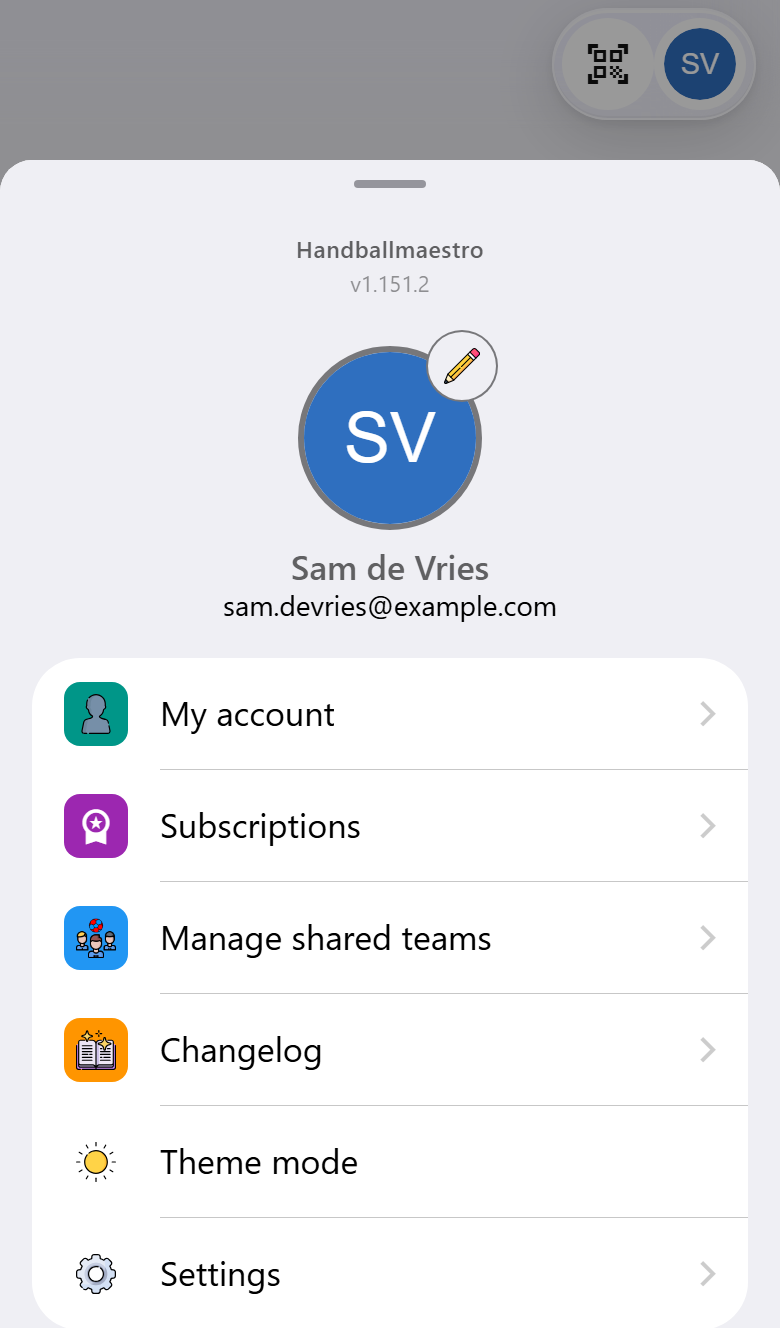
You can sign in with an email address or with Apple, Google or Microsoft, through the round picture at the top right of the home screen. Whatever you created before signing in is linked to your account. See Your account and your data.
Can I try the app first with sample data?
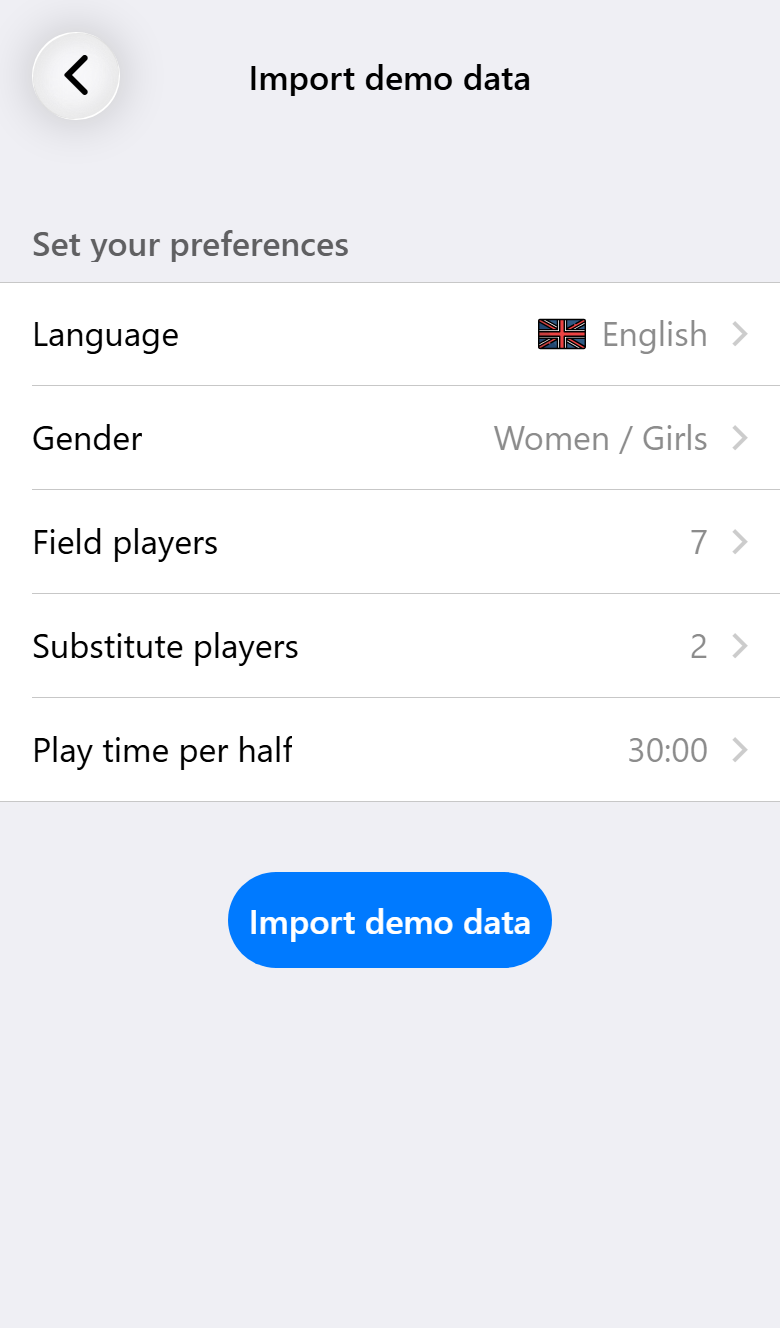
Yes. On an empty home screen, tap Import demo data. If you already have a team, you find the same option in the settings under Import or export. Choose the language, the kind of team, how many players are on the court, how many substitutes there are and how long a half lasts.
You get a team with a squad, a period for the current season, four played matches with reports and statistics, and three upcoming matches to start yourself. You don't need an account for it.
A demo team starts on Max. On the team page you switch between Base, Pro and Max without paying, so you see exactly what each subscription adds. See Trying everything on a demo team.
How do I create my team?
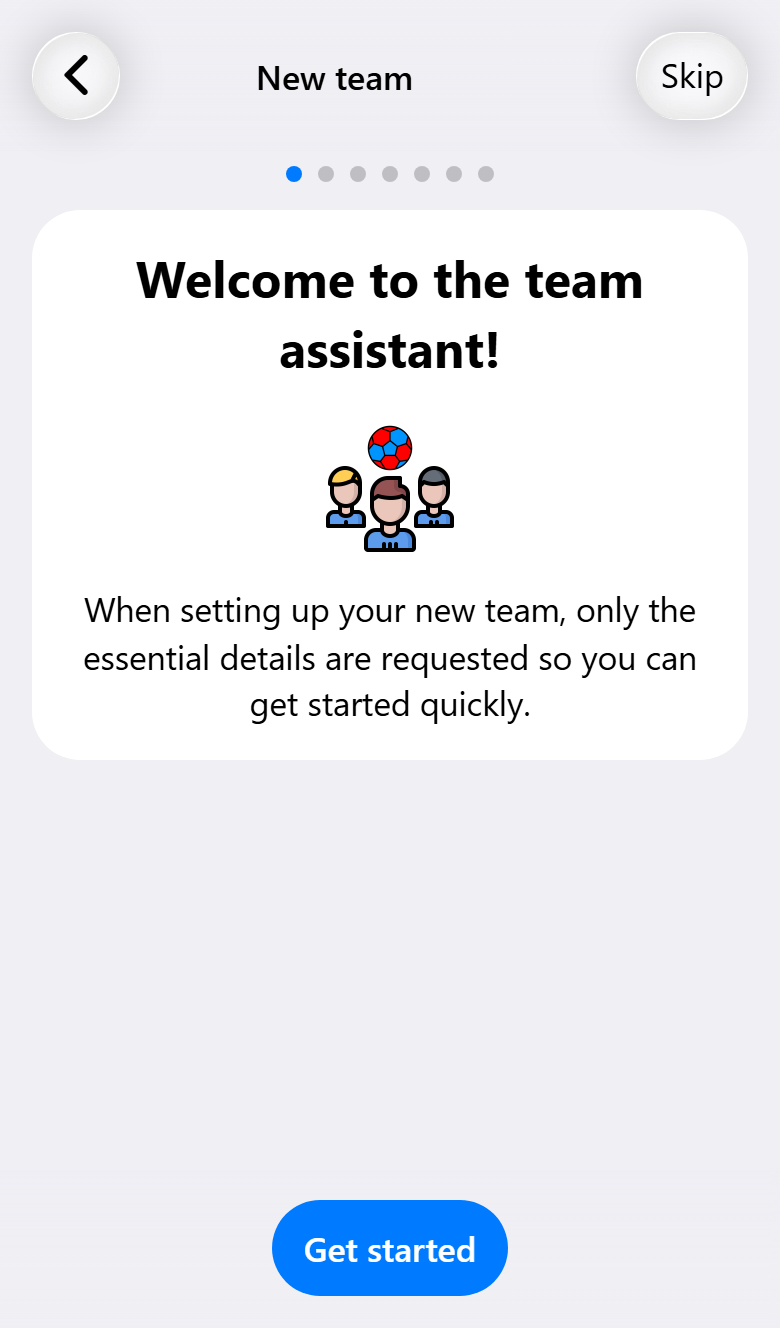
On an empty home screen, tap New team or the round button in the middle of the bar at the bottom. If you already have a team, open the menu with the three dots on the team card on the home screen and choose New team.
The team assistant asks for the club name, the team name, how long a half usually lasts, the kit and the players. You can change all of it afterwards. If you already have a team from the same club, you can start from a copy of it. Read all about it in Setting up your team.
How do I add players to my team?
Open your team: tap the pencil on the team card on the home screen, or tap the active team once more on the Teams tab at the bottom. In the squad you add players by name, with a default jersey number and their preferred positions.
A player can be in more than one team. Someone who also plays in an older age group is then one player with one set of statistics. Read more in The squad.

I coach several teams. Can I do that in one app?
Yes, there is no limit on the number of teams. On the Teams tab, the icon with the figures in the bar at the bottom, all your teams are listed. Tap a team to make it active. The matches, statistics and periods follow along.
A subscription belongs to a team. So your first team can be on Max while the youth team you help out with stays on Base. With Base you record five matches, for one team. Matches of teams on Pro or Max don't count towards that.
The quickest way to create a second team from the same club is as a copy of the first. See Multiple teams and periods.
Can I import matches from the HandbalNL app?
Yes. HandbalNL is the app of the Dutch handball federation (NHV). With Pro you link a period to your team's match schedule in Sportlink, the competition system the federation uses, so you never have to type in a match again.
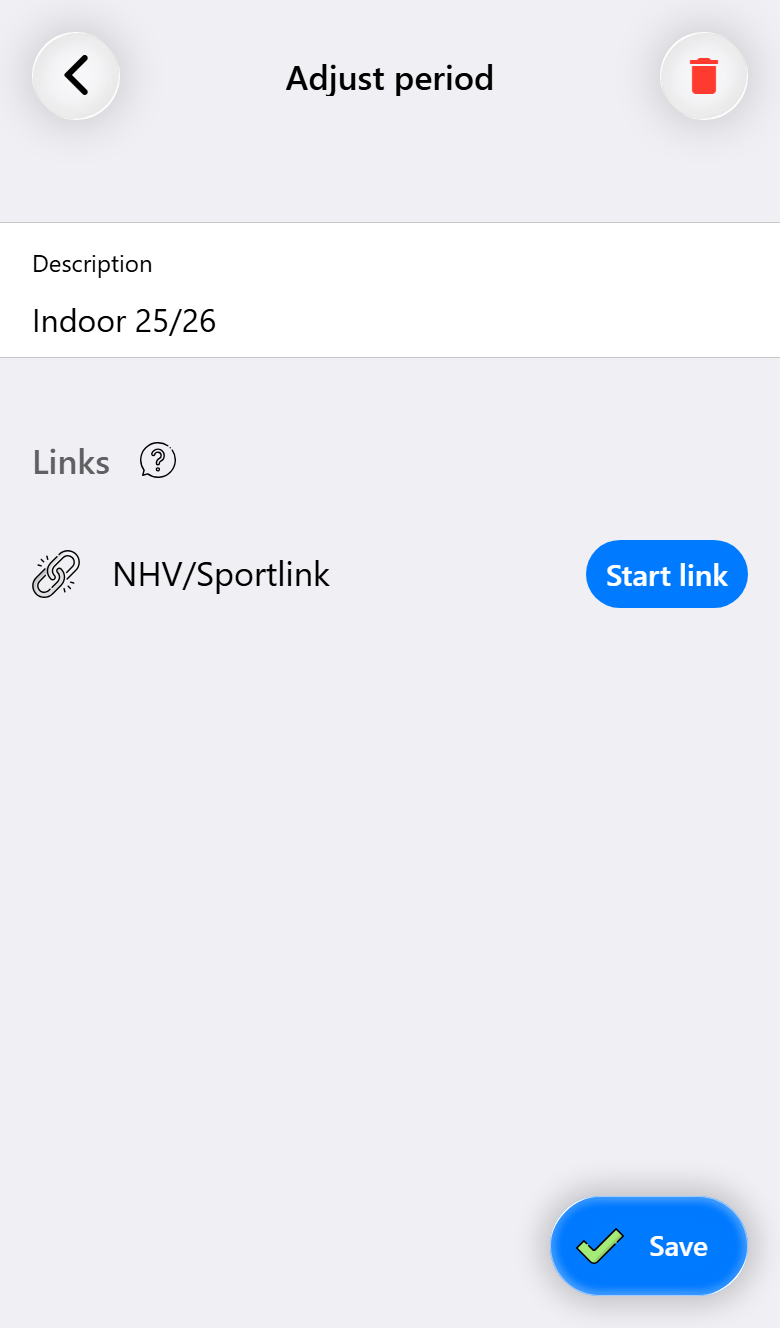
In the HandbalNL app, open your team and tap the calendar icon. It explains how to get the calendar link. In Handballmaestro, choose NHV in the period wizard, or open an existing period and tap Start link. Paste the link and the matches arrive in that period as drafts.
The app checks the calendar itself, at most once a day, so that a changed start time, for example, is picked up. The full step-by-step guide is in Linking the NHV calendar.
Does Handballmaestro replace the digital match form (DWF)?
No. The DWF in the HandbalNL app remains the official match form of the NHV, the Dutch handball federation, and the result entered there is the official result. Handballmaestro is there for you as a coach: to record, share and analyze the match.
The two complement each other. You bring your schedule in from Sportlink through the calendar link, so you don't have to enter your matches twice. See Linking the NHV calendar.
During the match
How much should I record during a match?
As much as you want. You choose what to record per match in the match assistant. Roughly, there are five steps:
- Only the score, live for the folks at home (Base).
- Substitutions, playing time and cards, for fair playing time (Base, with Pro the full playing times).
- Every shot, from both teams, with the position and the outcome (Pro).
- Turnovers, interceptions, blocks and fast breaks (Max).
- Everything from both teams, with the online statistics environment afterwards (Max).
The more you record, the handier it is to split the work over two or three phones. See Choosing how much to record.
How can I quickly pause or resume the match?
Tap the clock twice. The clock then stops, and two more taps start it again. On a suspension the clock pauses by itself.
You find the same under Match actions, the menu at the top right of the match screen, with Pause match and Resume match. Read more about the scoreboard at the top in The match screen.

Can I adjust the clock during the match?
It happens to everyone: the referee blows the whistle, you stop the clock and forget to start it again when play resumes. Now the clock in the app no longer matches the clock in the hall.
Open Match actions at the top right of the match screen and choose Adjust match clock. Set the time to what the scoreboard in the hall shows and save. Adjusting the match clock is part of Pro. Everything for getting the app and the hall back in step is in When the hall and the app disagree.
I recorded something wrong. Can I undo it?
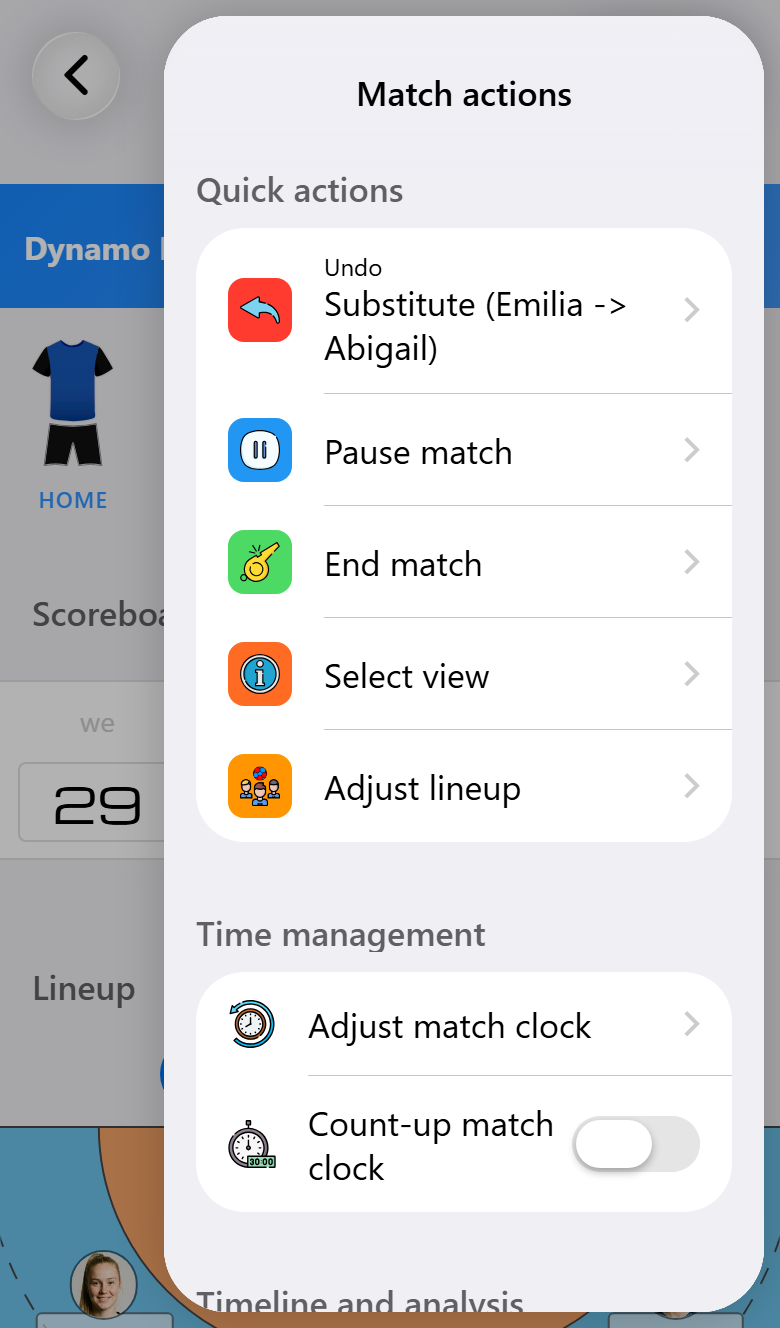
Yes. A wrong tap is easiest to reverse straight away: press and hold the clock, or choose Undo at the top of Match actions. That works with every subscription.
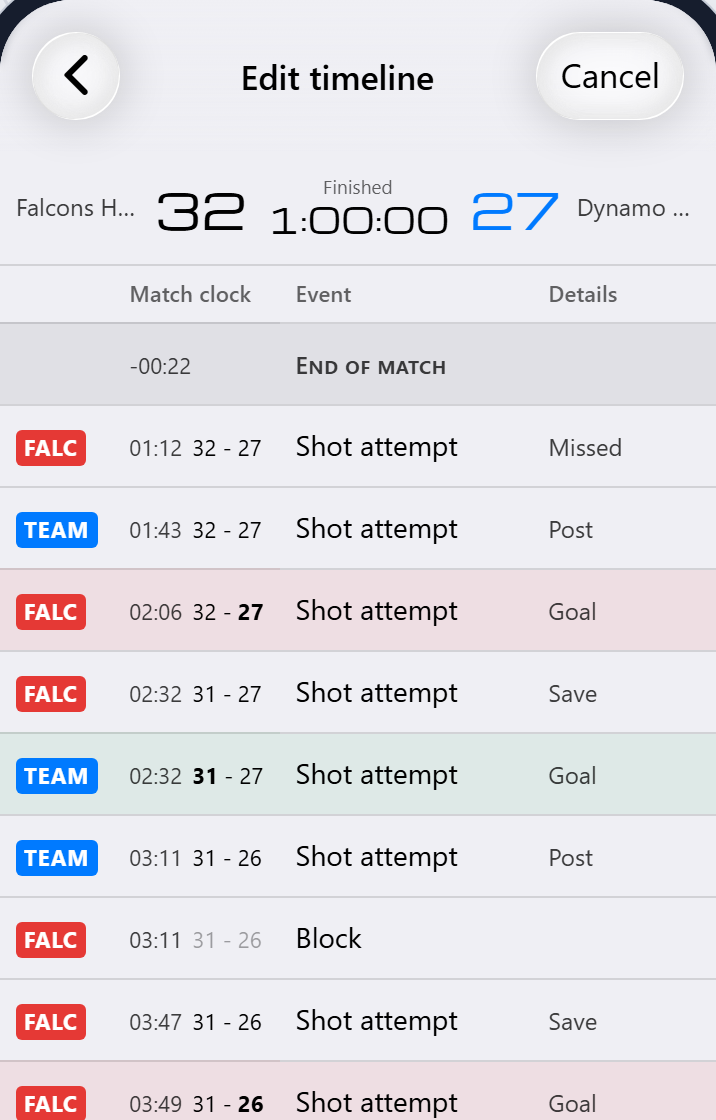
If you only notice later, open the match and choose Manage timeline in the menu at the top right. With Edit (Pro) you delete events, and with the Modify button (Pro) on a shot you change that shot. With Max you can still add what you missed at the right moment. Read how in Correcting it.
I made a substitution mistake and no longer know who is on the court
A few players swap without telling you, and now the court in the app no longer matches the court in the hall. Don't panic, this is easy to fix.
Open Match actions at the top right of the match screen and choose Adjust lineup. Tick the players who are on the bench right now. They are sitting still, so you can find them calmly. Save, and the app records the substitutions that make the court right again. For this, substitutions must be on and the match must have started.
How do I make sure everyone gets fair playing time?
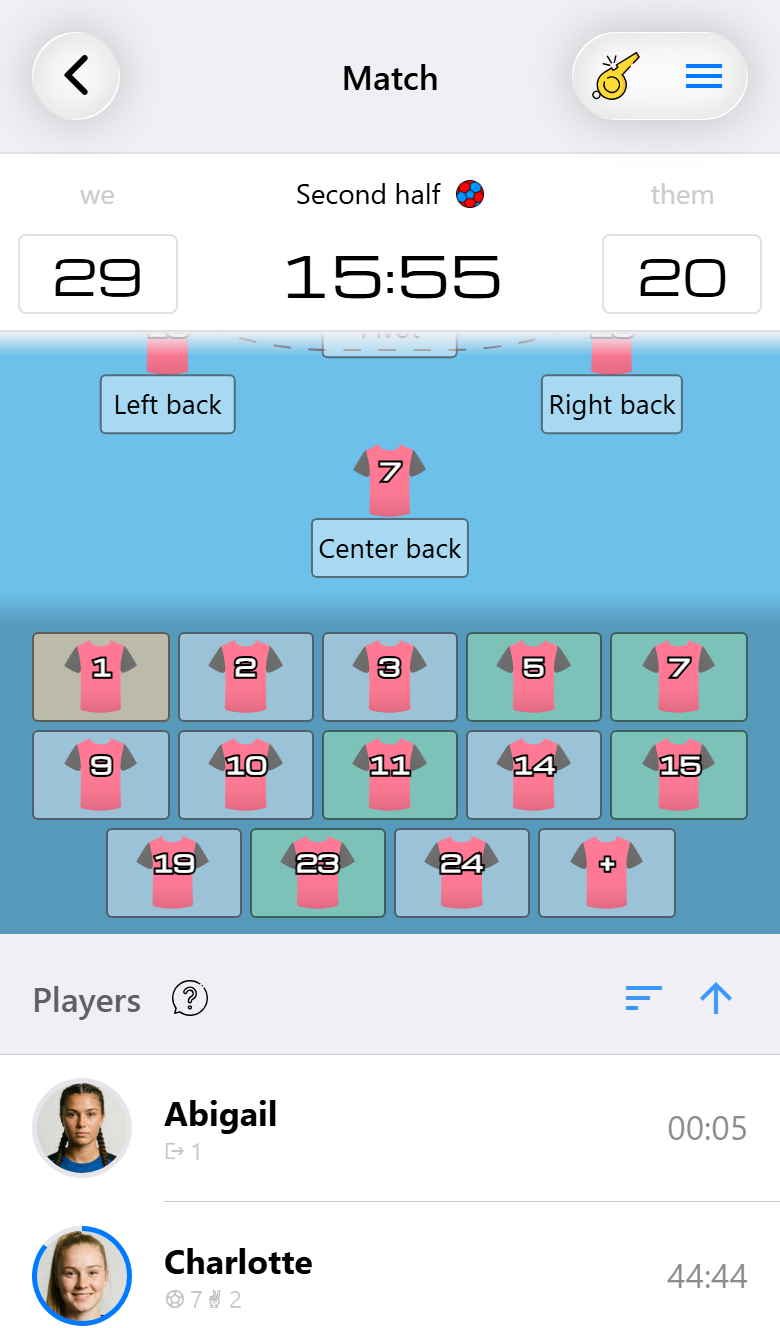
Switch on substitutions when you set up the match. Under every name on the court you then see how long that player has been playing, and under every name on the bench how long they have been resting. You substitute by dragging a player from the bench onto a player on the court.
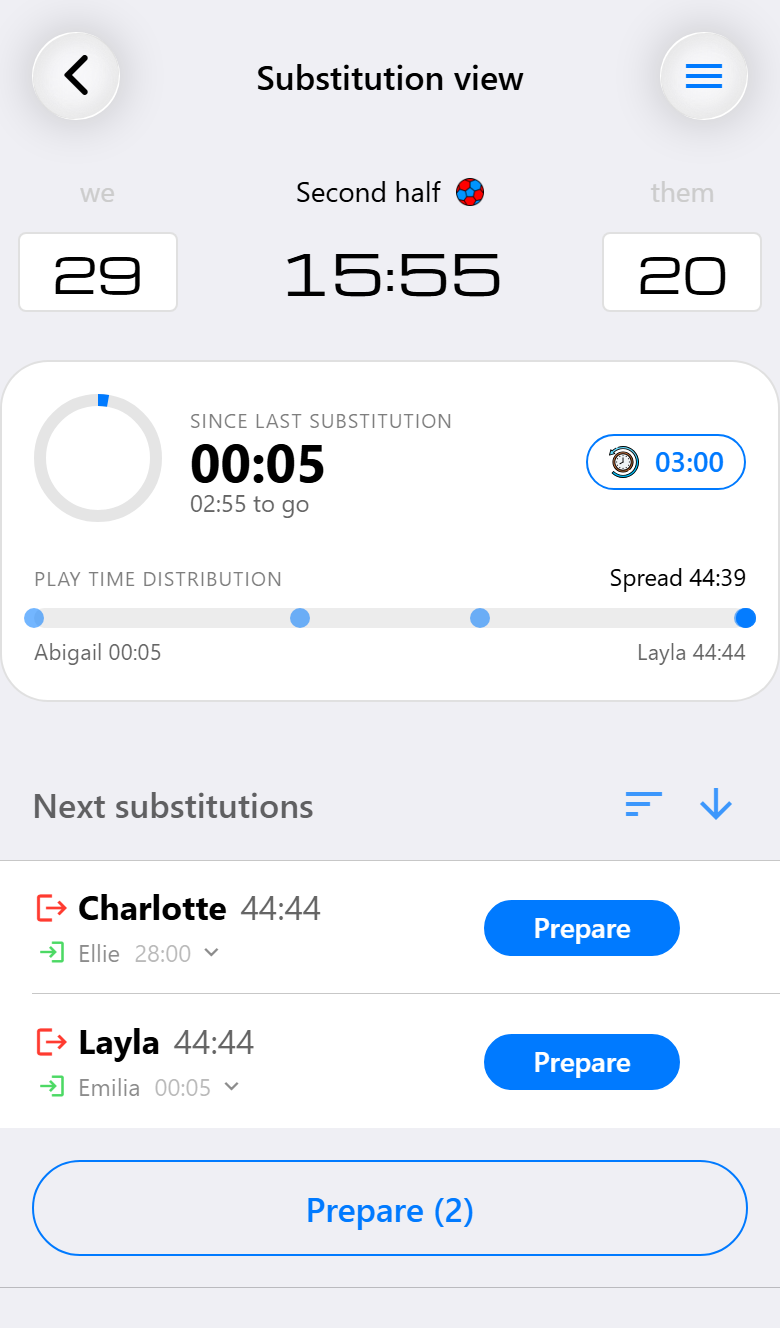
With Base, the times shown stop at three minutes on the court and one minute on the bench. With Pro they keep counting for the whole match and you get the substitution view: a screen with only the clock, the playing times and suggestions for who should go in for whom, based on playing time and position.
See Substitutions.
Can I add a guest player to a match?
Yes. In the match assistant, Add guest player(s) brings in someone from outside the squad for this one match. At the top of the list are the guest players you created before, below them the players from your other teams. With Create guest player you add someone who isn't in the app yet.
A guest player is marked as a guest and doesn't belong to the squad, so your season statistics stay fair. If the match has already started, you can still edit the match and add a (guest) player. Read all about setting up a match in Recording your first match.

Can I also track the opponent's shots and players?
Yes. With Pro and shot attempts on, you also record the opponent's shots, with where they came from and where they went. That way you see afterwards, for example, where their shooters score most often.
With Max you also get the opponent's court. There you give their players a jersey number, so their goals, suspensions and cards land on a number instead of on the team as a whole. See The opponent's court.
Can I keep notes about an opponent for the next time we play them?
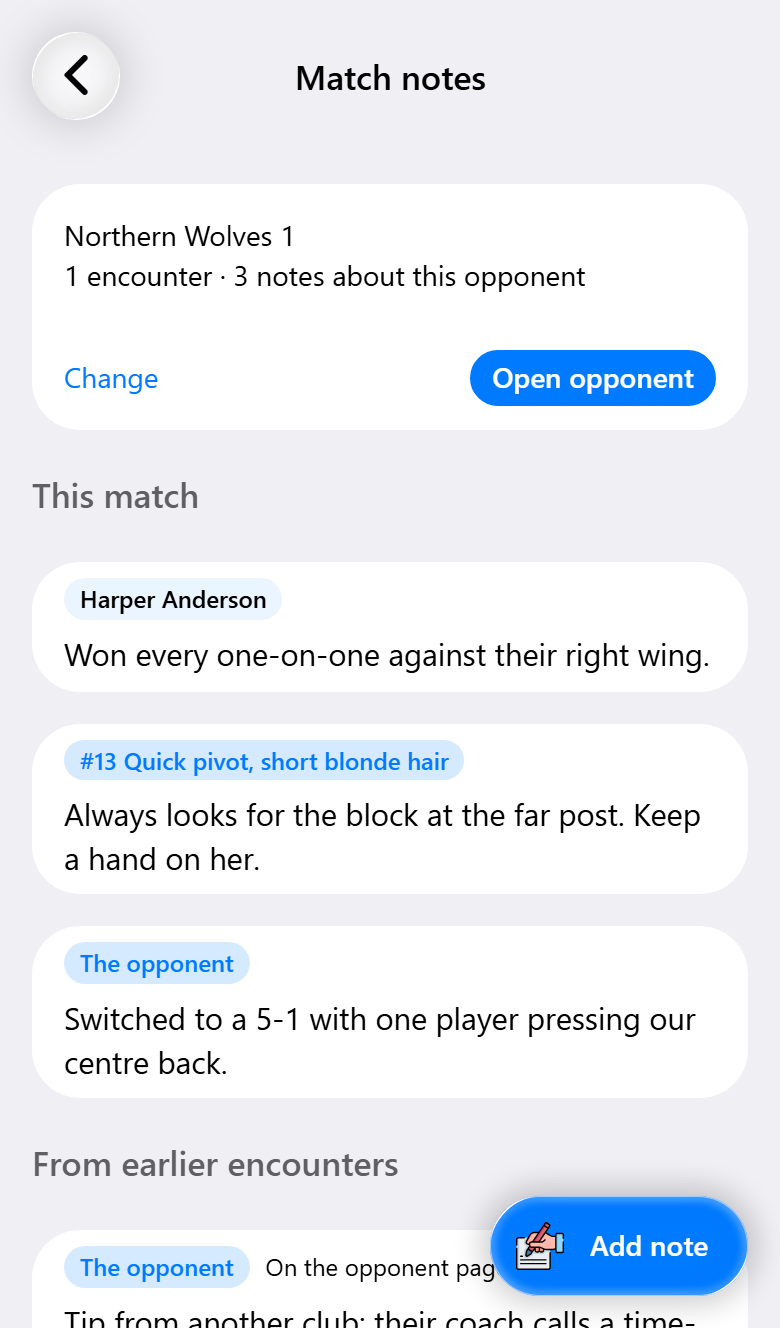
Yes, with Pro. Write Match notes during or after the match: about the opponent, one of their players, your own team or one of your players. Link the match to the team you played, which the app usually does by itself when it recognizes the name. The next match against them then shows everything you noted before, and the opponent gets a page of its own with their players, your notes and how they shot at your goal.
A first encounter needs no link yet: just write your notes, and link the next match to this one. See Knowing your opponent.
Can I group the actions I use most?
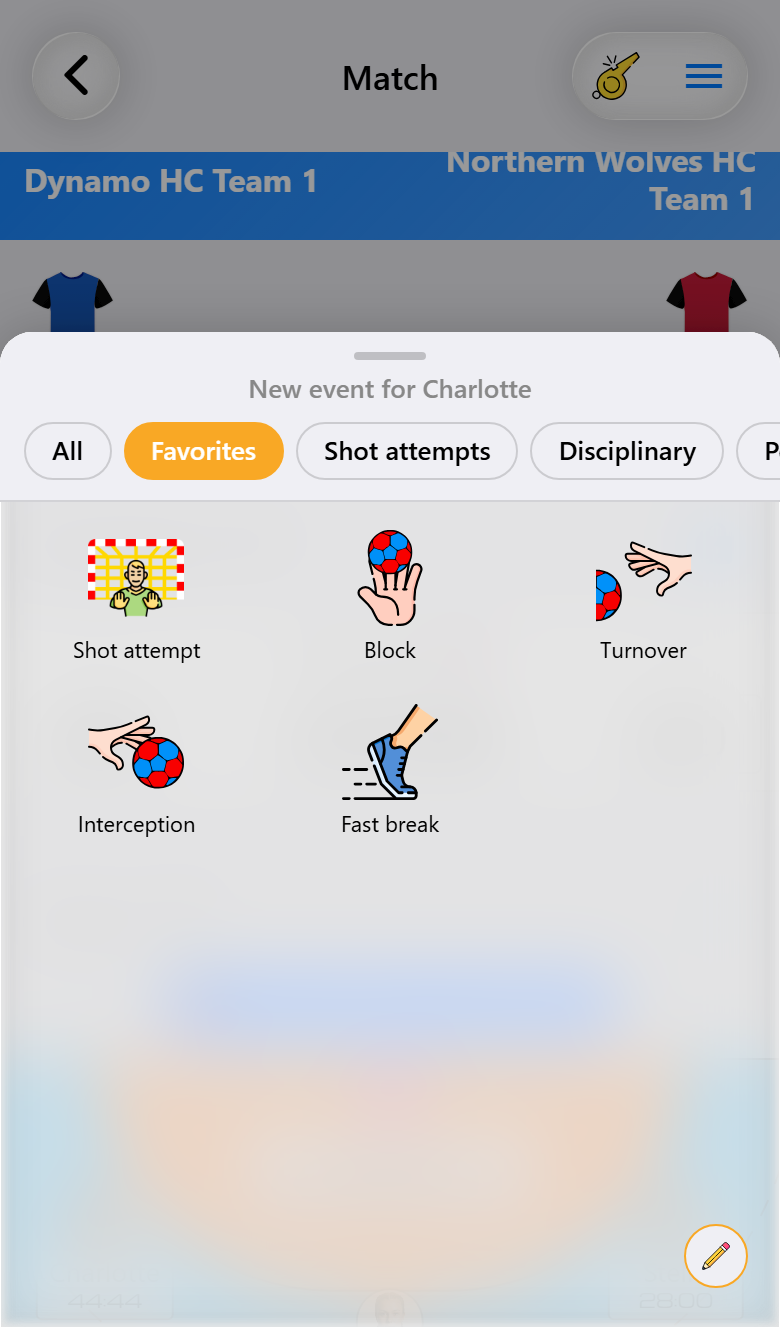
Yes, with Favorites. Tap a player to open the menu, tap Favorites at the top and fill the tab with the pencil at the bottom right. Give the actions you want a star and tap the check mark.
After that, the menu always opens on the tab you used last. Favorites work with every subscription and belong to the phone, so they apply to all your teams. See Favorite actions.
Can I add an event of my own?
Yes. With Max you add up to six custom events, each with its own name and icon. You can do that per match or for your whole team. If you set them up on the team, they appear automatically in every new match.
A custom event can count as a good or a bad action in the performance score, and you can keep it to yourself. Read all about custom events in Everything you can record.
How do I record overtime?
If a match ends in a draw, the match screen offers overtime straight away. You also find it under Match actions at Match decision. You choose how long a period of overtime lasts, five minutes unless you change it, up to four periods in total. If overtime ends level as well, the match screen offers a penalty shootout next. Overtime works with every subscription.
If a match is stopped and played out on another day, with Max you can suspend it and resume it later. See Overtime, a penalty shootout or a suspended match.
How do I record a penalty shootout?
When a match ends in a draw, tap Start penalty shootout on the match screen, or find it under Match actions at Match decision. Choose which team throws first and how many throws each team takes, five unless you change it.
A screen of its own then opens. For every throw you fill in who took it, the goalkeeper it faced, where it went and how it ended: a goal, a save, the post or a foot fault. Only the result is needed, the rest can be left empty. The teams take turns by themselves, and the shootout ends as soon as one team can no longer catch up. If it ends level after every throw, you start a new one or end the match.
The throws do not count towards the score of the match or the performance scores. Penalty shootouts work with every subscription. See The penalty shootout for the whole screen.
Do I need an internet connection during the match?
No. The app doesn't need a connection to record a match. Everything you do is stored on your phone. With an account, it is synchronized as soon as you are back online.
Only the parts that work online by definition need internet: the live scoreboard, recording together and attendance requests. The live scoreboard is published from the phone you record on, so that phone needs a connection. If the connection drops for a moment, everything is sent as soon as you are back online.
Read more in Your account and your data.
Does the app have to stay in the foreground during a match?
No. During a match you can safely open other apps, turn off the screen or even restart your phone. When you open the app again, you see that the clock simply kept running.
An example: the clock reads 19:01 and your phone suddenly restarts. Exactly two minutes later you open the match again. The clock then reads 17:01, in step with the clock in the hall.
Sharing and watching
Can people who aren't at the match still watch along?
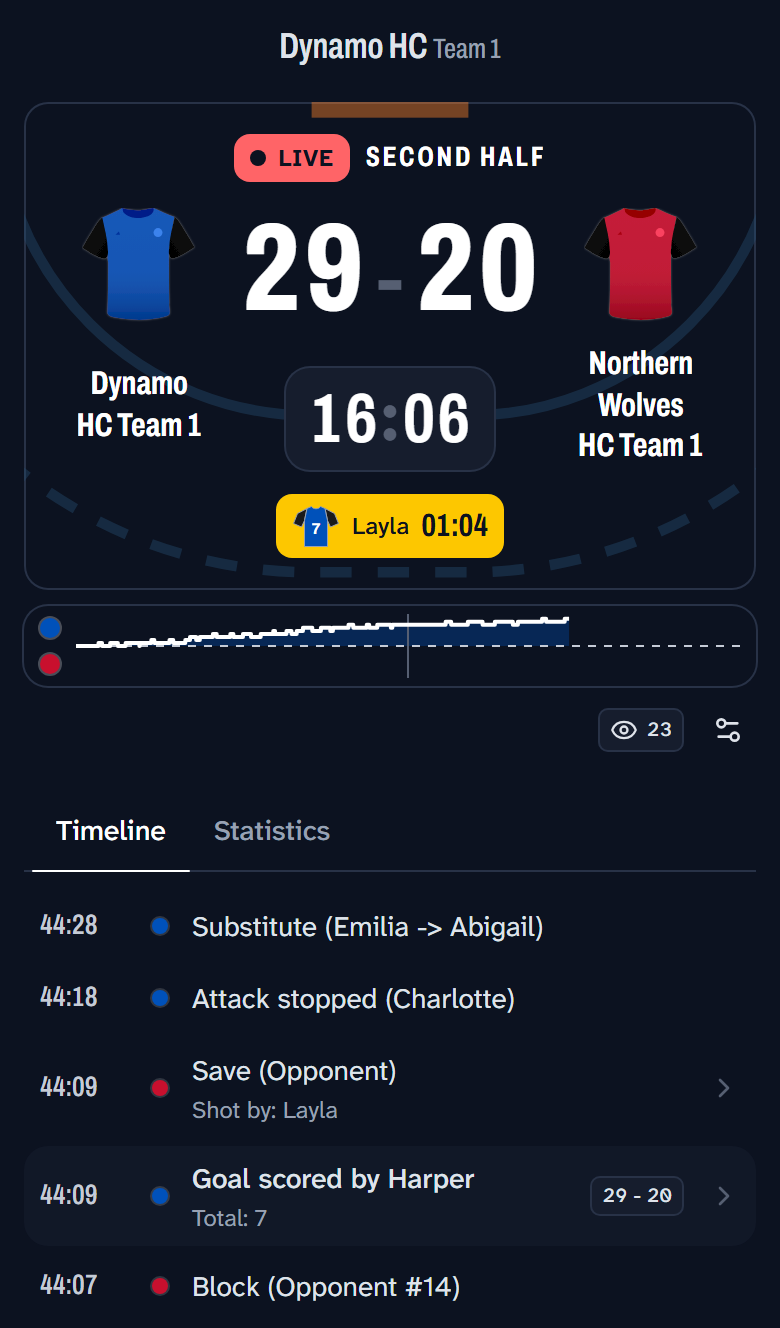
Yes. Switch on the live scoreboard and share the link. Anyone who opens the link sees the score, the clock and how the match unfolds, without the app and without an account. The live scoreboard comes with every subscription.
Open the match, choose Online match center in the menu at the top right and go to the Watch along tab. Switch on Enable and tap Share live scoreboard link. Before the throw-off the link shows a countdown to the start time, so you can safely post it in the group chat in advance.
Read all about the scoreboard in Live scoreboard.
Can I share one link that works all season?
Yes, with Max a team has a permanent scoreboard link. Post it once in the team's group chat. Every week the link shows the match that is live, or otherwise the next one. If there is no match, the page says so and switches over by itself as soon as one starts.
You find the link in the team's settings under Live scoreboard link. You need an account for it. See Live scoreboard.
Can I decide what viewers see of my players?
Yes. Below the live scoreboard link are the Live scoreboard options. There you switch your players' profile pictures on or off, and the playing times too. If you switch off the playing times, viewers see no substitutions and no playing times. Some teams prefer that for youth players.
Notes you make on a match never appear on the scoreboard. Neither do custom events you keep to yourself. See Live scoreboard.
What is the coach dashboard?
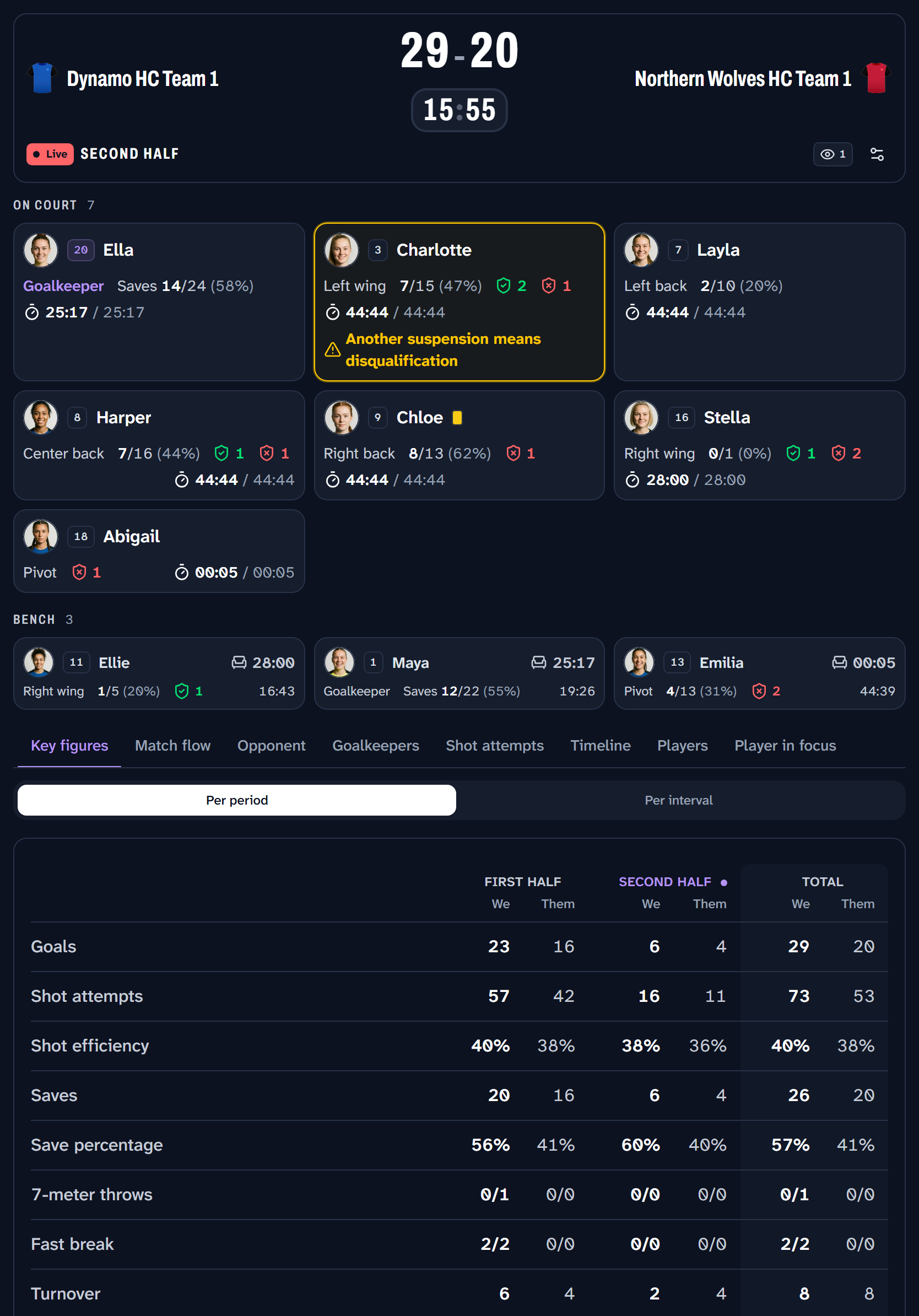
A screen for the bench, on a tablet. It shows the same match as the live scoreboard, but laid out for making decisions: who has rested longest, which player will be disqualified on a next suspension, how the match is going in the last few minutes, and which goalkeeper suits the opponent's shooters best.
The coach dashboard has its own link, separate from the scoreboard's. So supporters with the scoreboard link don't watch along on the bench. On the tablet you need no app and no account. The coach dashboard requires Max. See Coach dashboard.
Can I record a match with several people at once?
Yes. Open the match, choose Online match center and go to the Collaborate tab. Switch on Enable and use Create QR code to make a code for every phone that joins. The other person taps the QR button at the top right of the home screen and scans the code.
Everyone records in the same match, with one timeline and one report. Only the team of the person who switches on collaboration needs Pro. Whoever joins doesn't need a subscription of their own.
How to split the work between three people is in Recording with three people. Getting started is in Recording together.

I'm recording a match together with others, but the updates don't come through
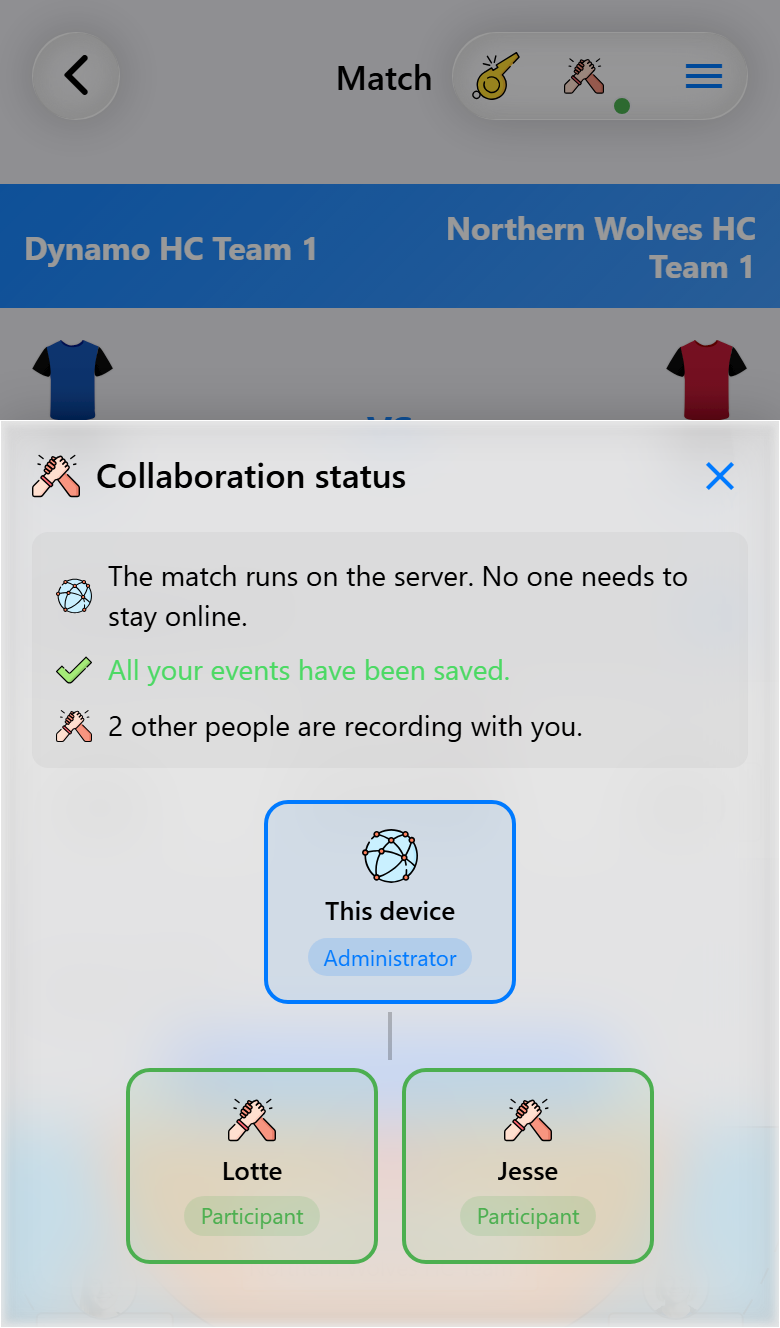
First check that everyone has internet. In a shared match, there is an icon with two hands at the top of the match screen. The dot next to it is green when what you recorded has been saved, orange while it is still being sent and red when you are offline. Tap it to see who is taking part.
The match runs on the server, so nobody has to stay online for the others. What you record without a connection stays on your phone and is sent as soon as you are back online. It then lands in the right place in the timeline. If the server can't accept an event, you get a message with the reason.
See Recording together. If only the live scoreboard isn't working, check that the phone you record on is online.
Can I share my team with my assistant coach?
Yes, with Pro. You both need an account. In the settings panel, open Manage shared teams, tap Share team and choose the team. Choose whether the other person may only create and record matches, or may also change the team settings, the players and the periods. The other person scans the QR code or opens the link.
The subscription belongs to the team. So everyone you share a team on Pro or Max with also has Pro or Max for that team, without paying for it. See Sharing a team.
How do I know who is coming to the match?
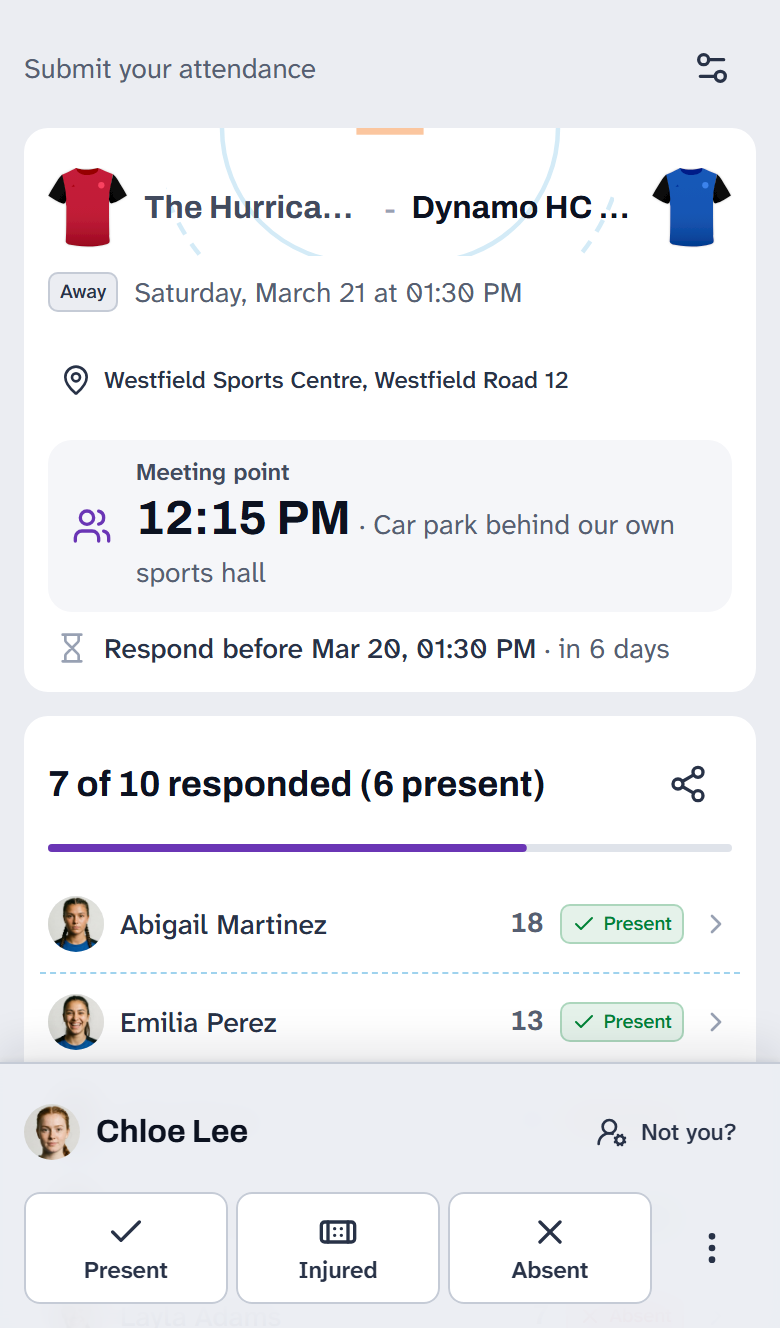
With an attendance request. The match assistant asks for it and creates one link that you post in the group chat. Players tap whether they are Present, Injured or Absent, optionally with a message for you. They don't need the app or an account.
You see who has answered, and Apply all responses puts the answers into the match squad in one go. You can also set fixed meeting times for home and away matches.
For attendance requests you need an account and a team on Pro or Max. See Arranging attendance.
Statistics and reports
Where do I find the report of a match?
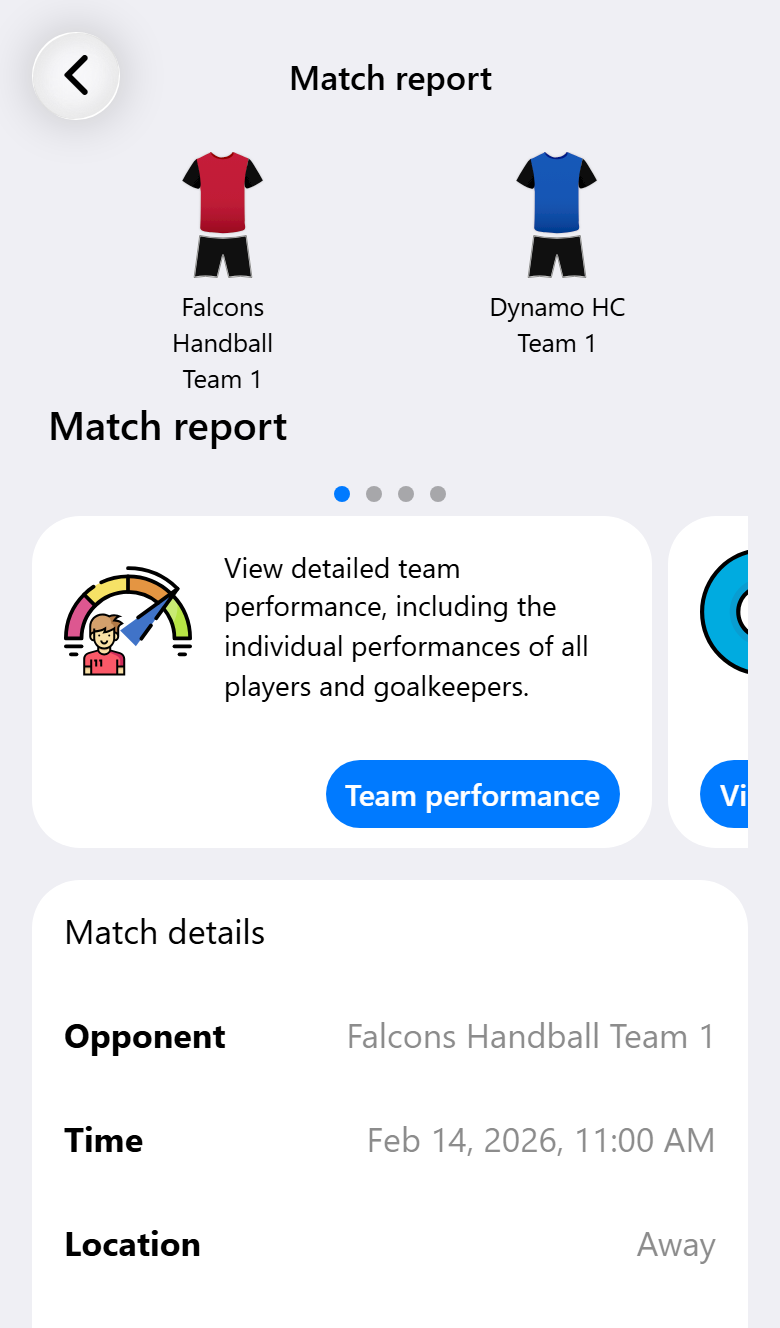
On the statistics tab, the bar chart icon in the bar at the bottom of the screen. At the top are your recent matches with the result. Tap a result to open the report. For a match you have just finished, there is a View report button straight away.
The report shows the final score, the score per period, who was missing, a card per type of action with the count per player, and the full timeline. See Reports and export.
Can I see the statistics for the whole season?
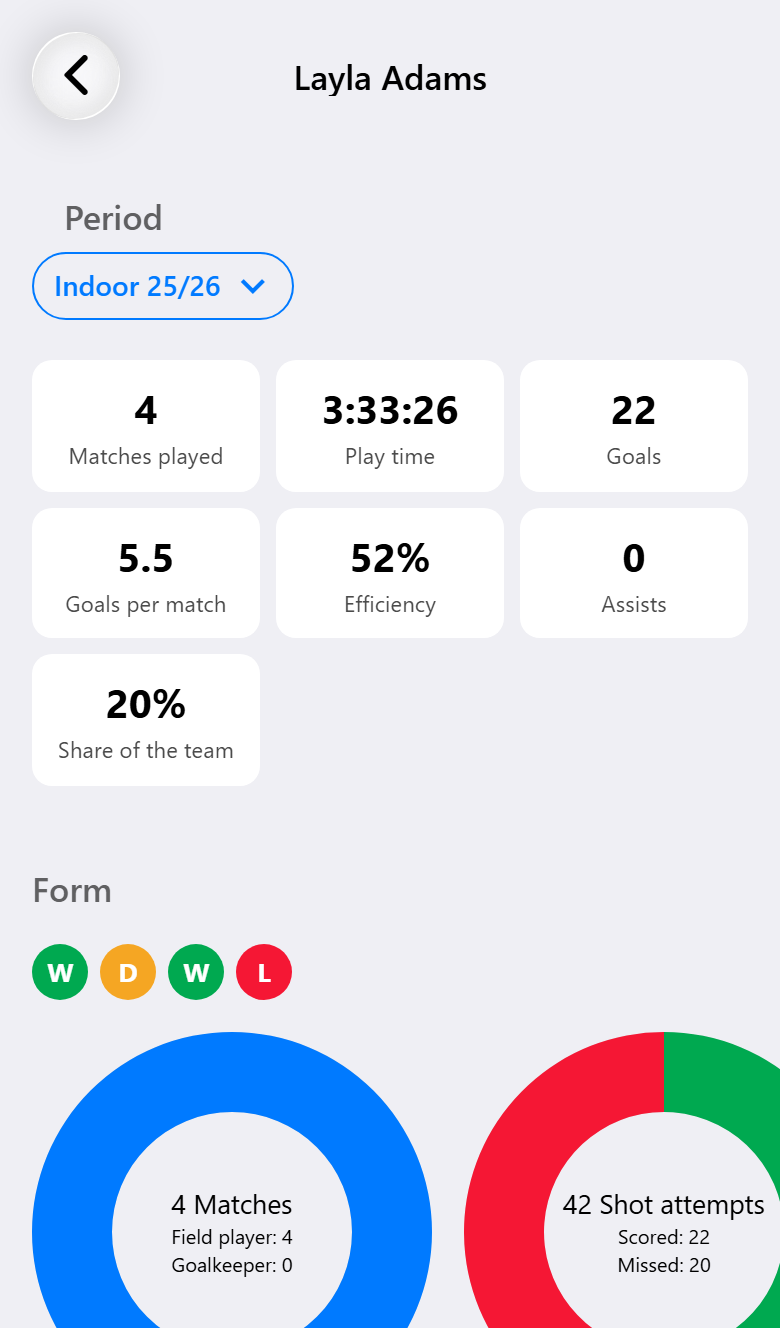
Yes. Open Match statistics from the home screen and choose the period at the top. You see the matches won and lost, goals for and against, 7-meter throws, cards and suspensions, and a table with a row per player.
Tap a player for that player's own page, with their form, playing time, goals per match and defensive impact. See Following players across the season.
Help! I can't see my matches anymore!
Don't panic. If you are sure you didn't delete them, another period is probably active. The list of periods is at the top of the home screen. Choose the period of your matches there, or choose All matches to see everything the team has played.
Also check that the right team is active. Matches belong to one team, and you switch teams with the team card at the top of the home screen. Read more in Periods.
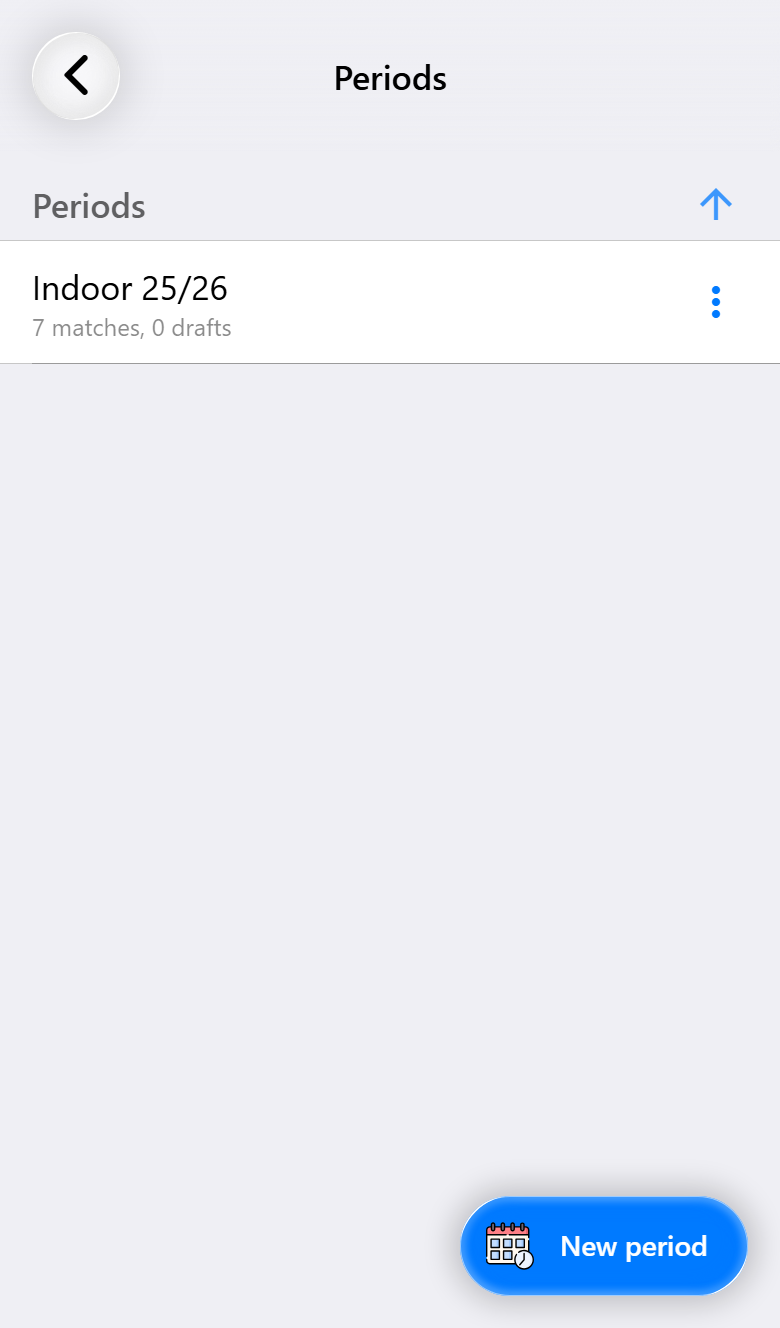
Why are matches or numbers missing from my statistics?
Usually it is one of these causes:
- A different period is selected. Choose All matches to see everything.
- Only finished matches count. A match that is still in progress only counts once it has ended.
- Matches that someone else shared with you to record together don't count in your statistics.
- Turnovers, interceptions, blocks and fast breaks are only recorded with Max. With Base and Pro they stay at zero.
- Efficiency and shooting percentages are only as good as the shots that were recorded. Without shot attempts there is no efficiency.
Can I share or export the numbers?
Yes, in three ways:
- PDF report (Pro): tap the report card in a match report. Handy for sending to a player or parent right after the match.
- Excel (Pro): below the rings of the match statistics you export the period, with sheets for the matches, the players and the goalkeepers.
- The online statistics environment (Max): a link of its own to a match or a series of matches, which anyone can open without an account.
See Taking the numbers with you. If you want to move your data to another phone or another account, use Import or export in the settings.
What is the online statistics environment?
A separate website, made for a laptop or tablet, where you take a match or a series of matches completely apart: per phase of play, per player, per minute and by where the shots came from. Across a series of matches you also see when the goals fall, how you play with a player more or less, and which combinations of players work best.
You open it from a match report or from the match statistics, with View online or Share link. The link works without an account, so you can send it to your staff or the technical committee. This requires Max. See Advanced statistics.
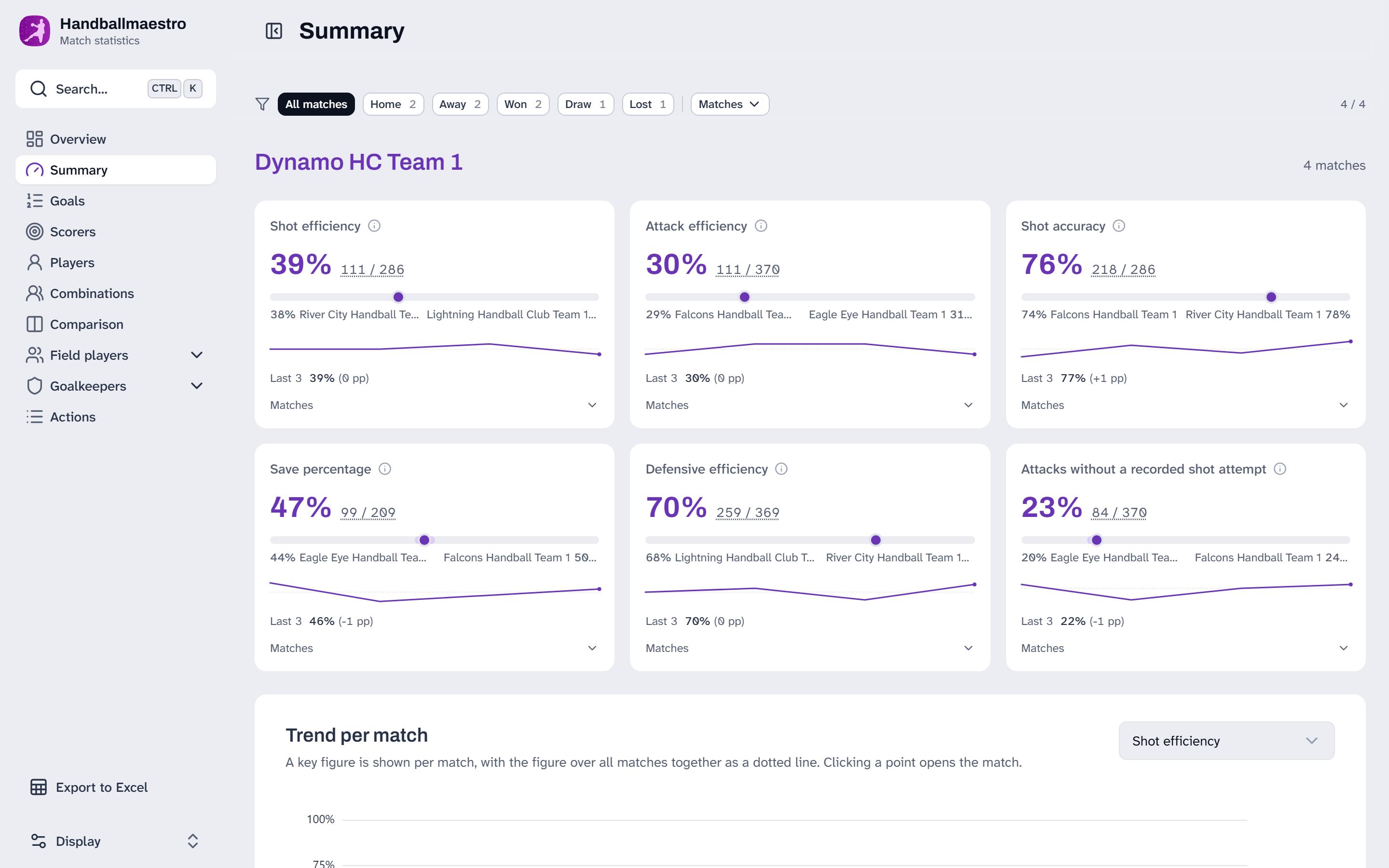
How is the performance score (the stars) calculated?
Everything that is recorded counts, and a goal is the yardstick: a goal is worth 1 point, every other action a fraction of that, up or down. A small bonus for playing time is added on top. Goalkeepers have their own score, based on saves and goals conceded.
The score is a ranking within one match: the best player sets the bar and the others are compared with it. After a defeat, even the best player doesn't get five stars. And only what is recorded counts: good defending that nobody noted down stays invisible.
The score is the start of a conversation, not the end of it. The full table of points is in How the performance score works.
Subscription and account
What is the difference between Base, Pro and Max?
- Base (free): recording a match with goals, cards, 7-meters and substitutions, the live scoreboard and the match report. Five matches, for one team.
- Pro: as many matches and teams as you want, periods, every shot with its position, the full playing time, match notes and the opponents you keep track of, recording together, attendance requests, sharing a team, the NHV calendar, the PDF report and the Excel export.
- Max: everything in Pro, plus turnovers, interceptions, blocks and fast breaks, the opponent's court, custom events, the coach dashboard, the online statistics environment, the permanent scoreboard link and the AI report on the scoreboard.
Which subscription you need depends on how much you want to record. Everything side by side is in What it costs and what you get, and feature by feature in the feature guide.
Does a subscription apply per team or per person?
Per team. One team can be on Max while another stays on Base. If you coach two teams and want Pro for both, you need two subscriptions.
If you manage a team together with others, you share that team's subscription. Whoever joins you to record a match also uses your team's features in that match, without a subscription of their own.
How do I buy a subscription?
Open the settings panel with the round picture at the top right of the home screen, choose Subscriptions and tap Buy subscription. The same button is also on the team screen. You choose the subscription, how long and how you pay. You need an account for it.
On an iPhone or Android phone you pay through the App Store or Google Play, or securely online where the store allows it. After paying you get an email with what you bought and the token. The current prices are on the pricing page.
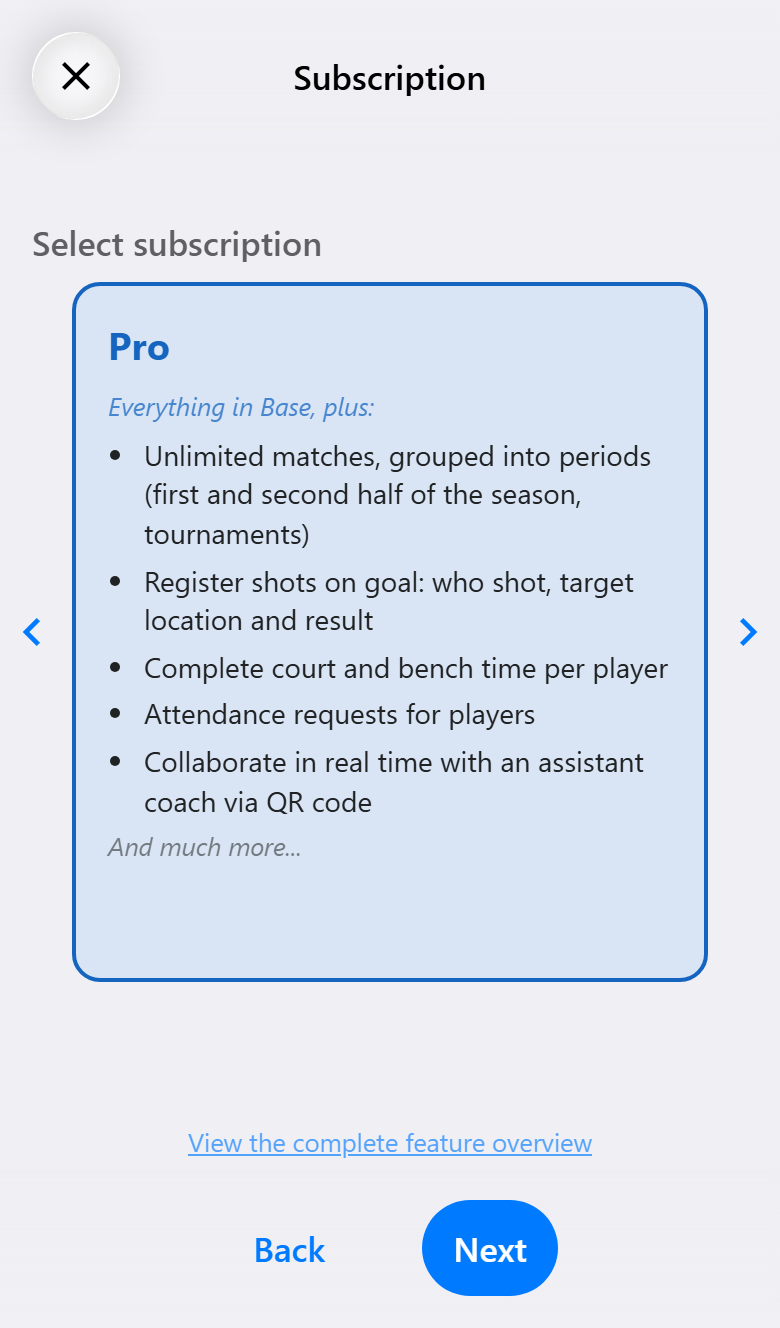
Is my subscription renewed automatically?
No, never. You buy one month, three months or a year at a time. When the period ends, you decide yourself whether to buy a new one.
If you buy a new period before the current one has ended, it follows on directly. The team then carries on without interruption and the end date moves forward.
Can I switch from Pro to Max?
Yes. On an upgrade, the rest of your Pro period is converted to Max. You only pay the difference, calculated over the remaining days. An upgrade is always paid online, because an app store can't charge an amount that is only calculated at that very moment.
What happens when my subscription ends?
Then the team goes back to Base. Nothing is deleted. Every match is kept, and a match played on Pro or Max can still be read back in full. What a report shows depends on the subscription on the day the match was played. Periods, players and shared teams stay as they are.
What stops is everything Base doesn't have: new matches beyond five, recording together and the Pro and Max actions.
I received a token. How do I use it?
Open Subscriptions in the settings panel and tap Redeem token for team. Enter the token and choose the team it should go on. You need an account for it.
Tokens you bought yourself but haven't used yet are listed under Subscriptions. With Redeem token you put such a token on a team. The token is also in the confirmation email, so a token bought on one phone can also be redeemed on another. See What it costs and what you get.
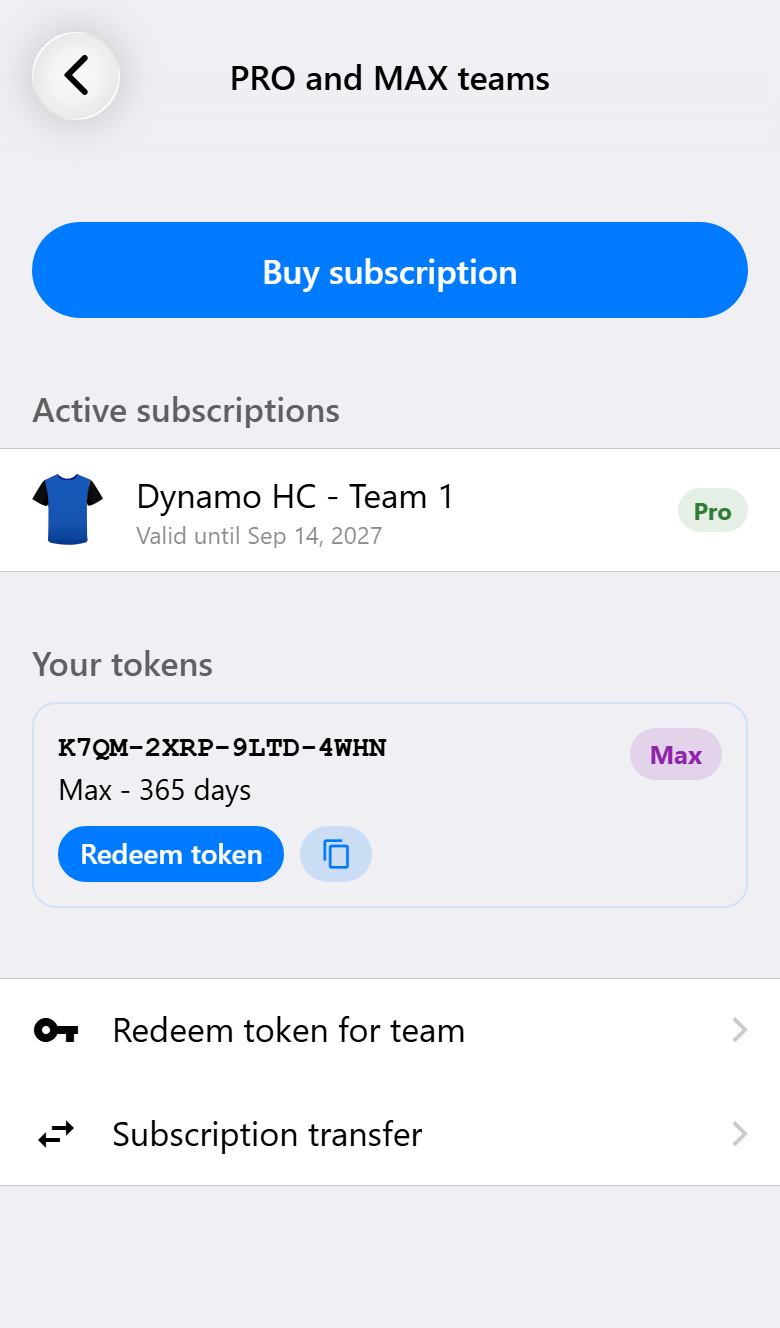
I paid, but my team isn't on Pro or Max
If you bought through the App Store or Google Play, tap Restore purchases under Subscriptions. The app then checks with the store again.
If you bought without a team, the token is still in your account under Subscriptions. Put it on the right team with Redeem token. If you can't work it out, email support@handbalmeister.nl with the confirmation email attached.
Can I move my subscription to another team?
Yes, to another team of yours, for example when a team is replaced by a new team for the next season. The team that receives the subscription can't have a subscription of its own at that moment.
To prevent misuse, a team can only move its subscription now and then. If that isn't allowed yet, you can send a request with a reason. That request is reviewed by hand.
I have a new phone. How do I get my data back?
With an account, you sign in on the new phone with the same account. Your teams, players, periods, matches and opponents then come back by themselves. Your subscriptions belong to your account and your teams, so they come along.
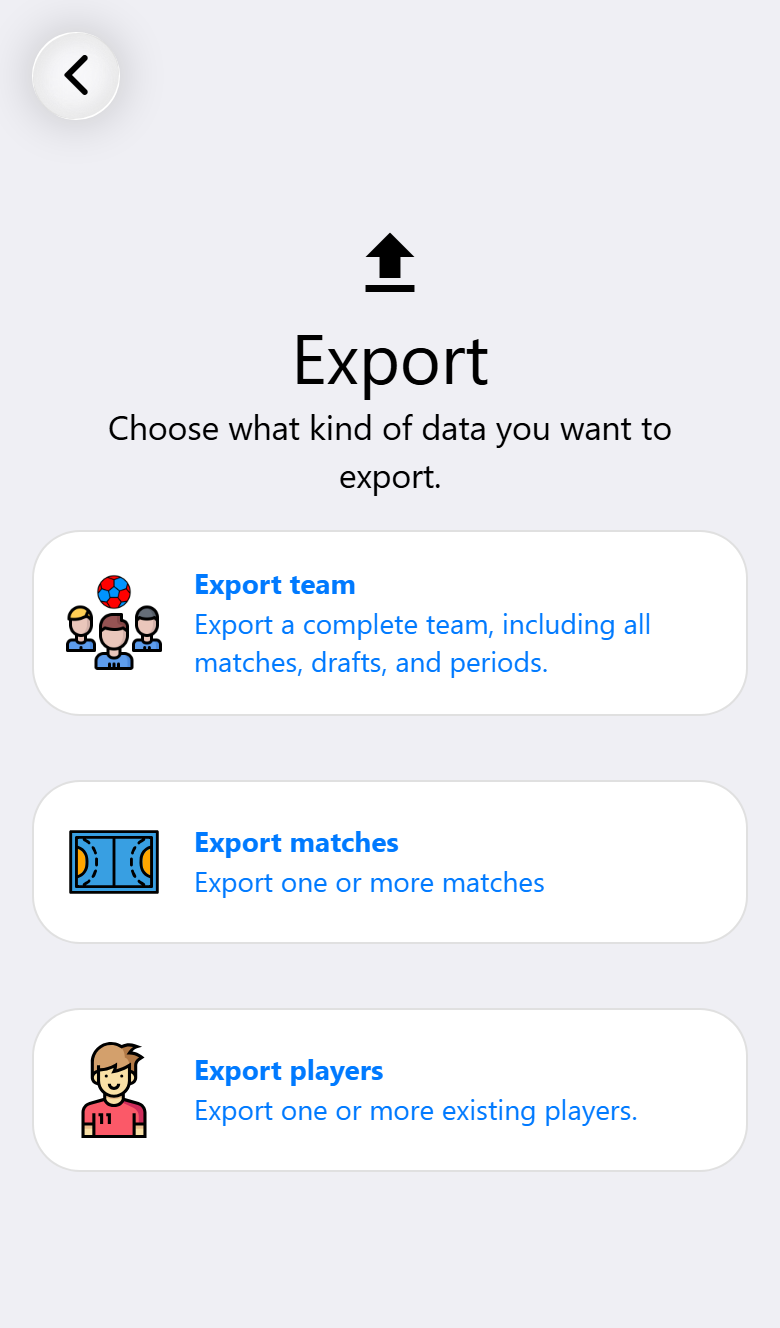
If you use the app without an account, export your team on the old phone with Import or export in the settings and read the file in on the new phone with Import. See Your account and your data.
What happens to my data and my players' data?
Everything you record is yours. It is stored on your phone and, if you use an account, also online, so you see it again on every device. Beyond that, only what you share yourself goes online: a live scoreboard, a coach dashboard, a shared match, a statistics page or an attendance request. Anyone without the link sees nothing.
You can switch off anonymous usage statistics in the settings. They contain nothing about who you are or what you recorded. Read more in the privacy policy.
How do I delete my account and my data?
With an account, open My account in the settings panel and tap Remove account. To confirm, you type a word. Your account and everything that belongs to it are then deleted straight away, online and on your device: teams, players, matches, live scoreboards, shared matches, statistics pages and attendance requests. This can't be undone.
Without an account, tap Delete all data in the settings panel. Live scoreboards and shared matches started from your device are then stopped online first.
Purchase records are kept for seven years, because tax law requires it. If you no longer have the app, email privacy@handbalmeister.nl.
How do I get new versions of the app?
The app keeps itself up to date. Most improvements are downloaded in the background, and you can then apply them in the settings panel without going to the app store. If an update from the store is needed after all, the app lets you know.
What has changed is under Changelog in the settings panel.
I have a question, a problem or an idea. Where can I go?
Email support@handbalmeister.nl. Tell us which device you use and what you were doing when it went wrong. A screenshot helps too.
Most questions are answered in the guide, with a page per topic. For a feature that needs a higher subscription, the app opens the page about it with one tap.