
After the match
Reading your match back
Available on every plan
Everything you tapped during the match is kept in order, with the time on the clock and the score at that moment. That record is the timeline. This page is about going through it afterwards: reading it, correcting it, adding what was missed, and seeing where the shots came from and went.
The report is the summary of a match. The timeline is the match itself, so this is where you go when the summary raises a question. For the report, see Reports and export.
The timeline
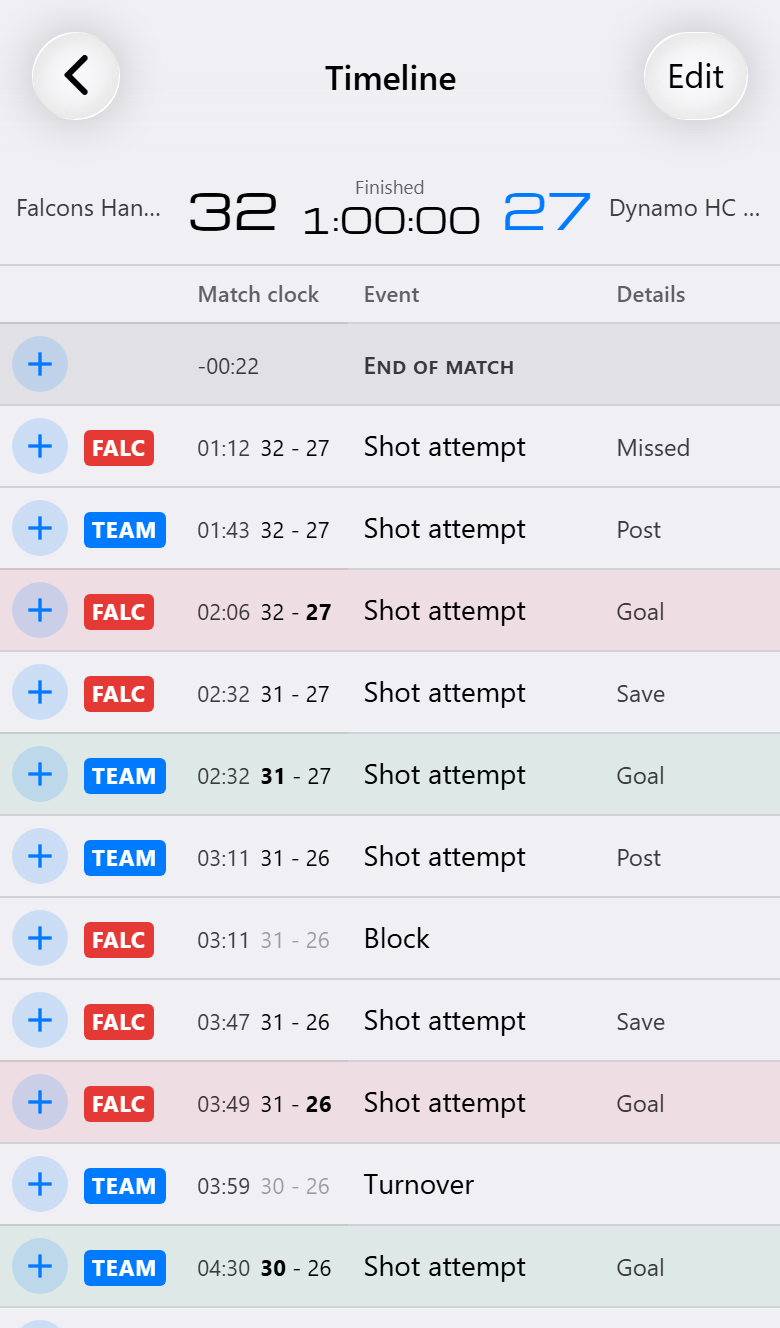
Open the match itself, from the match list or with Open match in its report, and choose Manage timeline from the menu at the top right. It opens on the timeline as a table, most recent event first:
- Who. A label for your team or the opponent.
- When. The time on the clock, and the score at that moment. The number that just changed is in bold.
- What. The event, with its details: a save, a goal, a turnover with its reason.
- Whom. The player, or a jersey number for the opponent. A suspension shows which one it was, so "(2/3)" is a player one away from being disqualified.
Goals are colored, green for yours and red for theirs, so you can scroll to a run of goals without reading. The gray rows mark the structure of the match: the start and end of each period, and every time the clock stopped, with how long it stood still.
The clock and the score stay at the top while you scroll. During a match the bar also shows the period, whether the clock is stopped, and a time-out counting down, so you can check something on the timeline without losing track of the match.
The table is wider than a phone. Swipe it sideways for the player and the last column.
Correcting it
A wrong tap during the match is easiest to take back straight away: press and hold the clock. Later on there are three ways back, depending on what went wrong.
Removing events
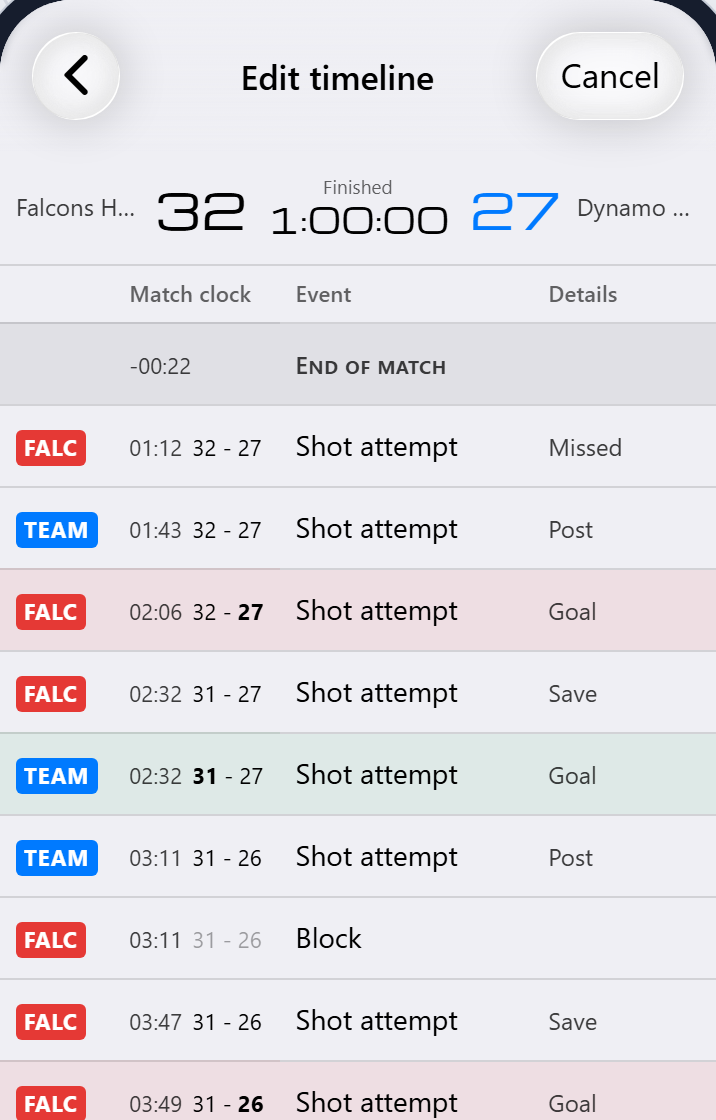
Tap Edit (Pro) and every event that can be removed gets a Delete button. Nothing is gone until you tap Save: a deleted row can be brought back with Restore until then.
Some events cannot be deleted, because what comes after them would no longer make sense without them. The start of a half that has goals in it, for example. Their button is grayed out.
Changing a shot
With shot attempts on, every shot in the table has a Modify button (Pro). It opens the shot screen as it was registered, and you can change the result, where it went in the goal and where it came from. Useful when you see on the video that the ball went in low, not high.
On an opponent turnover the same button sets which player forced it, and on an opponent goal which defender was beaten, when your team asks for that.
Inserting an event
There is little time during a match. Whatever you miss, you add later from the timeline: while the match is still on, or afterwards while you watch the video (Max). Every row has a + button on the left. The new event lands right after that row, so just above it in the table.
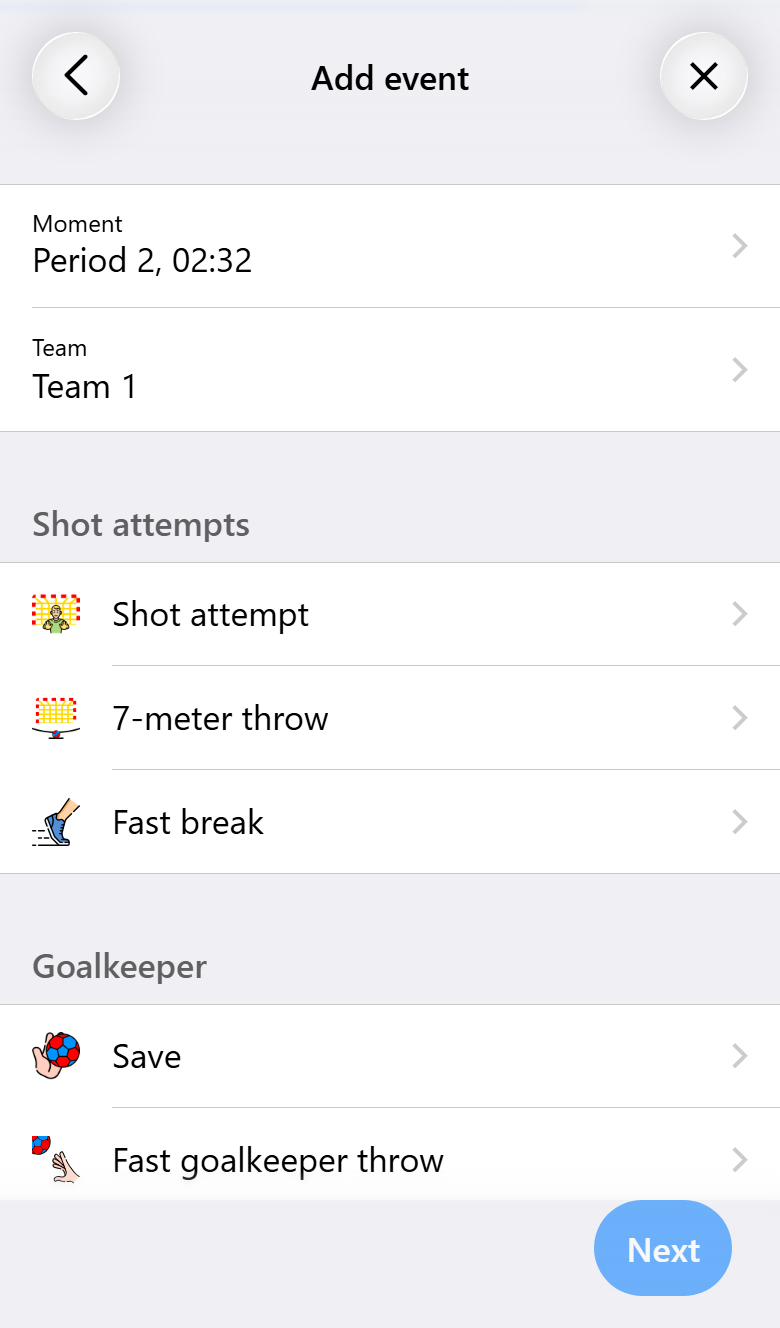
Then you go through a few steps:
- Moment. The time of the row. Tap it to pick another time in the same period, such as the clock on the video.
- Team. Us or the opponent.
- Event. Shots, penalties, saves, turnovers, interceptions, blocks, stopped attacks, cards, suspensions, messages and your own events. What cannot happen during the break, such as a turnover, is listed but switched off.
- Player. The goalkeeper and the players who were on the court at that moment are at the top, the rest below. For the opponent you pick a jersey number.
- Details. What the match screen asks as well, such as the shot screen or the reason for a turnover.
- Confirm. Everything you chose at a glance. Tap Add and the event is in the timeline.
What you chose so far stays at the top of every step. Tap a line there to go back and change it.
Substitutions, goalkeeper changes, positions, injuries, time-outs and the clock cannot be inserted this way. They change everything that comes after them. An event that would make a later one invalid, such as a second yellow card for the same player, is refused as well and nothing changes.
The event counts straight away in the statistics of the match and of the season. On a shared match it goes to the other phones. Once the match is over, only the device that controls the match can still add anything.
Taking back the end
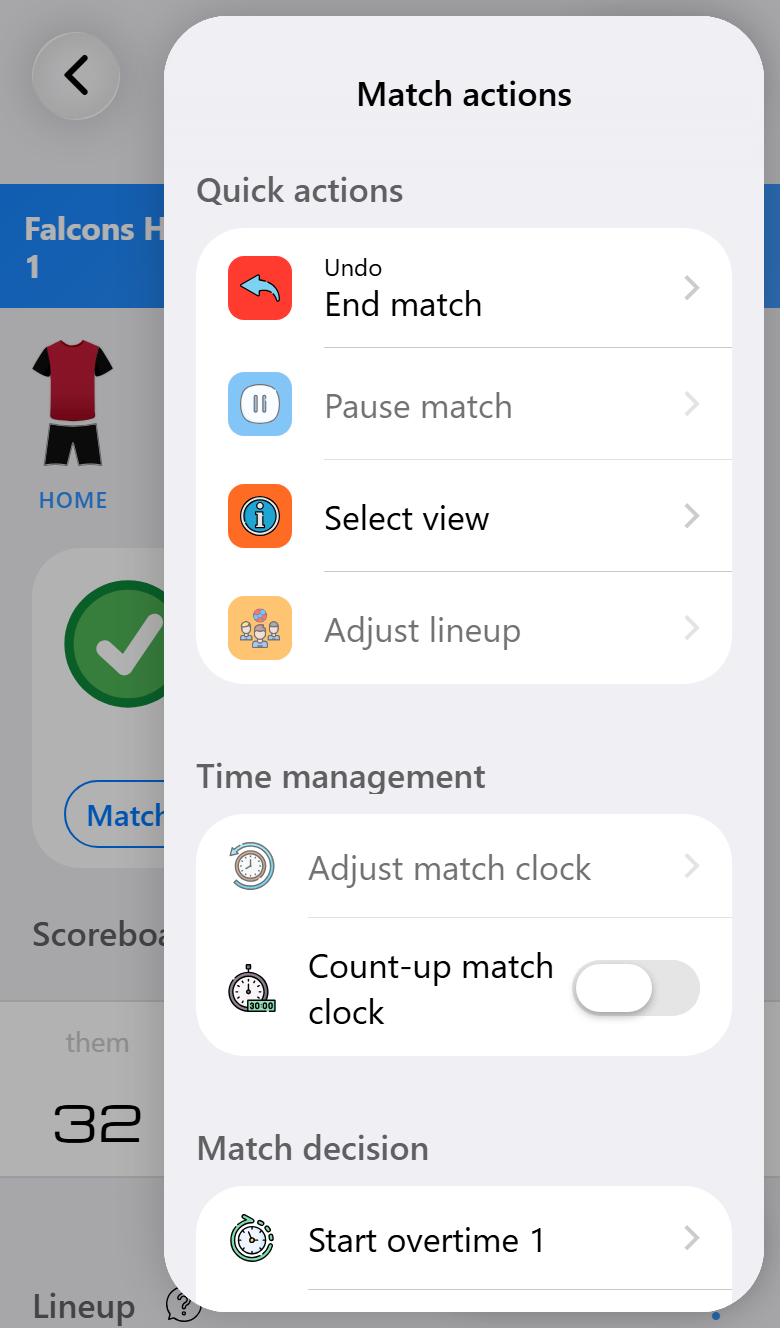
The Undo at the top of the match menu always shows the last thing that happened, and that includes the whistle. Take back End match and the match resumes, with the clock set back to the moment it ended. The same goes for the end of a half, and for the start of one that was started too early.
This works after the match has finished too, so a match ended a minute early by accident is not lost. For a match that was started by mistake altogether, Restart in the match list starts it over, keeping notes and any attendance request.
When a match does not add up
Very rarely a match ends up with events that contradict each other. The app keeps checking for this while a match is open, and when it finds any it shows a card saying the match has invalid data, with a Repair match button. Repairing removes the events that cannot be right and keeps the rest.
The same repair is in the menu of the match in the match list.
Team performance
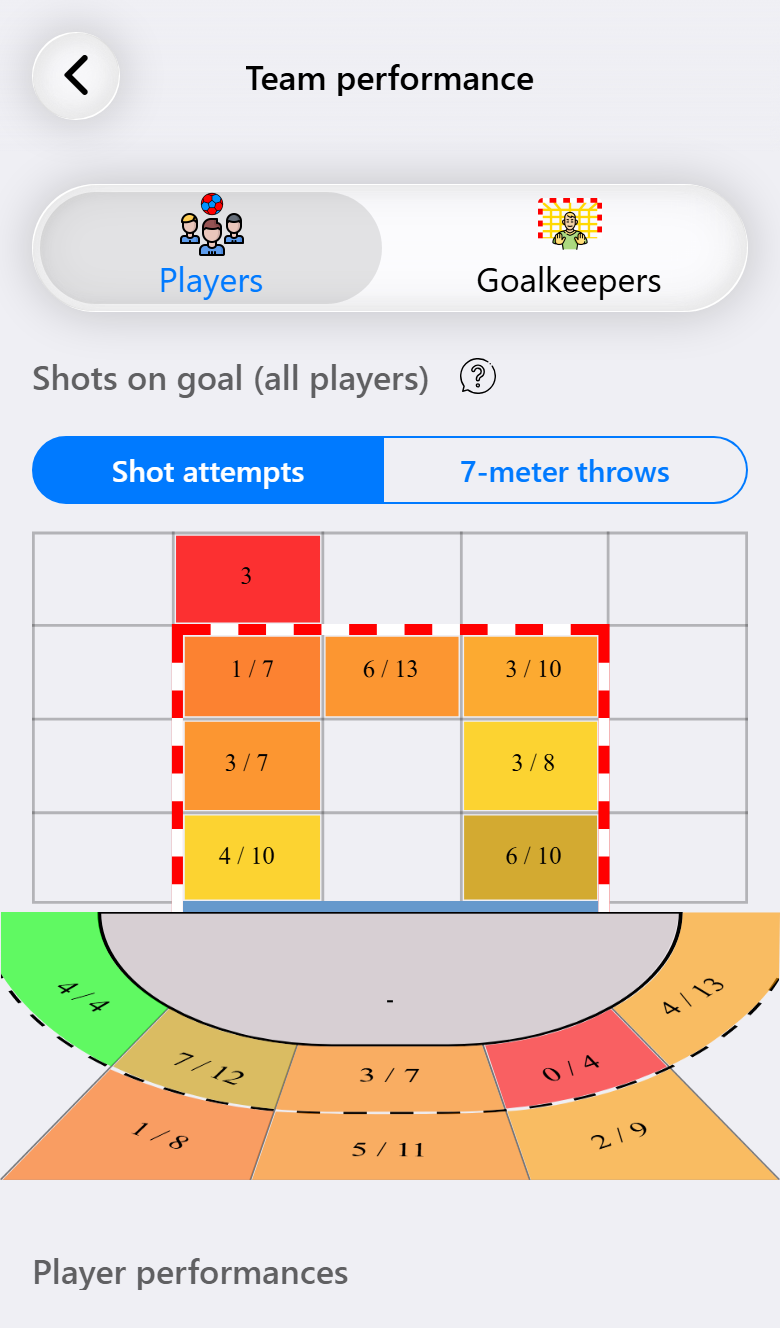
Team performance (Pro), in the same match menu, shows a match the way a coach looks at it: where the shots came from and where they went.
The goal and the court are split into the same areas you use when registering a shot, and each area shows how many went in out of how many were taken there. The color does the reading for you: the greener, the better it went. Switch between shot attempts and 7-meter throws at the top.
Under the picture are the players. Tap one and the picture shows only their shots; tap them again to go back to everyone. Player statistics then opens that player's own page, with this match next to the rest of the season. See Following players across the season. Press and hold a box in the goal to see where the shots that went there were taken from, or an area on the court to see where its shots went.
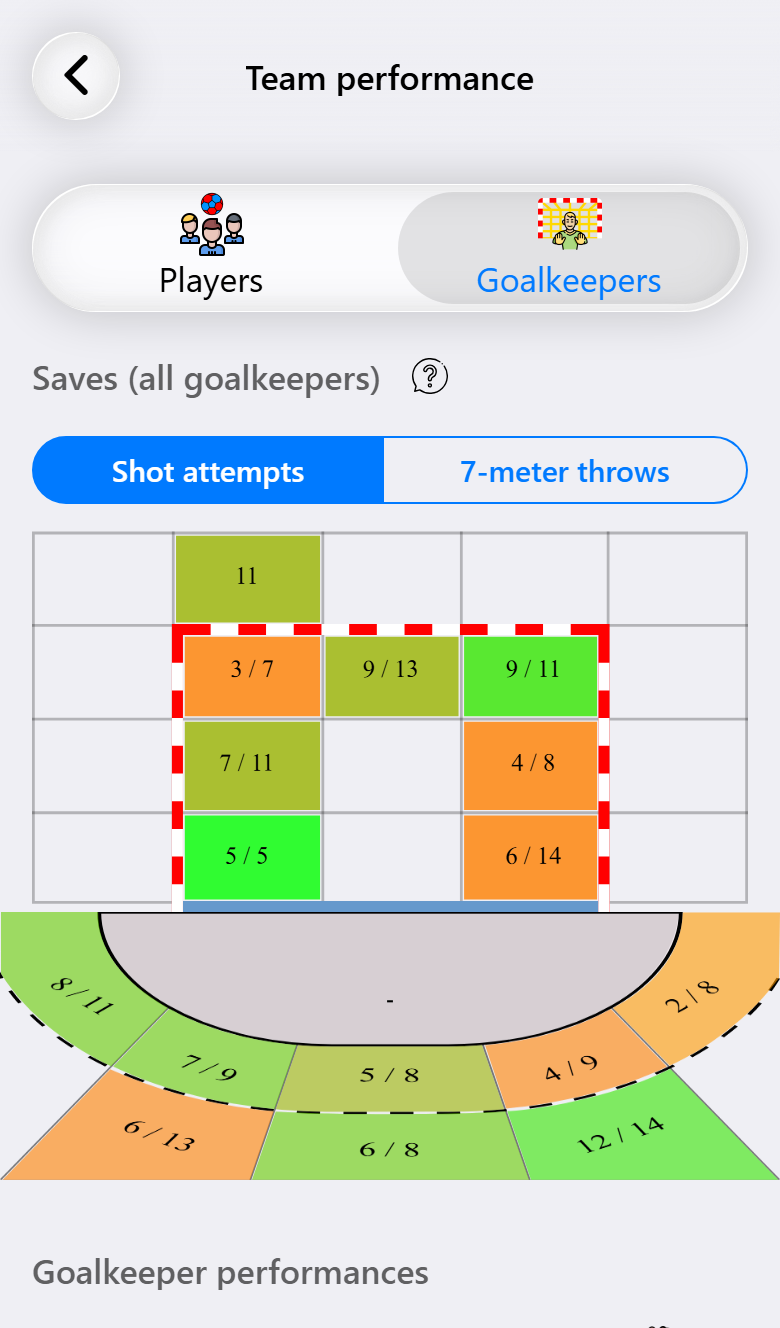
The Goalkeepers tab turns it around: the shots against your goalkeepers, and how many they saved in each area. Over a few matches this shows a goalkeeper's weak corner, and the opponent's favorite one.
The pictures need shot attempts to have been on during the match. Without them the app knows who scored, but not from where.
It is also there during the match. At halftime the match screen offers it on a card, together with the coaching tips.
Your notes
Match notes (Pro) are what you noticed: about the opponent, one of their players, your own team or one of your players. They can be written during the match and afterwards, and a played match has Match notes right next to View report. Notes stay yours: they never appear on the live scoreboard.
If the match is linked to the team you played, its notes page also shows what you wrote in earlier matches against them. More on that in Knowing your opponent.
What you need for what
| Base | Pro | Max | |
|---|---|---|---|
| The timeline, as a table and in the report | ✓ | ✓ | ✓ |
| Filtering the timeline | ✓ | ✓ | ✓ |
| Undo, including the end of a period or match | ✓ | ✓ | ✓ |
| Restarting a match | ✓ | ✓ | ✓ |
| Repairing a match | ✓ | ✓ | ✓ |
| Deleting events from the timeline | ✓ | ✓ | |
| Changing a shot afterwards | ✓ | ✓ | |
| Inserting an event, during the match and afterwards | ✓ | ||
| Team performance | ✓ | ✓ | |
| Match notes | ✓ | ✓ |