
Sharing and watching
Coach dashboard
Available onMax
The live scoreboard is made for people watching. It gives the score most of the screen, because the score is what they came for. A coach on the bench is not watching; they are deciding: who comes on, whether to call a time-out, which player is one suspension away from being sent off. The coach dashboard shows the same match for that job, on a tablet on the bench.
It needs Max. It reads the match as it is being recorded, so it is only as rich as what goes into it. Shot positions, turnovers and the rest of Everything you can record are what fill its panels.
Switching it on
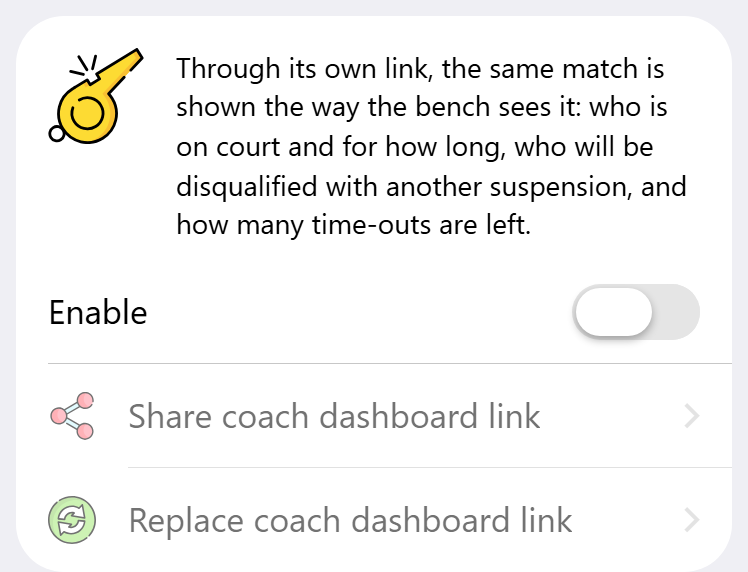
Open the match, then the online match center. On the Watch along tab, the coach dashboard has its own card under the live scoreboard:
- Switch on Enable.
- Tap Share coach dashboard link and send the link to the tablet, or to whoever sits on the bench with you.
- Open the link on the tablet. It needs no app and no account.
The coach dashboard has its own link, separate from the scoreboard link. Someone who has the scoreboard link from a group chat cannot use it to reach the bench, and sharing the scoreboard never shares the dashboard. It also works without the scoreboard: if you only want the bench to follow the match, leave the live scoreboard off. The card then says that nothing is shared with spectators.
Under the card you see how many screens have the dashboard open right now, and the most there have been at once.
Switching the dashboard off and on again keeps the same link, so a tablet that has it open picks up again where it was. If a link has ended up somewhere it should not be, tap Replace coach dashboard link to make a new one. The old link stops working straight away, even on the tablet that has it open, until you send the new link there.
What the bench sees
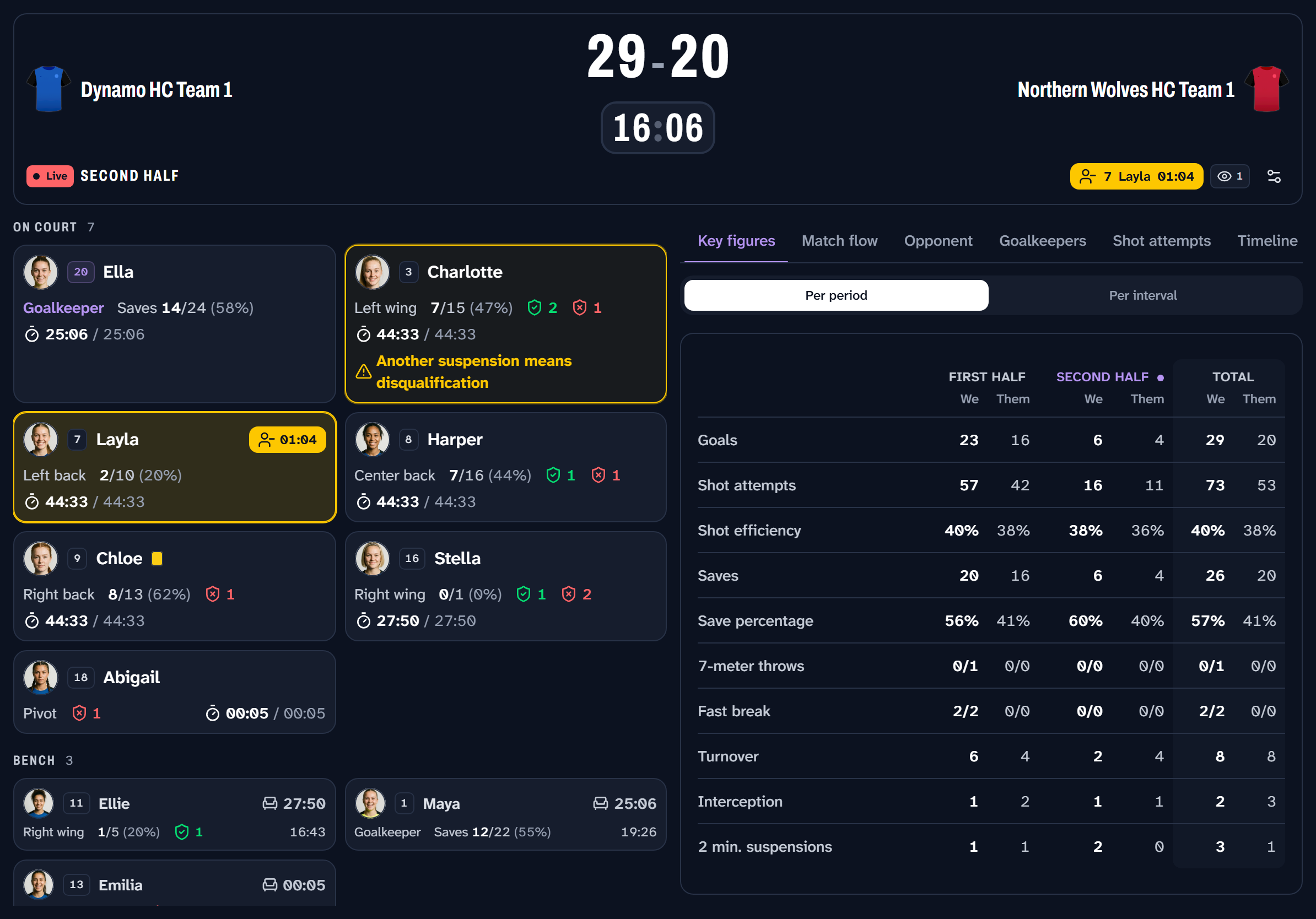
Across the top
The bar at the top holds what has to be readable at a glance. These are the things that change a decision in the next thirty seconds:
- The score and the clock, with Live while the clock runs and Paused while it stands still.
- A run of goals, when the last two or more went the same way, in green for yours and red for theirs. A run against you is the moment many coaches call a time-out.
- The time-outs both sides have used, and the time left on one that is running.
- Suspensions on either side, with the jersey number, the name and the time left.
The bar shows a warning when the tablet loses its connection, so a frozen screen is never mistaken for a quiet match.
The team sheet
On the left is your team. On court follows the line-up, so it matches the court you are looking at. Every player shows their position, goals out of attempts, assists, balls won and lost, and their time on court: this stint first, the whole match behind it.
A player serving a suspension is marked across the whole tile, with the time left. A player with two suspensions gets the warning Another suspension means disqualification.
The bench is sorted by who has rested longest, because that is the question you have about the bench during play. Each player shows how long they have been off and how long they have played in total. Players who are injured, absent or disqualified are listed separately under Unavailable, so they never appear as an option to bring on.
Before the throw-off there are no times to show yet. The team sheet shows the line-up, and the panels make room for a preview of the match.
The panels
The tabs on the right switch between eight panels. All of them keep their place, so you can switch back and forth without losing where you were.
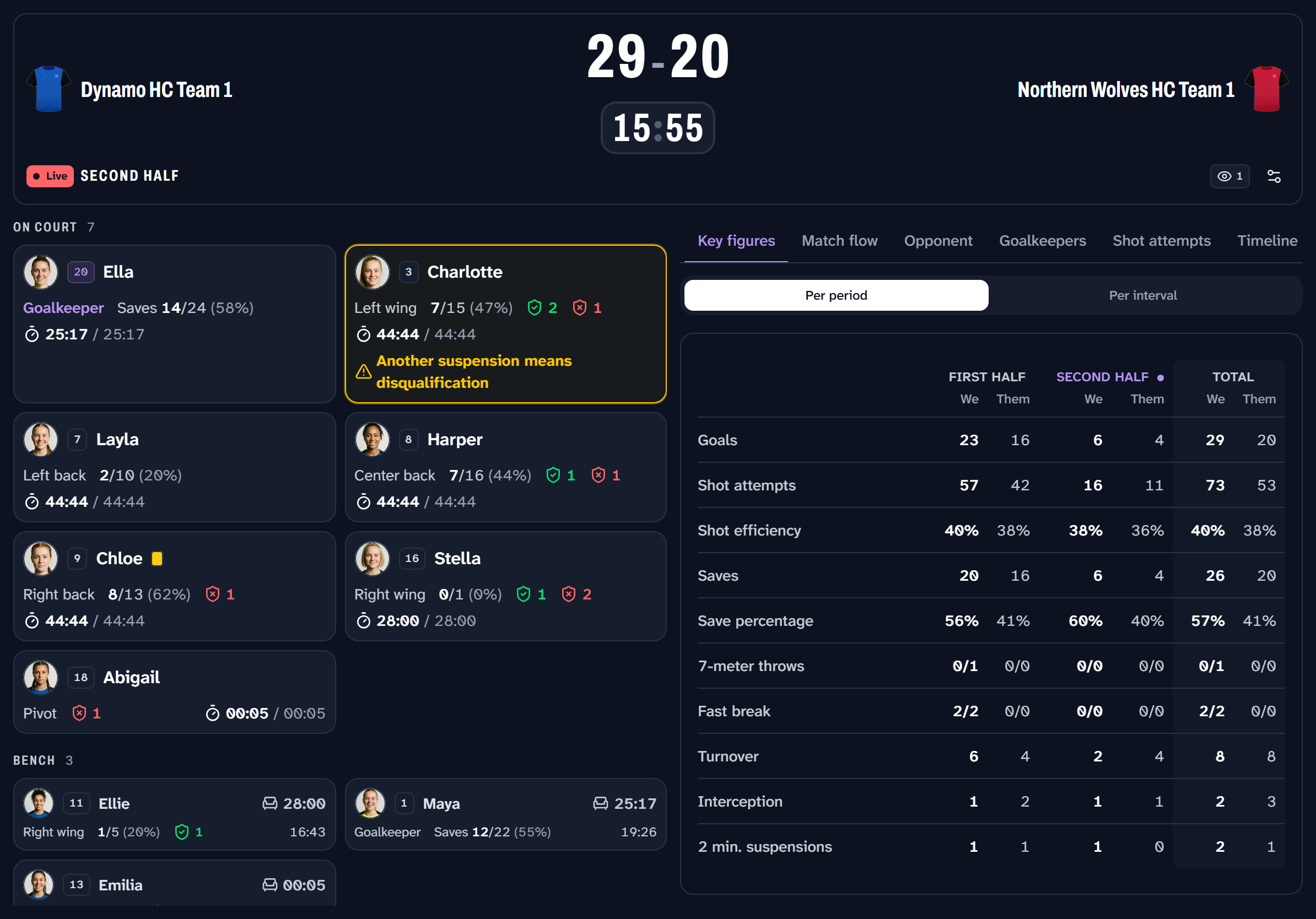
Key figures is the panel the dashboard opens on. It puts the halves or periods side by side, followed by the whole match: goals, shot attempts, shot efficiency, saves and save percentage for both sides, plus 7-meter throws, fast breaks, turnovers, interceptions, suspensions and time-outs once there are any. At half time you see at a glance how the second half compares to the first. Per interval shows the same match in blocks of 5, 10 or 15 minutes, which start again with each period. That is where a spell without shots stands out.
At the end of every period and at every time-out of either team, the dashboard switches to this panel by itself. When play resumes, it goes back to the panel you had open. If you choose another panel yourself during the break, that one stays open. The switch under the panel turns this off, and the choice is remembered per tablet.
Match flow shows how the match is going, which is not the same as what it stands at. The score progression draws the goal difference from the throw-off to now, with the biggest lead and the biggest deficit. Below it are the score over the last five and ten minutes, and turnovers and fast breaks for both sides.
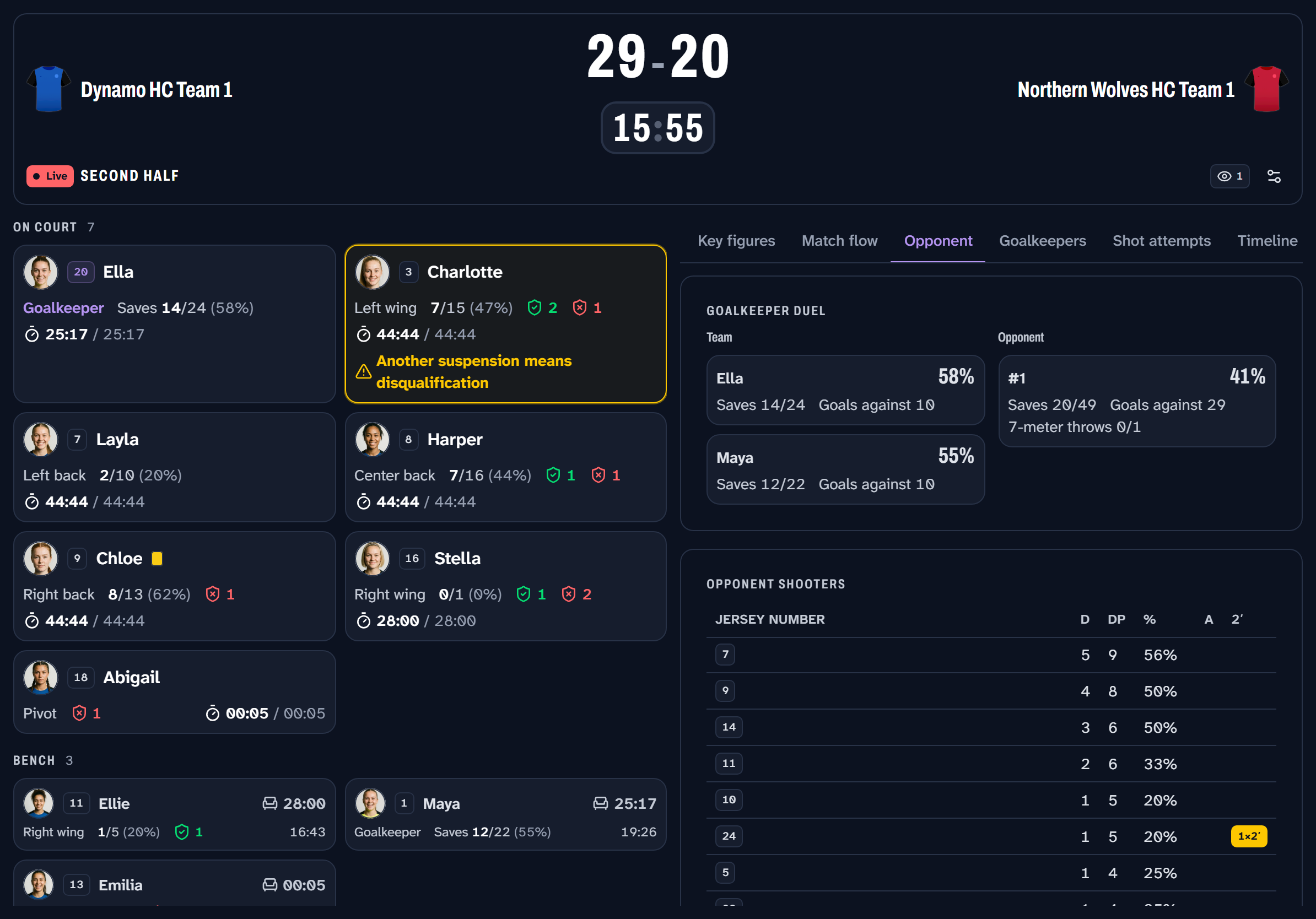
Opponent shows the other team, as far as their shots reveal them. The two goalkeepers are set side by side, measured the same way. The opponent's shooters are listed by jersey number with goals, attempts, efficiency and assists, plus penalties and suspensions when there are any. Their number 9 scoring is easy to see from the bench. That her four goals came from six attempts, while their number 4 took eight and scored one, is not.
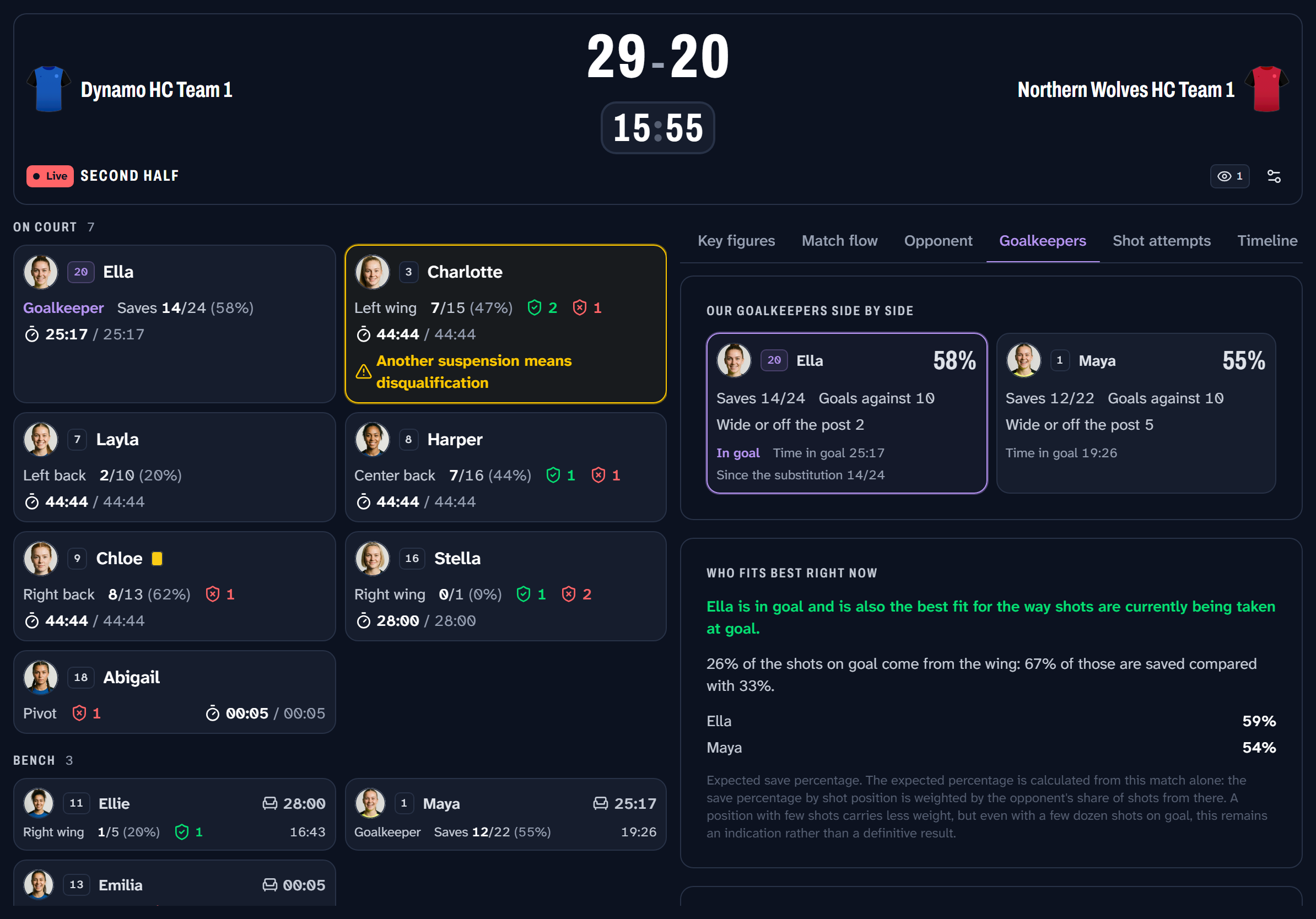
Goalkeepers answers two questions: which of your goalkeepers should be in goal, and what the one in goal should watch for. Each goalkeeper is read per shooting position and set against where this opponent actually shoots from. That gives advice on who fits best right now, with the table it is based on right underneath, so you can see how it was reached. Until there are enough shots to compare, the panel says so instead of guessing. Below the table are the corners the opponent finds most and the shooters to watch.
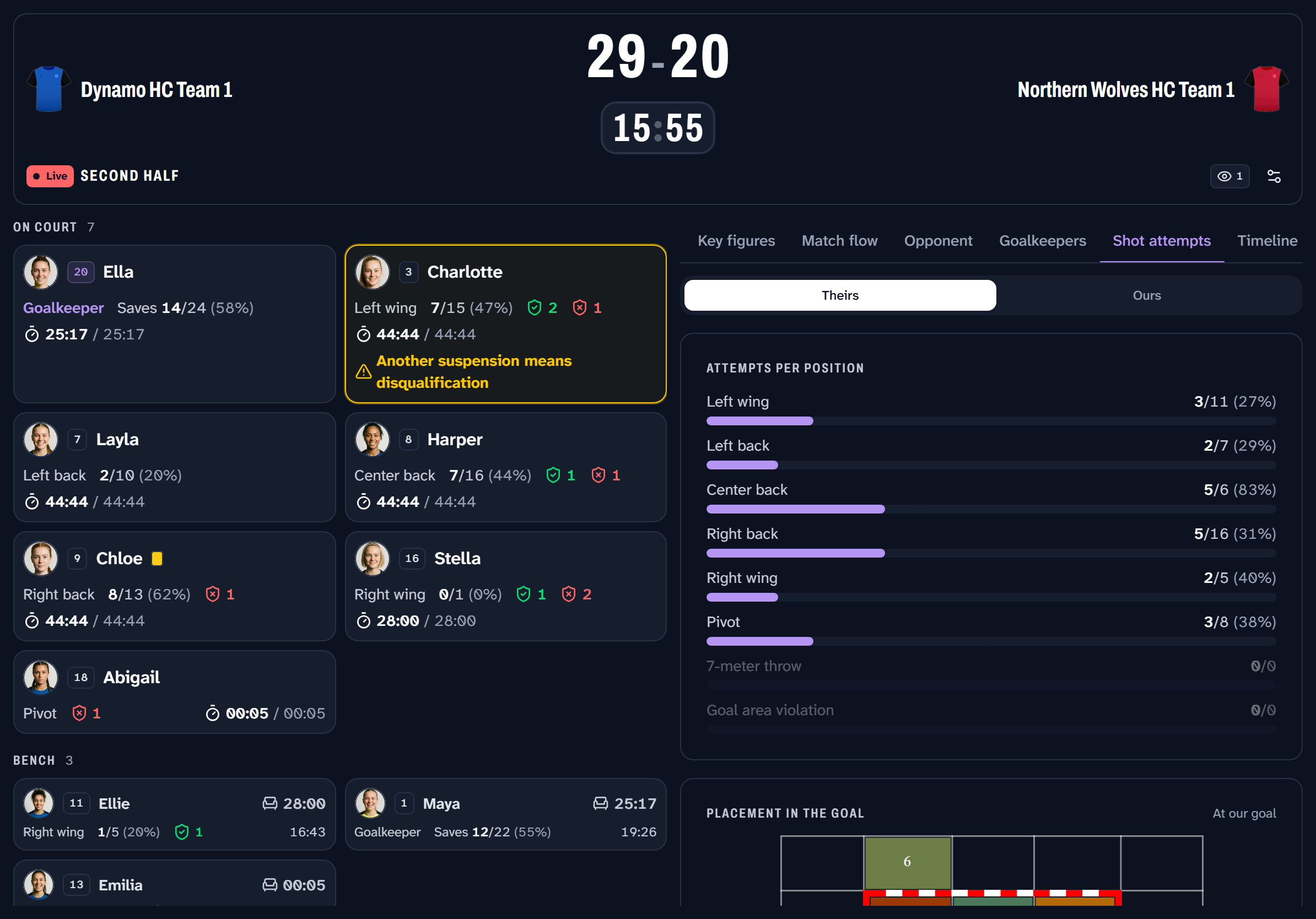
Shot attempts shows where the shots come from and where they end up in the goal, for the opponent or for your own team. Theirs tells you what to defend, yours what to keep doing.
Hold a box of the goal and the court shows where the shots that ended up there came from. Hold a place on the court and the goal shows where the shots from there went. Let go and everything is shown again. This works in every drawing on the dashboard, and on the player in focus the list of shots narrows along with it.
Timeline lists everything that happened in the match, and Players shows the full statistics table, for the questions that are easier to answer per column.
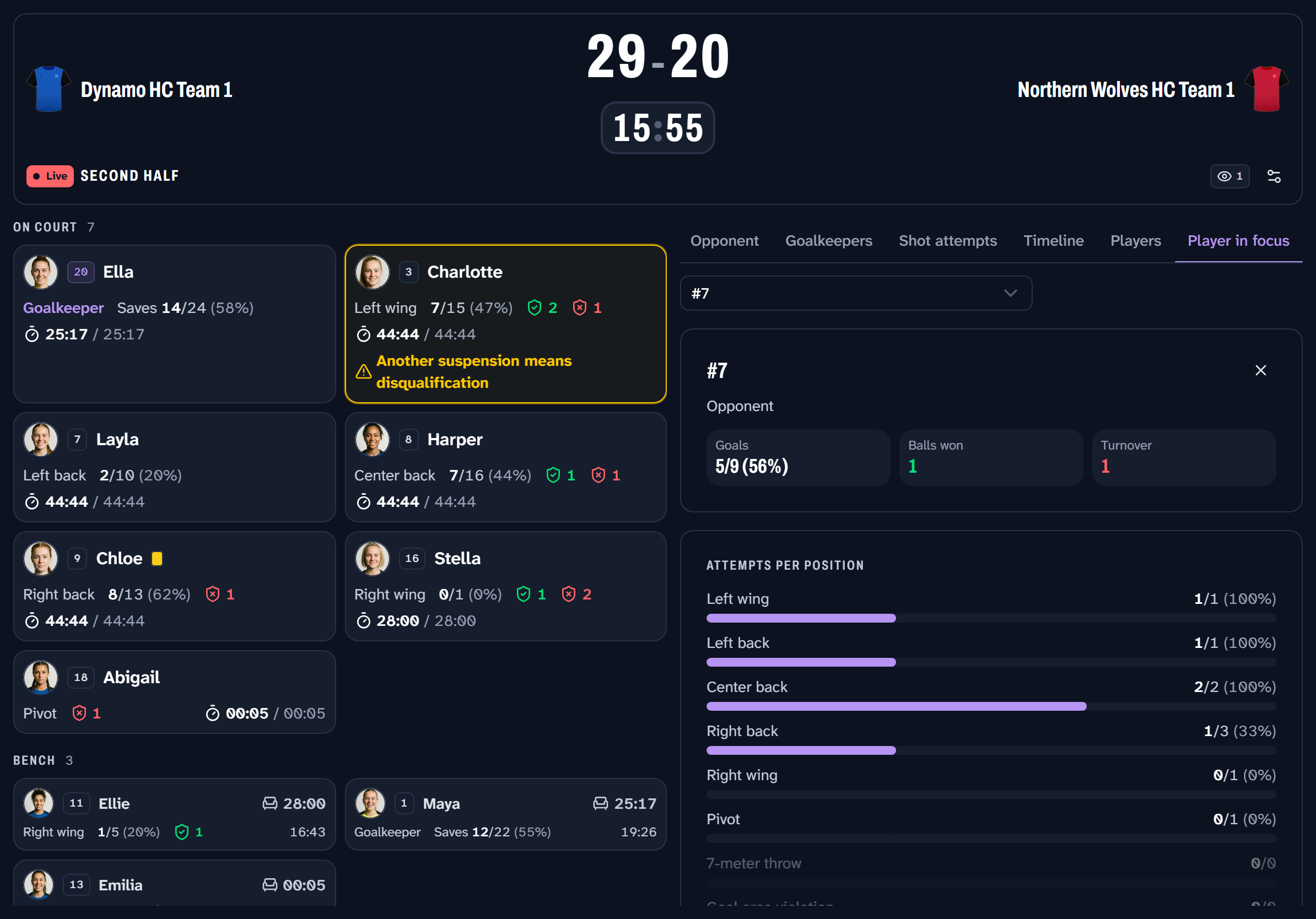
Player in focus is everything about one player, of your own team or of the opponent. Tap a player on the team sheet, a shooter on the opponent panel or a goalkeeper in the duel and the panel opens on them. The picker at the top lists everyone as well. It shows their goals out of attempts, penalties, assists, turnovers and cards, a suspension that is running, attempts and goals per position, where their shots ended up in the goal and every shot on its own, each of which opens the shot itself. For a goalkeeper it shows the saves and where the shots they faced came from and went in. The player you chose stays chosen when the page is reloaded.
On a tablet, either way round
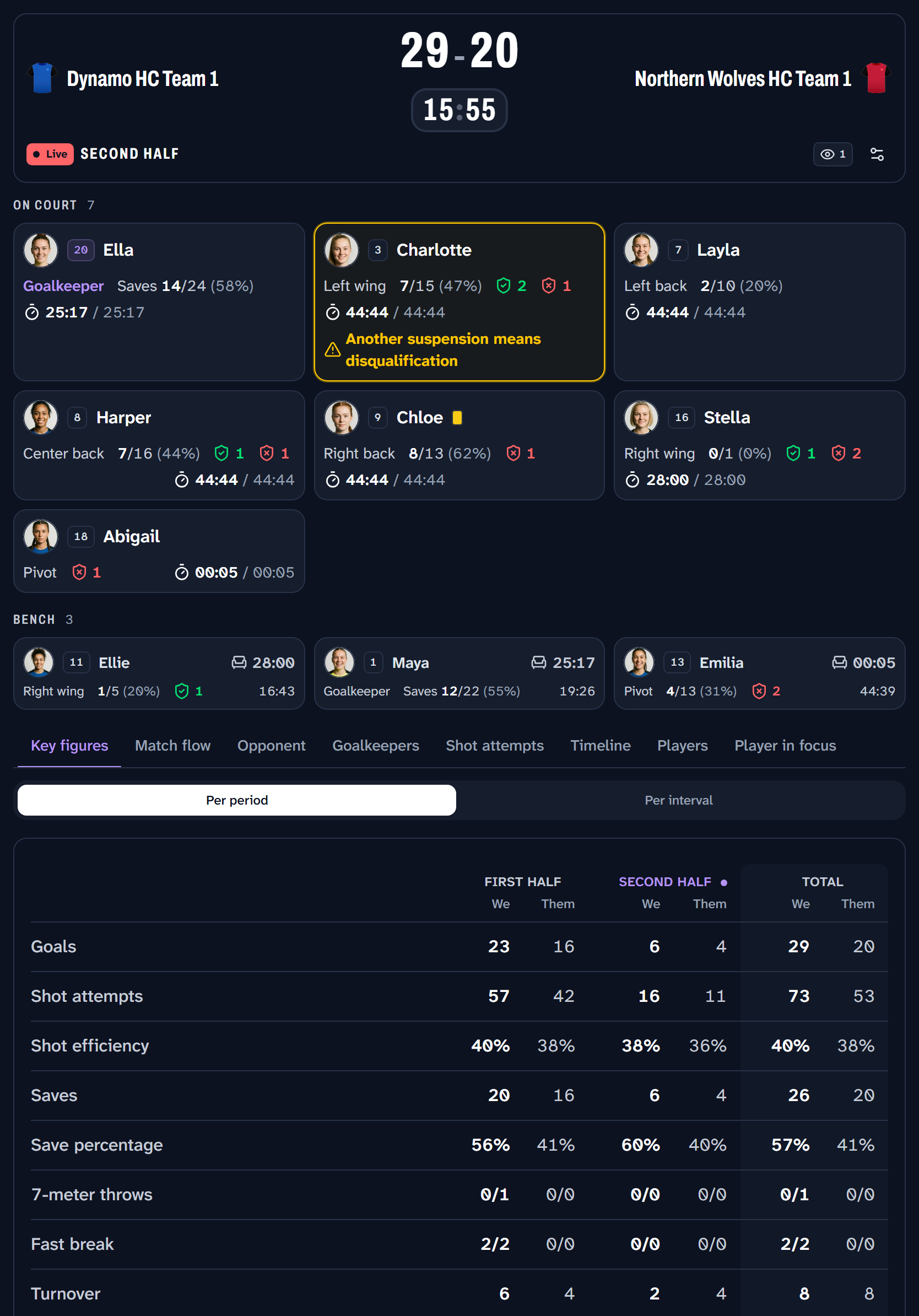
On its side, the team sheet and the panels are next to each other. Held upright, the panels move under the team sheet. Turning the tablet does not reload the page, drop the connection or change the panel you had open. As long as the match is being played, the screen stays on.
With the settings button at the top you choose the language, light or dark mode and the colors, the same as on the live scoreboard. Whether player photos and playing times are shown is set in Live scoreboard options in the app, and that choice applies to the dashboard too.
What you need for what
| Base | Pro | Max | |
|---|---|---|---|
| The coach dashboard, with its own link | ✓ | ||
| Replacing the link | ✓ | ||
| The dashboard without a public scoreboard | ✓ | ||
| Key figures, match flow, opponent, goalkeeper and shot panels | ✓ |