
During the match
The match screen
Available on every plan
This is the screen you spend the match on. Everything you tap here becomes the report afterwards.
The first thing to know is that it does not look the same for every match. What you see depends on how the match was set up and on the subscription of the team. A match with substitutions and seven players shows a court; a simpler match shows a list. Both are the match screen, and the rest of this page covers what changes and why.
The scoreboard

At the top: the score, the clock, and which period you are in. It stays there while you scroll, so you never lose the score.
- Tap a score to register a goal for that side.
- Double-tap the clock to pause it, and double-tap again to let it run. That is the quickest way to keep up when the referee stops play.
- Press and hold the clock to undo the last thing you registered. Useful when the referee waves a goal off after you have already tapped it.
- The lock keeps the scoreboard pinned while the rest of the screen scrolls.
The clock counts down by default. A match can be set up to count up instead, which some competitions prefer.
The court
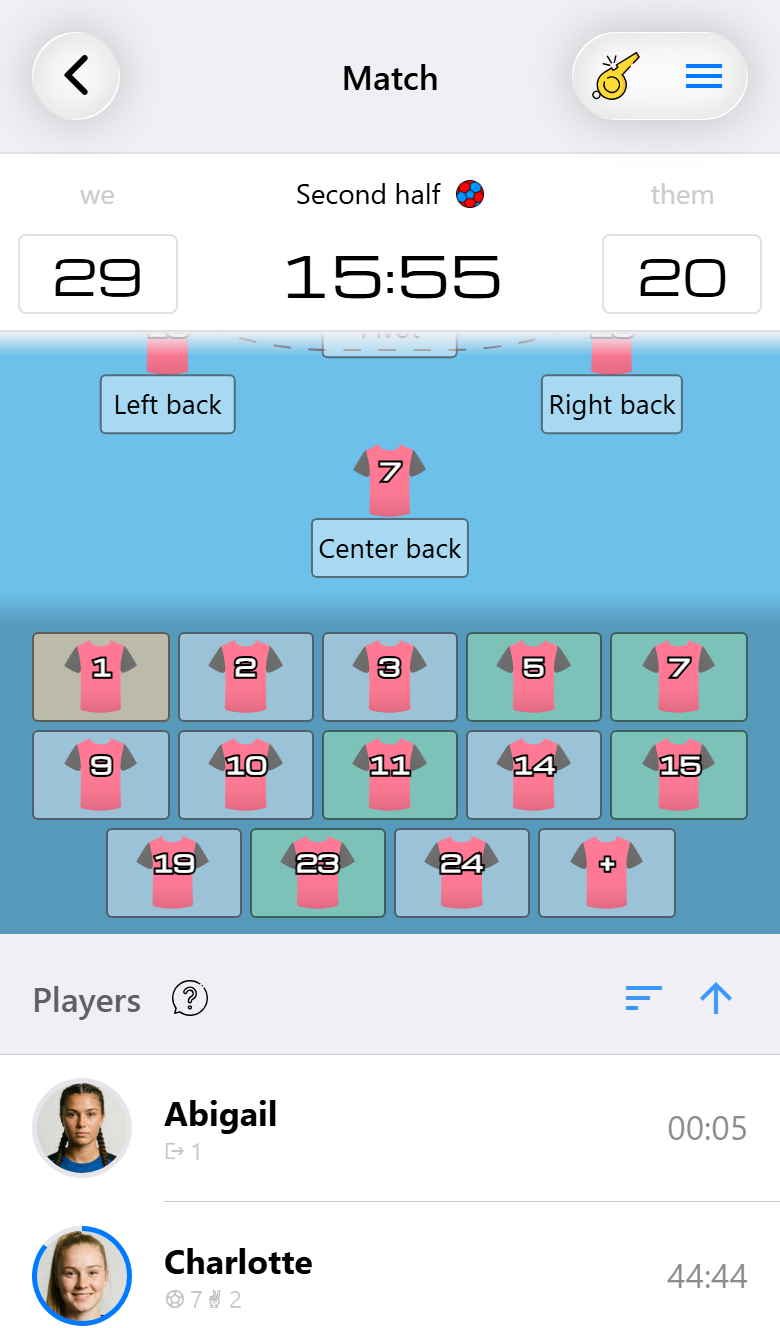
The court appears when the match supports substitutions and is played with seven players, a goalkeeper and six field players. That is the standard setup, so most matches show it.
Your players are drawn in their positions with the goalkeeper at the top, and under each name you see how long that player has been on court. The darker band below the court is the bench, with how long each substitute has been resting.
- Tap a player to register something for them.
- Drag one player onto another to swap their positions.
- Drag a substitute onto a player to make the change.
When there is no court
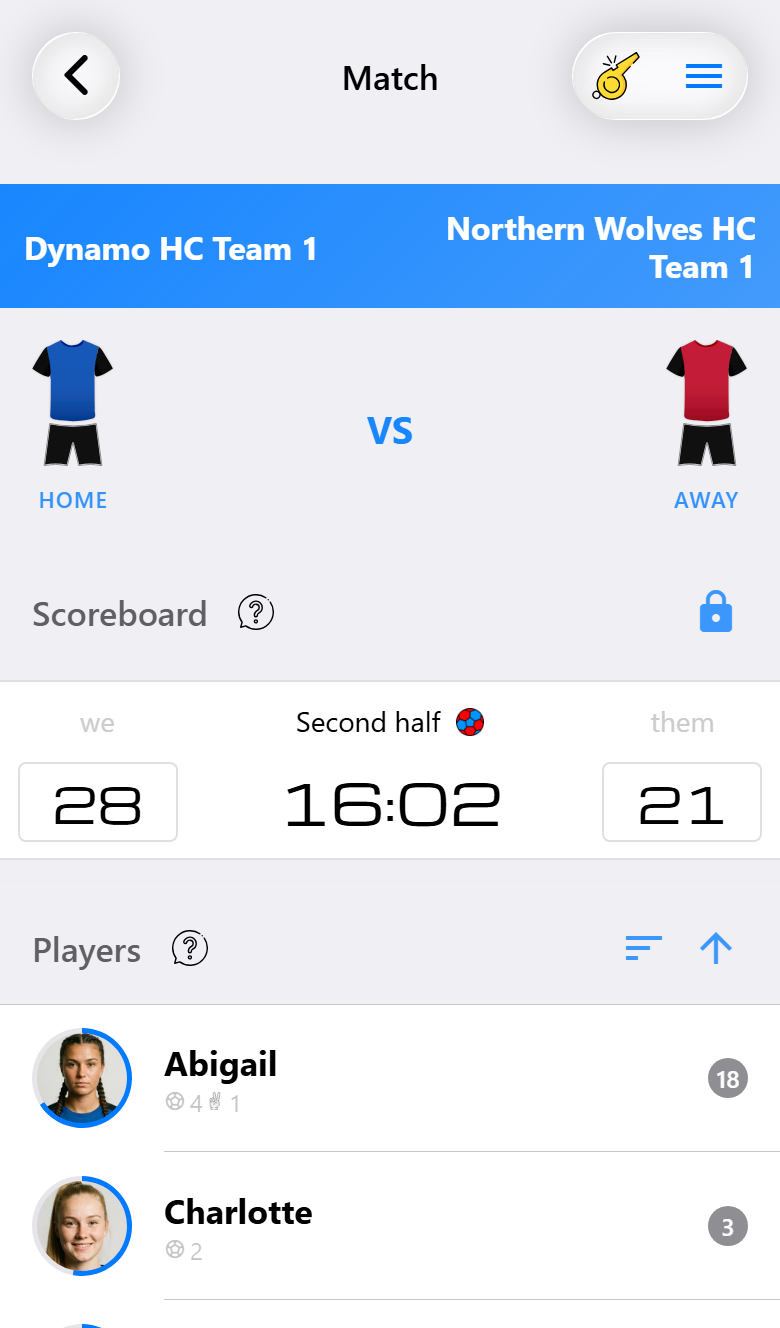
Turn substitutions off, or play with fewer than seven players, and the court disappears. You get the scoreboard and a plain list of players instead.
Nothing is lost. Every action can still be registered, by tapping a player in the list rather than on the court. For a coach who only wants the score and the scorers, this is the faster screen: no positions to keep straight, no bench to manage. See Choosing how much to record for what each further step adds.
The opponent's court
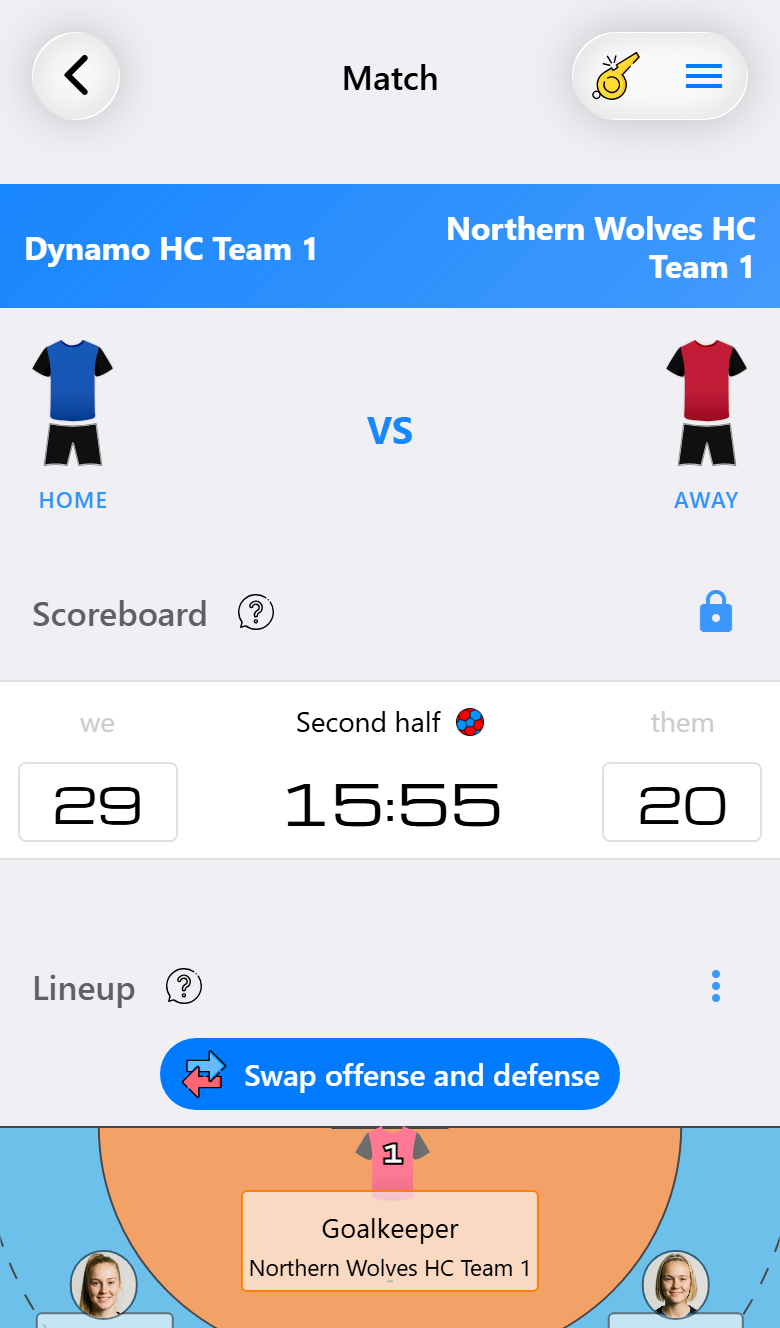
With Max, and with shot attempts switched on, you also get the opponent's half. Swap offense and defense flips between the two.
Give their players jersey numbers by tapping a position and picking a number from the list, which has one row per set of ten, so 37 sits right under 27. From then on their goals, suspensions and cards are registered against a number instead of against an anonymous opponent. That is what makes the report on the opponent worth reading afterwards.
This one needs shot attempts to be on: without them there is nothing to place on their half.
Who is on court, and for how long

Under the court, or instead of it, are the lists: the players on court, the bench, and anyone injured or absent. Each row carries the same running time you see on the court.
On Base those times stop counting in the display at 3:00 on court and 1:00 on the bench, and show an indication after that. The times themselves are still recorded in full and appear in the report.
The ring around each player is how well they are playing in this match, and it fills as their performance score rises. Blue is for playing as a field player, red for playing in goal, and a player who has done both carries two thinner rings, one of each. Under the name are small counts: goals, saves, substitutions, suspensions and your own events.
Sorting. The buttons on the right of each heading sort that list by name, jersey number, goals, number of substitutions, or current or total playing time, and the arrow next to them flips the order. Sorted on total playing time, the time on the right becomes the total for the match instead of the current spell.
Registering something
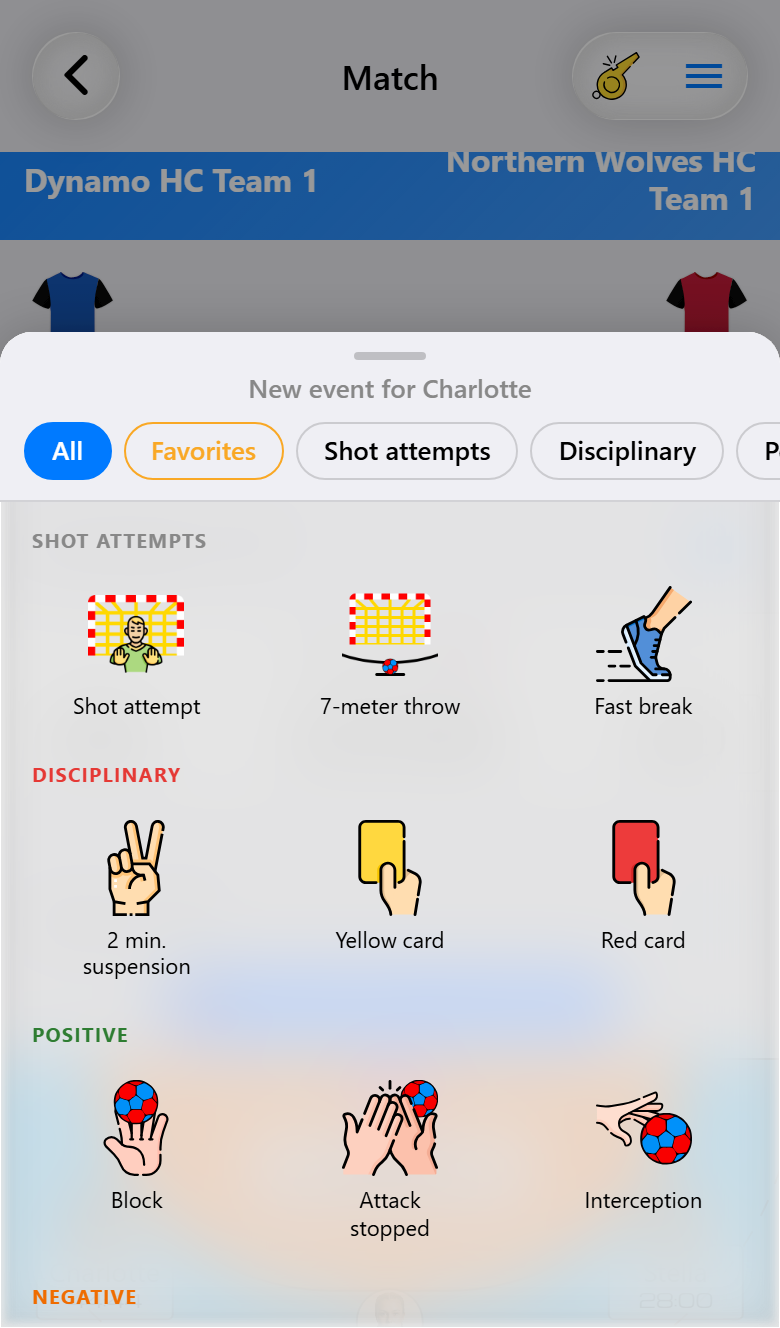
Tap a player, on the court or in a list, and the sheet of everything you can register for them opens: shot attempts, 7-meter throws, fast breaks, suspensions, cards, and more depending on the tier.
The categories along the top jump to a group, and Favorites holds the ones you use most, so the actions you reach for every few minutes stay within a thumb's reach. See Favorite actions.
For a player on the bench the sheet asks first whether you meant an action or a substitution, because both are plausible. A 7-meter throw taken by a substitute can be registered without bringing them on first.
When the hall and the app disagree
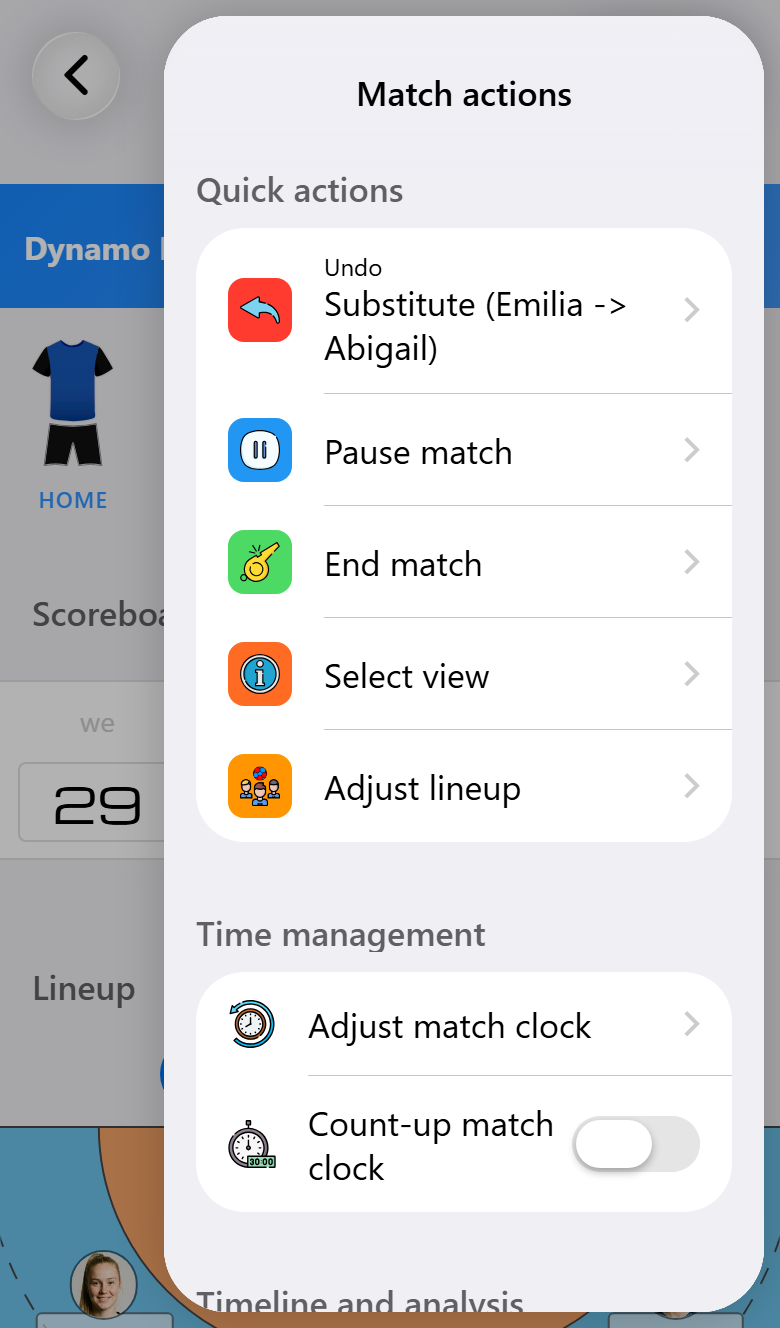
The match in the hall does not wait for the app. Match actions, the menu at the top right of the match screen, has what you need to get the two back in step.
- Pause match stops the clock, for an injury or when the referee stops play, and Resume match lets it run again. Double-tapping the clock does the same. A suspension pauses it by itself.
- Adjust match clock (Pro) sets the clock to the time on the scoreboard in the hall. That puts it right after a pause that nobody resumed, or a resume that came too late.
- Count-up match clock switches between counting down and counting up, even during the match.
- Adjust lineup is for when the players on the court in the app are no longer the ones on the court in the hall, usually after a few hectic minutes. Tick the players who are on the bench right now and save: the app registers the substitutions that make the court match again. It needs substitutions to be on and the match to have started.
- Undo, at the top of the same menu, takes back the last thing you registered, the same as pressing and holding the clock.
Overtime, a penalty shootout or a suspended match
A match that is not decided at the final whistle is handled from Match actions as well.
Overtime. When a match ends in a draw, the match screen offers overtime straight away, and Start overtime 1 under Match decision does the same. The first time, you choose how long one overtime period lasts, five minutes unless you change it. Each following period has the same length, up to four in all.
Penalty shootout. Start penalty shootout opens a screen of its own. Choose which team starts and how many throws each team takes, five unless you change it. For every throw you fill in who took it, who was in goal, where it went and how it ended: a goal, a save, the post or a foot fault. The shootout ends by itself once it is decided. If it ends level, you can start a new one or end the match. The penalty shootout walks through it step by step.
Overtime and the penalty shootout work on every subscription.
Suspending a match (Max). When the referee stops a match that will be finished another day, because of the weather, the light or an injury that takes too long, choose Suspend match under Critical actions. Everything recorded so far is kept. Resume suspended match, the button at the bottom of the match screen, carries on where it stopped. If the match is never played to the end, End suspended match closes it with the final score you enter.
What changes the screen
| Setting | What it changes | Needs |
|---|---|---|
| Substitutions | The court and the bench appear | Base |
| Seven players | The court only appears at seven | Base |
| Shot attempts | Where a shot came from and where it went | Pro |
| Opponent court | Their half, with jersey numbers per position | Max |
| Time-outs | A time-out button and a countdown | Pro |
| Periods | More than two halves | Pro |
| Position suggestions | A button above the court that proposes position changes | Pro |
| Custom events | Your own actions in the sheet | Max |