
Getting started
Recording your first match
Available on every plan
Creating a match takes a couple of minutes. The assistant walks you through it, and most of what it asks you only ever answer once, because the next match starts from what you chose last time.
This page assumes you already have a team with players in it. If not, start with Setting up your team.
The match assistant
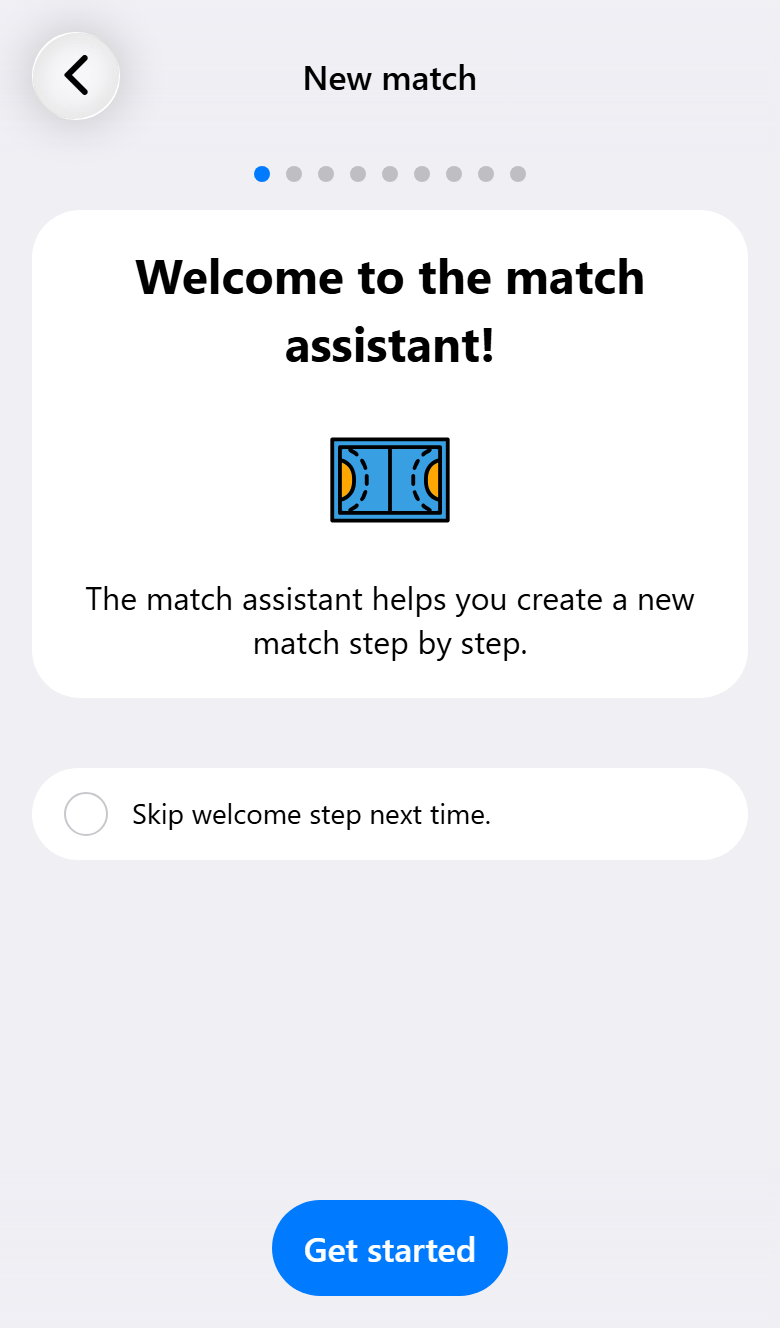
Tap New match and the assistant opens. It is a sequence of short steps with a Next button at the bottom and dots at the top showing how far along you are. Nothing is lost if you stop halfway: what you have filled in is kept as a draft, and the match list shows how far it got.
Once you know the steps you can tick Skip this welcome step next time and go straight in.
Who you are playing
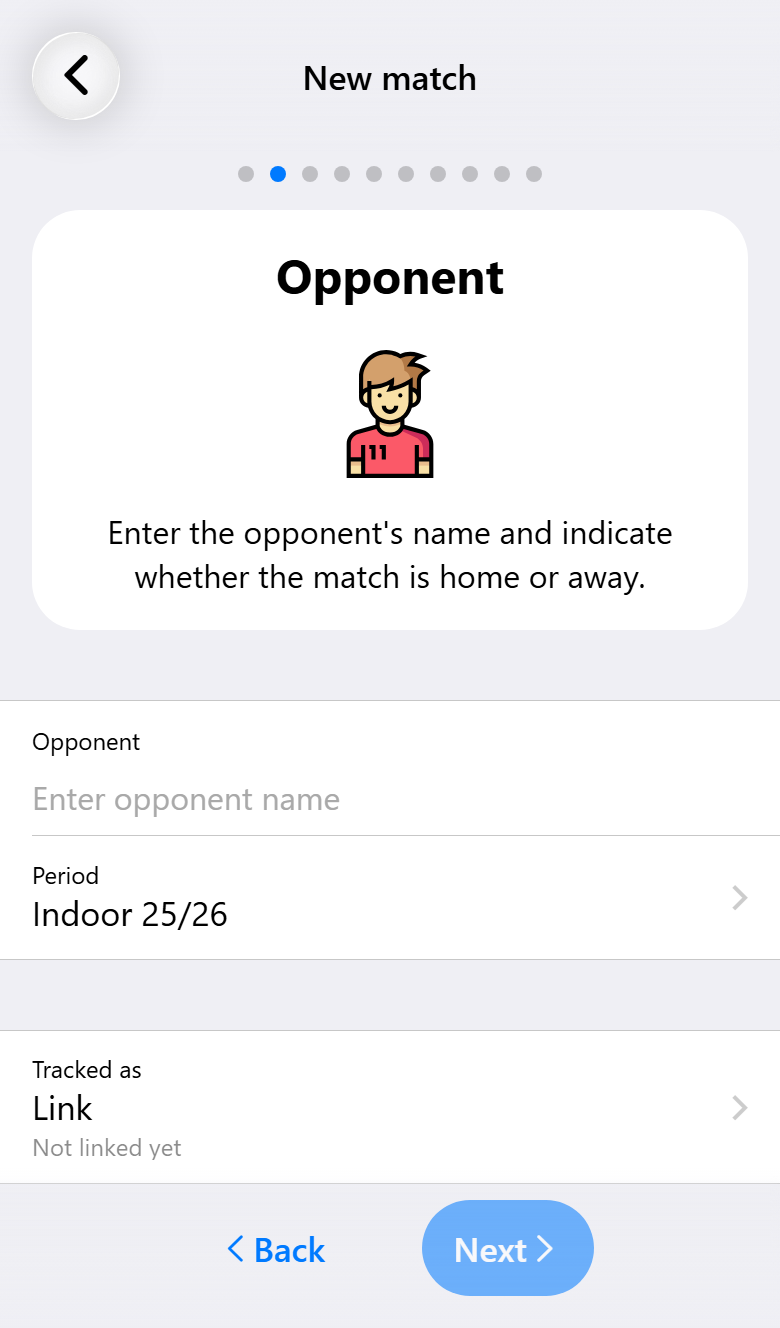
The opponent's name, and whether you are at home or away. That is the only thing the assistant insists on, because everything else can be sorted out later and this cannot.
If you have played them before, pick them from your earlier opponents and their shirt comes with them. With Pro, a team you keep track of is recognized as you type. See Knowing your opponent.
Their kit, the date and the place
Three quick steps: their shirt, so the scoreboard shows the right colors, the date and time, and where the match is played. The location is optional, and addresses are suggested while you type. Filling it in means the app can hand the match over to your maps app on the day.
The settings
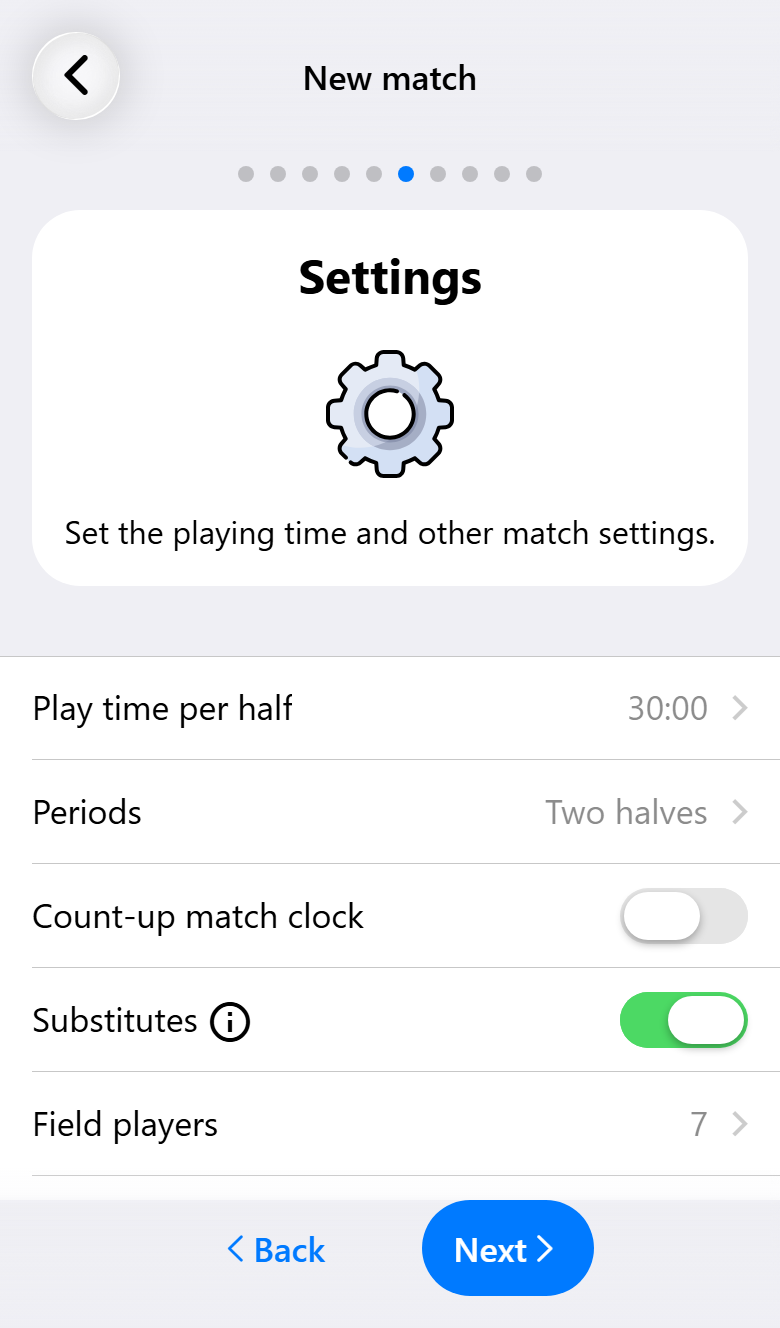
This is the step worth reading, because it decides what the match screen offers you. Playing time per half, how many periods, whether the clock counts up or down, whether you record substitutions, and how many players are on court.
Everything here has a sensible default, so Next is a perfectly good answer the first time.
What you can choose depends on your subscription. On Base the playing time is 20, 25 or 30 minutes and a match is two halves; Pro adds shorter periods, a freely set time, more than two periods, and time-outs. Shot attempts need Pro and the opponent's court needs Max. There is more on what each setting changes in The match screen.
This is also where you decide how much the match records: goals only, substitutions and playing time as well, or every shot of both teams. See Choosing how much to record.
Who is playing

First which players are available, with their jersey numbers, and then the starting line-up. With Pro, substitutions on and six field players, a step about positions sits in between.
Everyone in the squad starts out available. Switch a player off when they cannot come, or tap the injury icon for someone who is there but injured: they stay out of the line-up and are listed as injured during the match. Tap a shirt to give a jersey number; a player's default number is already filled in. In the full list of numbers every row holds one set of ten, from 0 to 9, 10 to 19 and so on, so 37 sits right under 27. A row that does not fit the screen scrolls sideways. Choose a number that someone else already wears and the app asks what to do: Yes gives it to this player and leaves the other without one, Again lets you choose another.
Add guest player(s) brings in someone from outside the squad for this one match. The list starts with the guest players, players who belong to no team, followed by the players of your other teams. Create guest player adds someone who is not in the app yet.

Positions for this match starts from the preferred positions in each player's profile, guest players included. Change them when someone plays elsewhere today, or give a guest player positions for the first time. A change only counts for this match and is marked Adjusted; the profile stays as it is. The substitution and position suggestions use these positions. You can change them later in the settings of the match, even while it is being played.
Drag a player onto a position to place them, or drag one onto another to swap. You need a goalkeeper and enough field players before the assistant will let you finish, and it says so while anything is still missing.
With Pro you can send an attendance request instead of guessing who turns up. Players answer from a link, and their answers fill this step in for you. See Arranging attendance.
Before the whistle
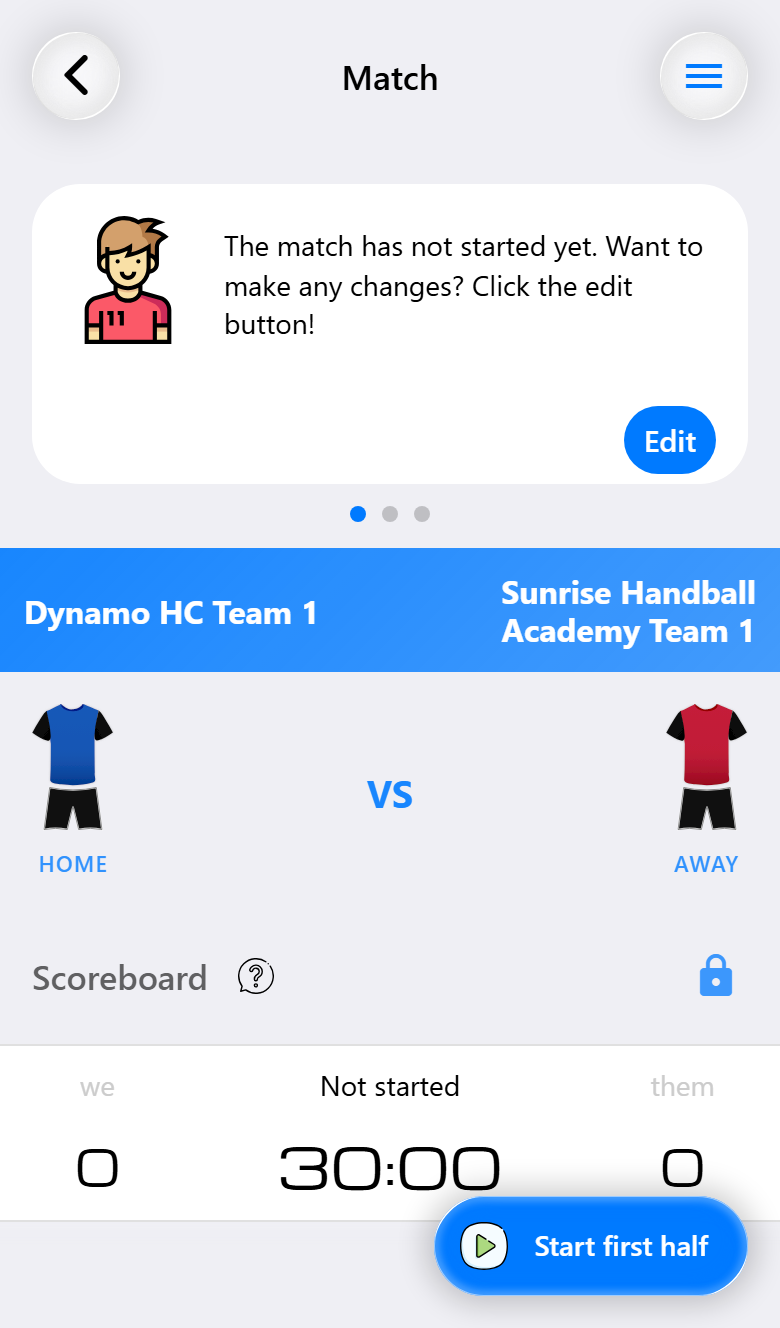
The match is now in your list and opens on the screen you will use during play, with the clock at zero.
Nothing is fixed yet. You can still change the line-up, add a player who turned up late, or adjust the settings. This is also the moment to share the match: a live scoreboard link for people who cannot come, or a code so someone else can register alongside you.
When the referee blows the whistle, tap Start first half.
Registering the first things
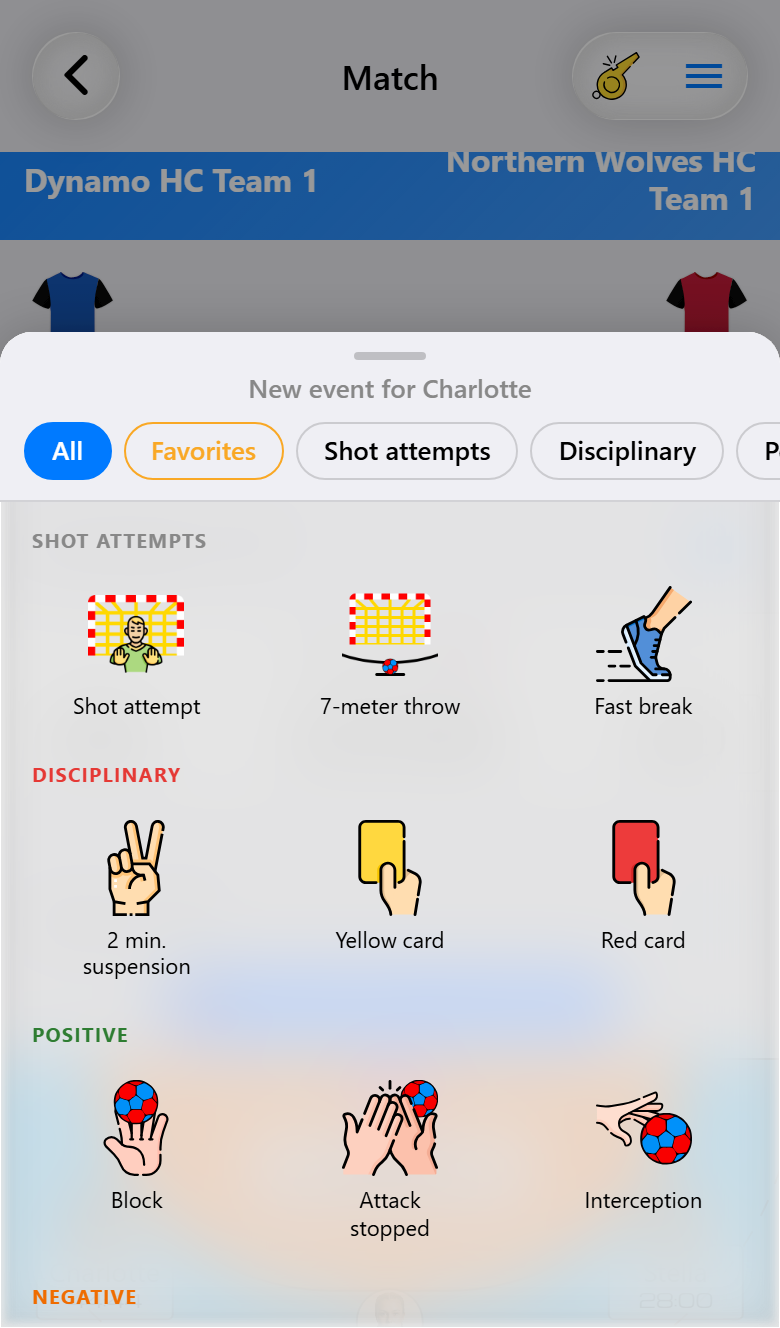
Tap a player and the sheet of what you can register for them opens.
The four you will reach for in the first minutes:
- Goal. For your player, or tap the opponent's score for theirs.
- Save. For your goalkeeper.
- Two-minute suspension. The clock pauses by itself, and the player comes back on when the two minutes are up.
- Substitution. Drag a substitute onto the player coming off. See Substitutions.
Tapped the wrong thing? Press and hold the clock to undo the last action. That is worth practicing once before it matters.
Everything you tap becomes the report afterwards, and you do not have to do anything to save it. The match is saved as you go, even offline.
The match list
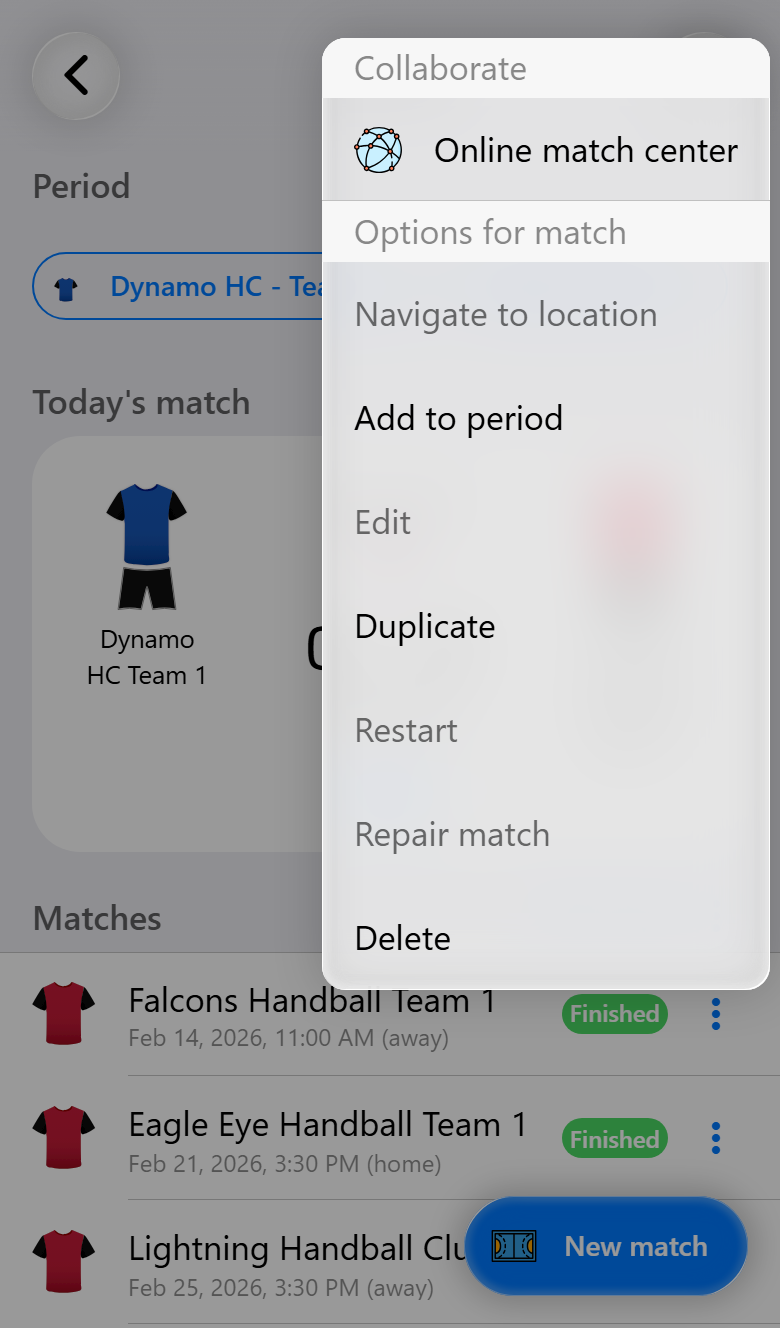
Every match you create lands in the match list, the ones still to come and the ones played. The button with three dots next to a match opens what you can do with it:
- Navigate to location hands the address of the match to your maps app.
- Add to period moves the match into a period. See Multiple teams and periods.
- Edit opens the settings of the match.
- Duplicate (Pro) makes a copy with the same players, line-up and settings, not started yet, and opens it so you can change the opponent and the date. The copy gets "(1)" after the opponent's name, so you can tell the two apart. Handy for a tournament, where the same squad plays several matches in one day.
- Restart puts a match back to before the throw-off.
- Repair match checks a match for events that do not fit and puts them right. See Reading your match back.
- Delete removes it.
Several at once. Tap the opponent's shirt in front of a match to select it, and tap more shirts to add them. The trash can at the top deletes the selection. The menu next to it adds the selected matches to a period in one go, opens Match statistics for the ones that were played, or exports them.
What if you get it wrong
Very little here is permanent.
- A wrong action: press and hold the clock to undo it.
- A clock or a court that no longer matches the hall: Match actions puts them right. See The match screen.
- A wrong setting: change it from the match, even after it has started.
- A match started by accident: restart it from the match list. Notes and any attendance request are kept.
- Something further back: the timeline can be edited afterwards with Pro. See Reading your match back.