
During the match
Everything you can record
Available onProMax
Goals, saves, 7-meter throws, suspensions and cards are enough for a match report, and they work on every subscription. This page is about everything after that: where a shot came from and where it went, who gave the pass, the ball lost and the ball won. That is the part that turns a score sheet into something you can coach from.
None of it is required. Record only what you will use, and add more when you want it; see Choosing how much to record for the steps in between.
Most of it needs Pro, and the actions around possession need Max. The table at the end lists what needs what.
Where you register things
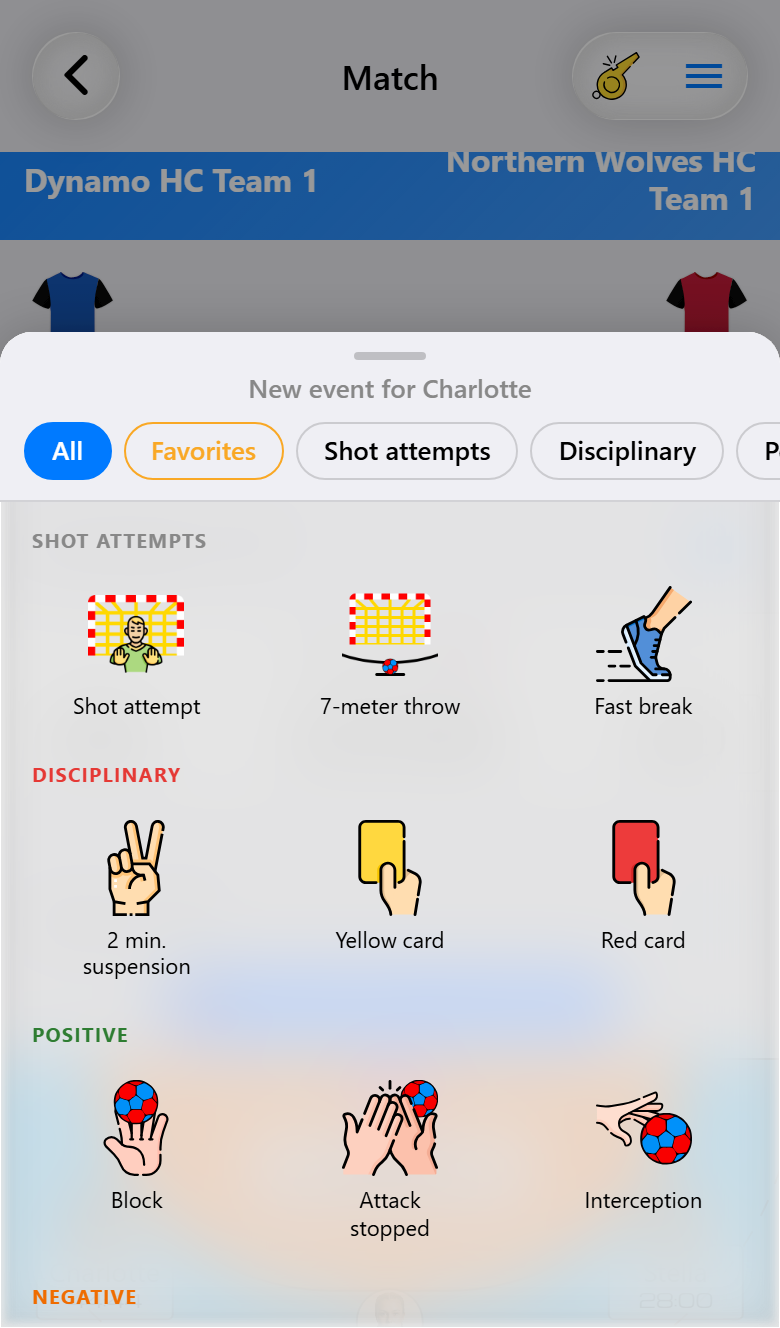
Everything goes through one sheet. What it is about depends on what you tap:
- A player, on the court or in a list, for something that player did.
- A score at the top, for something the team did as a whole. A turnover nobody can be blamed for, a passive play signal, a time-out.
- One of their players, on the opponent's court with Max, to put it on a jersey number.
The sheet is grouped: shot attempts, disciplinary, positive, negative, logistical and other. The chips along the top jump to a group. Favorites holds the ones you use most: tap the pencil at the bottom right and mark the actions you want there. See Favorite actions.
An action your subscription does not include stays in the sheet with a badge showing the tier it needs. Tapping it does nothing, so a locked action can never be registered by accident.
Shot attempts
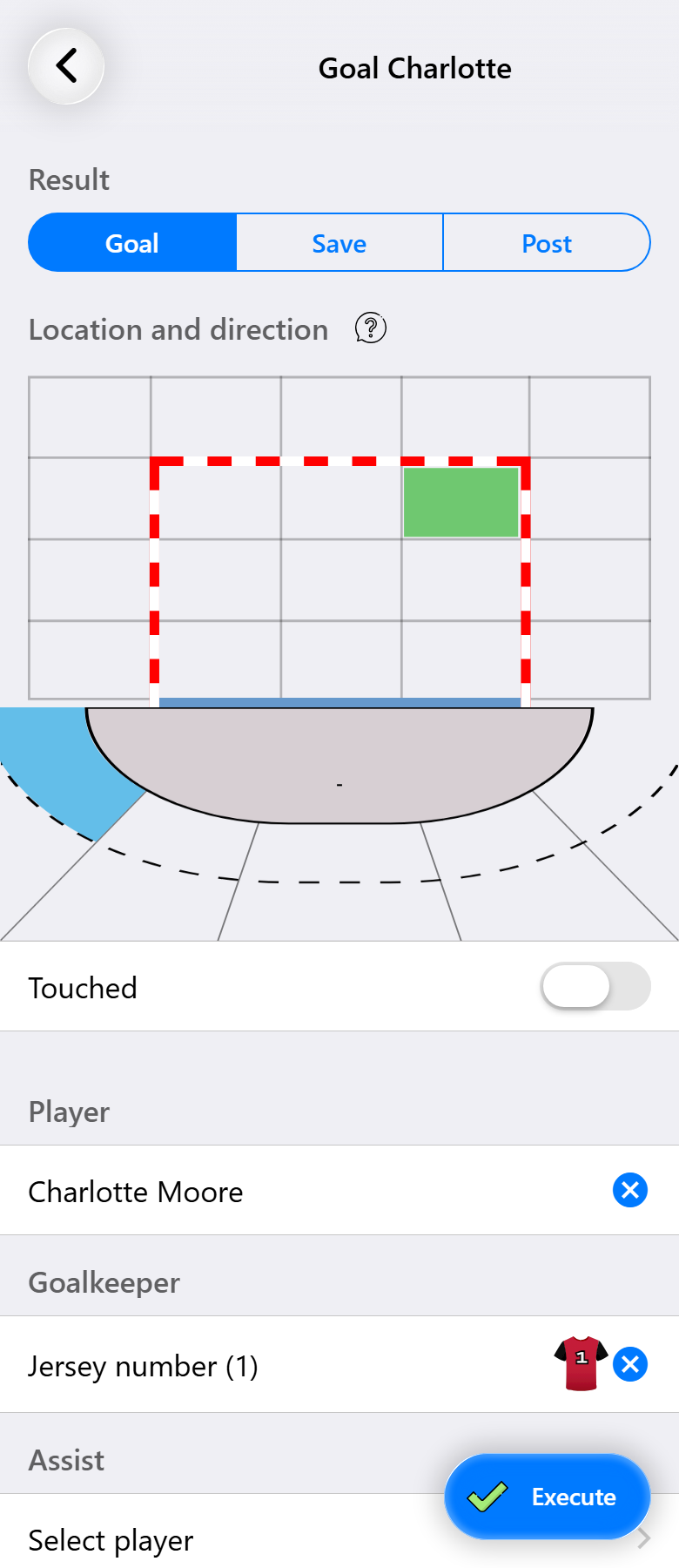
Switch on shot attempts in the match settings (Pro) and Scored in the sheet becomes Shot attempt. Every shot then gets a result, not only the ones that go in. Tap it and a screen opens with three things to fill in. Only the result is required.
The result. Goal, save or post. Tap a box outside the goal for a shot that went wide or over.
Where it went. A grid of twenty boxes, nine inside the goal and the rest around it, so a miss has a place too. Over a season this is what shows you that their goalkeeper never gets to the low corners.
Where it came from. Eleven locations on the court: wings, backs and center, each inside or outside nine meters, plus the 7-meter line. The app fills it in from the position of the player who shot, so for most shots you only check it.
Under that:
- Touched, when the goalkeeper got a hand to a ball that still went in or hit the post.
- Goalkeeper, the jersey number of the goalkeeper the shot was against, filled in from their court when you use it.
- Assist on a goal, or key pass on a shot that did not go in. The pass that made the chance counts even when the shot fails.
Tap Execute to register it.
7-meter throws
With shot attempts on, a 7-meter throw opens the same screen with two extra fields: who earned it and who conceded it. A foot fault counts as a result of its own.
Fast breaks
Fast break (Max) opens the same screen too, with the shot marked as a fast break. That keeps fast-break goals apart from ones scored against a set defense, which is the difference between "we scored 28" and "we scored 28 because we ran".
Possession
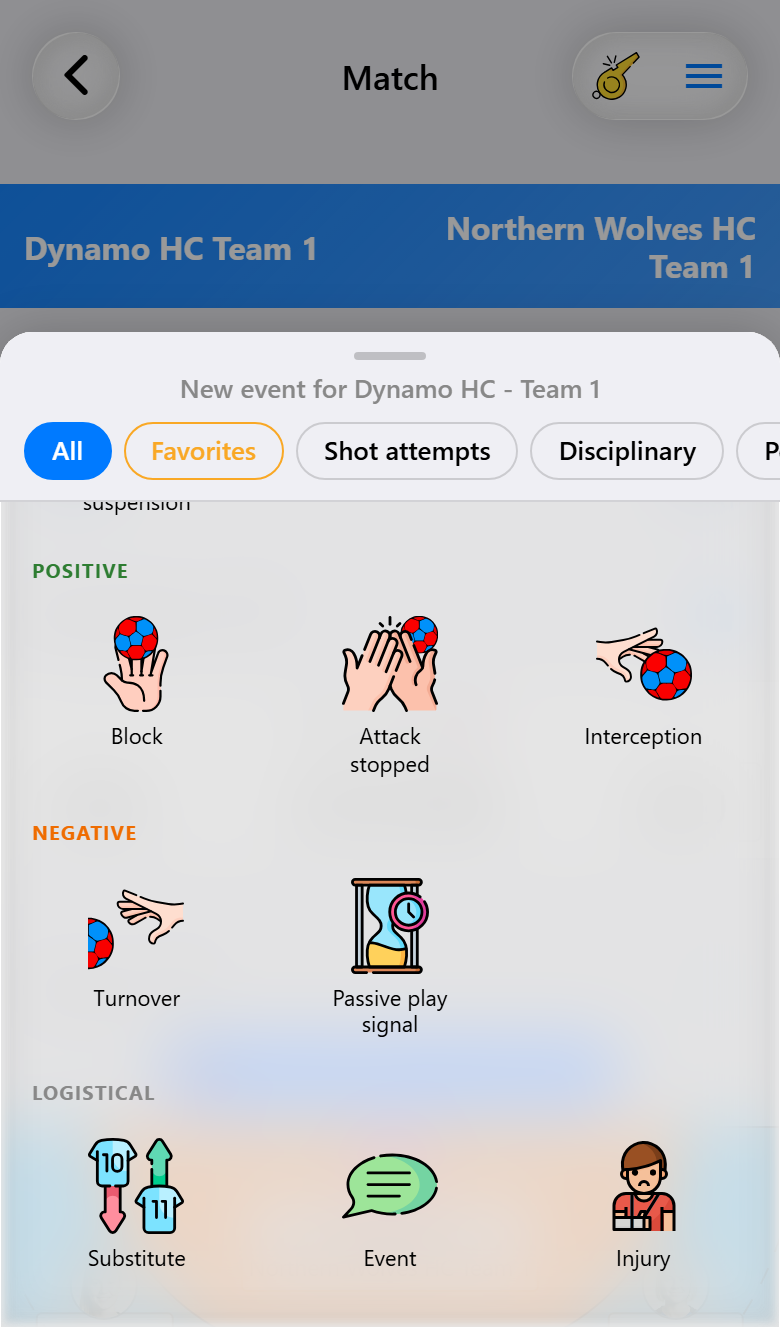
Five actions, all Max, that describe who had the ball:
- Turnover. The ball lost, for a player or for the team.
- Interception. The ball won.
- Block. A shot stopped by a field player rather than the goalkeeper.
- Attack stopped. A defender stops the attack with a foul before the shot. The opponent gets a free throw and has to build the attack again. A foul that earns a suspension is registered as the suspension, not as a stopped attack.
- Passive play signal. The referee's raised arm, as a team event.
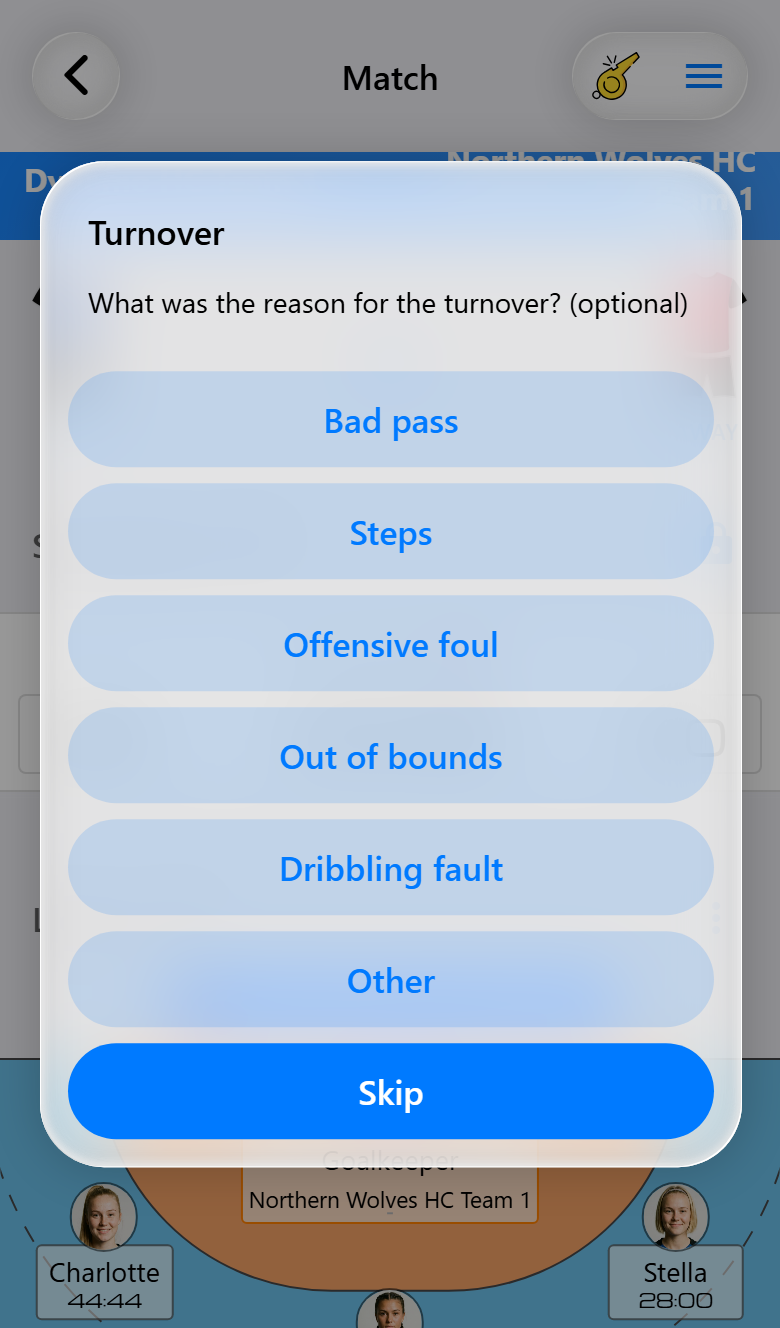
A turnover asks why: bad pass, stepping violation, offensive foul, out of bounds, dribbling violation or other. The reason is optional, and Skip registers it without one.
When the opponent loses the ball through an offensive foul, a stepping violation, a bad pass or a dribbling violation, you can then pick which of your players forced it, for example by drawing the offensive foul. Close the list to skip it. A drawn offensive foul counts for 0.5 goal in the performance score, any other forced turnover for 0.3. The player can be added or changed in the timeline later.
Registered from a score instead of a player, an interception or a block first asks whether you want to pick the player. Say no and it counts for the team.
The goalkeeper
Tap your goalkeeper for the actions that belong to that position:
- Save, on every subscription.
- Fast goalkeeper throw (Pro), followed by whether it worked. This is what tells you whether your goalkeeper starts your fast breaks or slows them down. A fast break goal with the goalkeeper as the assist is the same throw, so the app adds a successful one by itself, unless one was already registered since the ball changed hands. Delete or undo the goal and the throw goes with it.
- Goalkeeper change (Max), when your goalkeeper and a field player swap roles.
Extra field player (Max). When one of your players is suspended, a goal button appears next to the line-up heading above the court. It swaps the goalkeeper for an extra field player, and tapping it again swaps them back. The app remembers who came on, so the second time takes one tap.
Discipline
Two-minute suspensions, yellow cards and red cards for your own players work on every subscription. The clock pauses by itself on a suspension, and the player returns when the two minutes are up. A red card covers the blue card too.
Giving them to the opponent, on a jersey number, needs Pro.
When a player on the bench is suspended or sent off, the rules say someone on the court goes off, and the app asks you who.
Events, injuries and time-outs
- Event (Pro) puts a line of text on the timeline, for your team, the opponent or a player. Prepared drafts make it one tap during the match, and you can still add one after the final whistle.
- Injury (Pro) moves a player to the injured list for the rest of the match, and the report shows it afterwards.
- Time-out (Pro), from a score, when time-outs are switched on for the match. At most two per team per half and three per match, and the clock shows the countdown.
What you notice about the opponent or your own team, and want to read again before the next match against them, belongs in Match notes (Pro), in the match actions menu. See Knowing your opponent.
Your own events
With Max you can add up to six events of your own, each with its own name and icon, for whatever your team keeps track of: a good defensive action, a technical foul, the player of the match. Set them up in the match settings, or once as a default for the team.
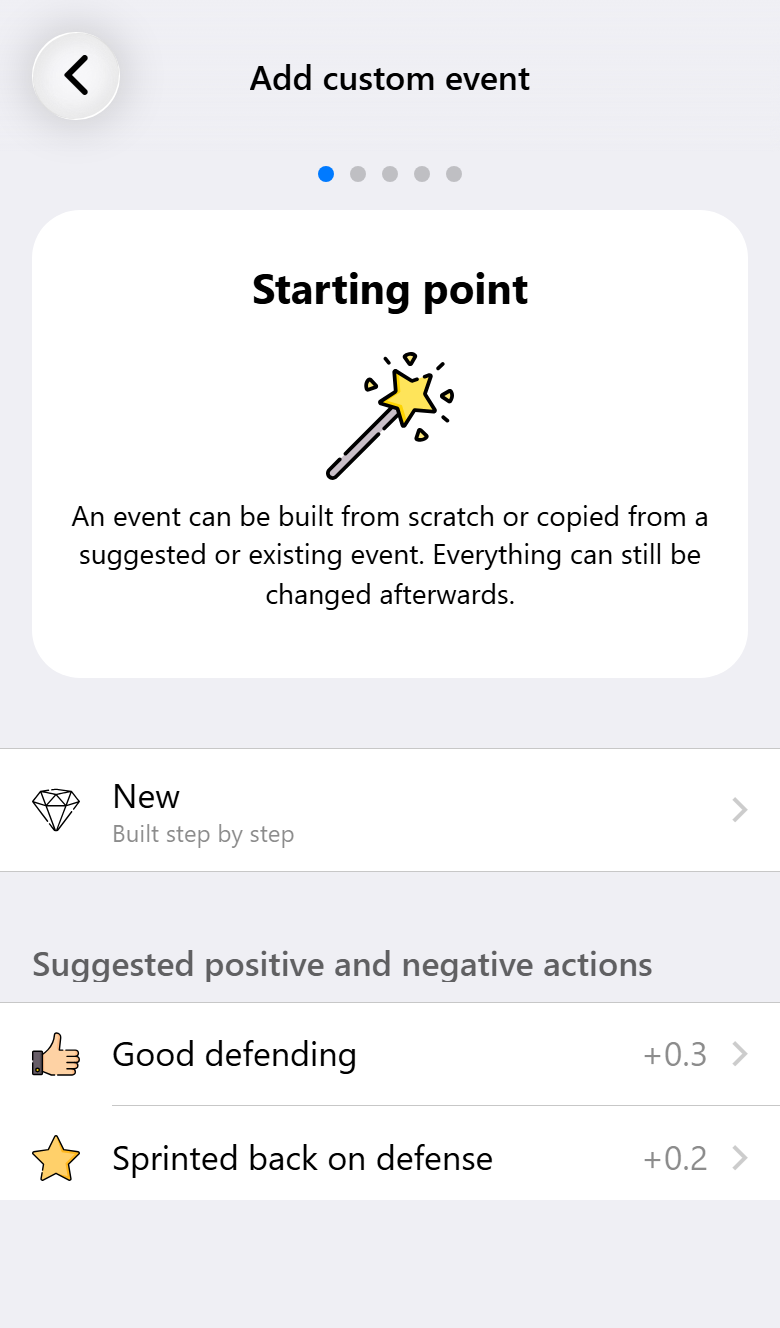
Tap an empty slot and an assistant takes you through it:
- Starting point. New to build one from scratch, one of the suggested good and bad actions, or an event you already use in another team or match. With a long list, a search bar helps you find it.
- Icon and name. A name of up to 20 characters, and an icon picked from the grid.
- Registration. What is recorded with the event, see below.
- Performance score and sharing. Whether it counts towards the performance score, and whether it stays with the coach.
- Overview. All settings at a glance. Tap one to go back to its step, then Save.
A suggested or existing event takes you straight to the overview, so it stays two taps. An event that is already set up opens in a form instead, to change what you need.
Each one can be set to:
- belong to a player, or to the opponent as well
- stay available while the player is suspended
- be given at most once per player, or to one player only, like a trophy
- carry a short message
They appear under Other in the sheet, and the report counts them per player like any other action.
Good and bad actions
An event that belongs to a player can count towards the performance score. Give it a weight between -1 and +1, where 1 stands for one goal: an interception, for example, counts as 0.6. The smallest step is 0.1, for a judgement that should only just count. That way you make your own good and bad actions, such as "Good defense" (+0.3) or "Lost their opponent" (-0.3). The assistant offers a few of these as a starting point.
Per match the judged actions count for at most 2 goals together, so a judgement can tip a close call but never outweighs what was measured. A player's performance shows the judgement as a line of its own. A match keeps the weights it was played with, even when you change the event later.
Turn on Coach only to keep an event to yourself. It then stays out of the statistics website, the match report, the live scoreboard, the AI and the Excel export, and the shared performance score is calculated without it. An event with a negative weight is coach only by default. Whoever records along with you still sees everything.
To see who loses their direct opponent most often, turn on Ask for the beaten defender in the team settings. For an opponent goal from open play, you can then pick the defender who was beaten, or leave it empty. Every such goal counts as a judged action of -0.2. Because the whole defense is often at fault, it is off by default and stays with the coach, unless you also turn on Share the beaten defender.
At halftime
When the first half ends, the match screen shows a card with the team performance so far. With Pro, it also carries a few coaching tips for the second half, written by AI from what has been registered up to that point. That needs an internet connection. The more you register, the more the tips have to go on.
What you need for what
| Base | Pro | Max | |
|---|---|---|---|
| Goal, save, 7-meter throw | ✓ | ✓ | ✓ |
| Suspension, yellow card, red card for your players | ✓ | ✓ | ✓ |
| Suspension and cards for the opponent | ✓ | ✓ | |
| Shot attempts with location and direction | ✓ | ✓ | |
| Assist, key pass, goalkeeper touched | ✓ | ✓ | |
| 7-meter earned and conceded | ✓ | ✓ | |
| Fast goalkeeper throw | ✓ | ✓ | |
| Event, with drafts | ✓ | ✓ | |
| Injury during the match | ✓ | ✓ | |
| Time-outs | ✓ | ✓ | |
| Coaching tips at halftime | ✓ | ✓ | |
| Fast break | ✓ | ||
| Turnover, interception, block, attack stopped, passive play | ✓ | ||
| Goalkeeper change | ✓ | ||
| Extra field player | ✓ | ||
| Your own events | ✓ |
Got something wrong? Press and hold the clock to undo the last action. Anything further back can be corrected on the timeline afterwards, including the location and direction of a shot. Something you missed can be inserted there at the right moment, during the match or afterwards (Max). See Reading your match back.