
Sharing and watching
Arranging attendance
Available onProMax
Before every match the same question goes round the group chat: who is coming? The answers end up scattered between messages, thumbs and a few people who never reply. An attendance request turns that into one link. Players tap whether they will be there, you see who has answered, and the answers go straight into the player selection of the match.
Players need no app and no account to answer. You need a team on Pro or Max and an account, because the request lives on the server so that players can reach it.
Asking from the match assistant

When you are signed in, the match assistant asks about attendance right after the match settings. Tap Yes, use attendance request, or No, skip this step to leave it for this match.
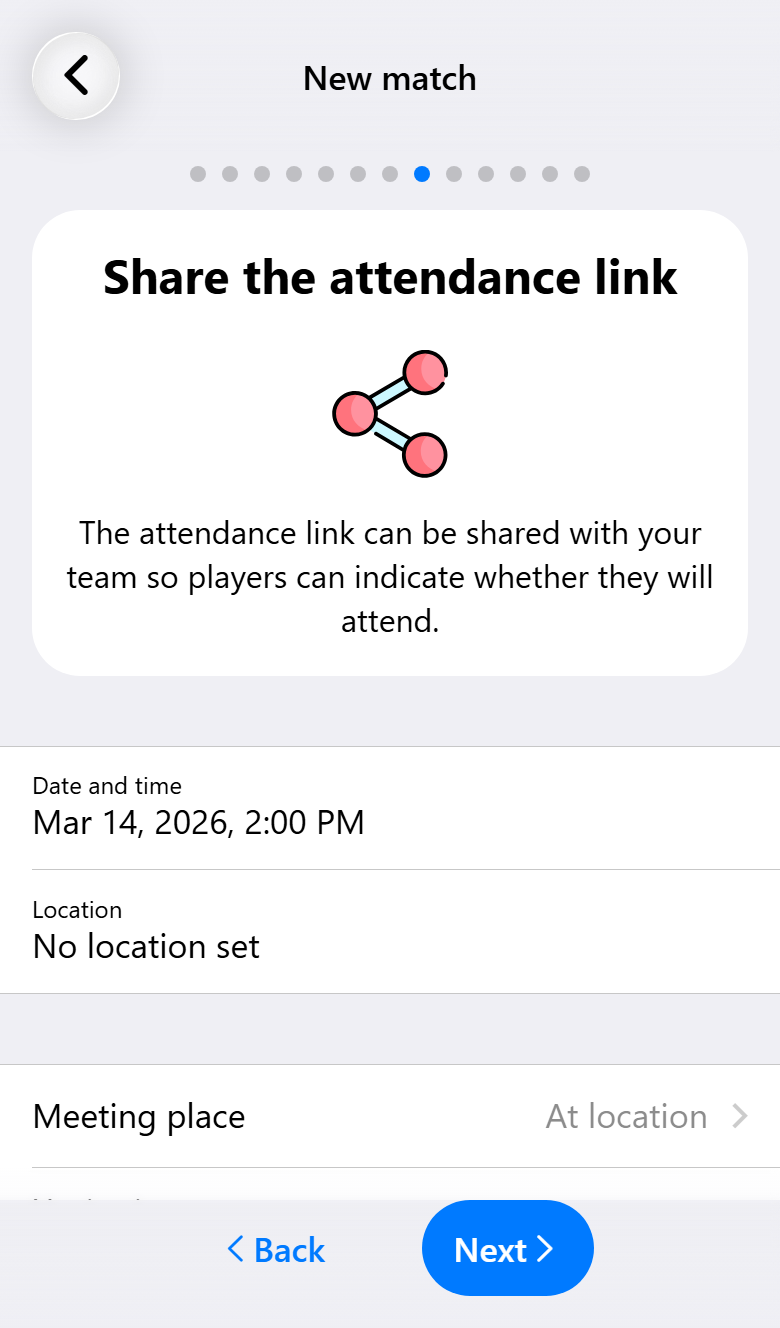
The request is created as soon as you go on. The next step shows the date, time and location of the match at the top, so the start time is in view while you set where the players gather:
- Meeting place: At location, in the hall itself, or Meeting point, somewhere else first, for example to drive to an away match together. A meeting point gets a description of its own.
- Meeting time: when they have to be there. It is filled in from the team's defaults, see the last section of this page. Under it you see how long before the match that is. A meeting time after the throw-off is shown in red, so a slip in the time picker is caught before the link goes out.
Then tap Share attendance link and send it to the team's group chat. In a chat app the link shows a preview with both kits, so players see which match it is about before they open it.
The last step, What now?, shows how many have answered so far. Nobody has answered a link that was only just sent, so you can save the match and come back once the answers are in.
What players see
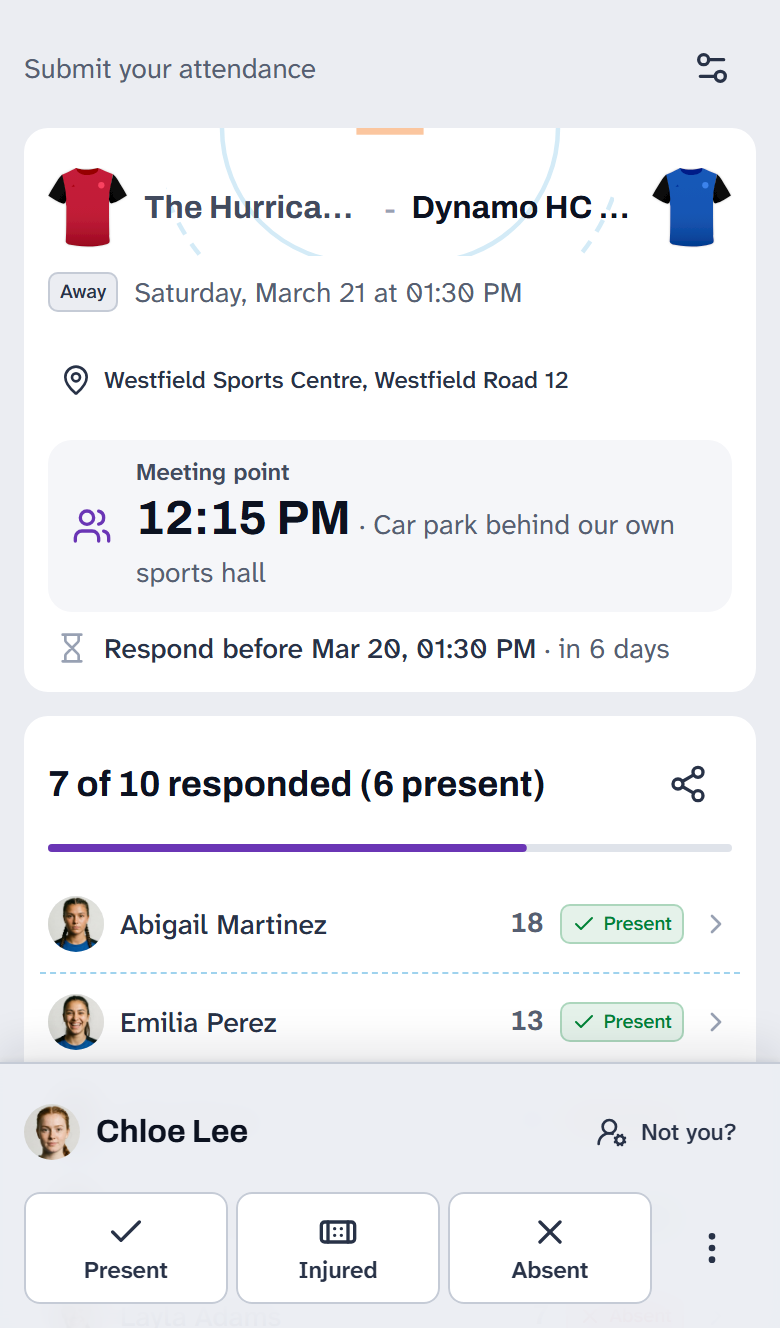
The link opens a page with the match on top: both teams, home or away, the date and time, the venue, which opens in a map, and where and when to meet. Below that is the deadline for answering, with the time left.
Answering is one tap: Present, Injured or Absent. Injured means the player comes along but cannot play. With the button next to the three, a player adds a message for the coach or a jersey number. Messages are only for you: other players do not see them.
Below the match is the squad, with how many have answered and how many will be there. Everybody can see who still has to answer, which is often what gets the last few to reply.
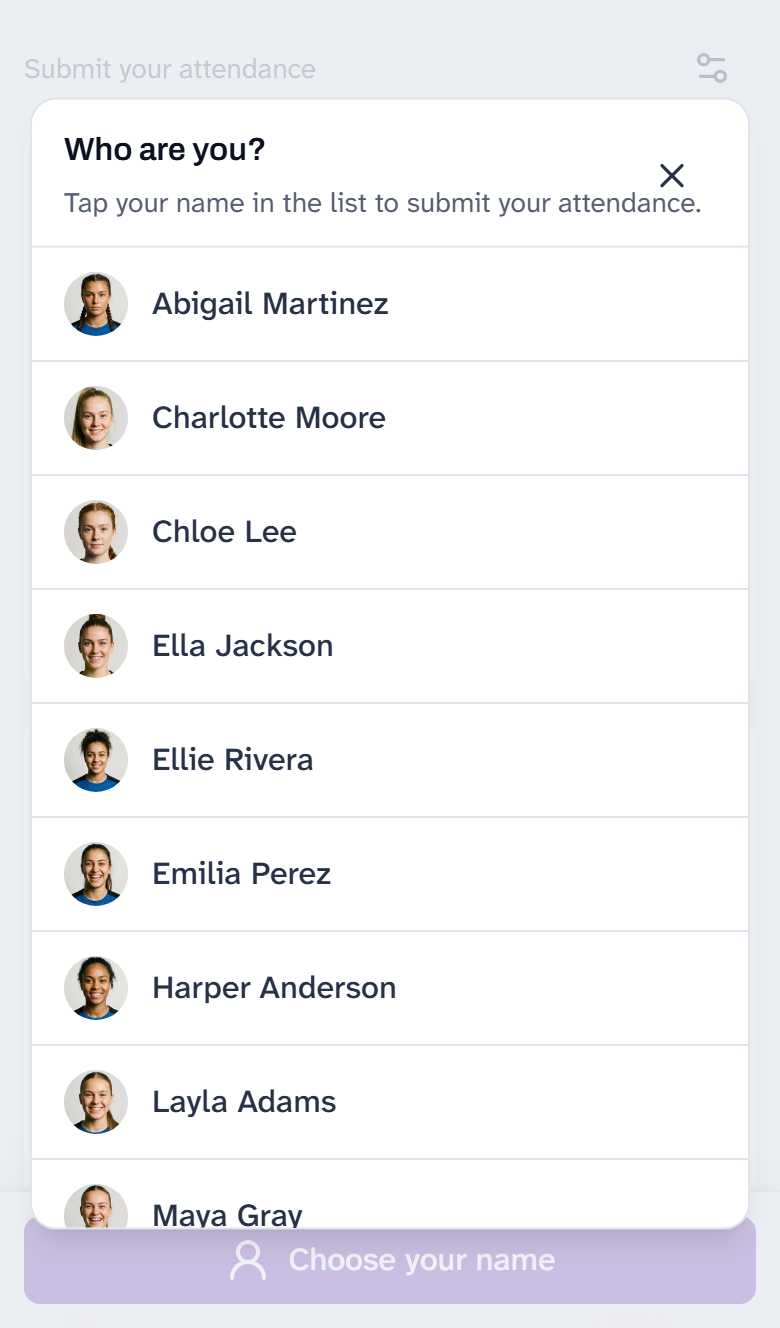
The first time a player opens a link, the page asks Who are you? and they tap their name once. The device remembers it for the team, so next week's link opens with their name already in the bar. Tap Not you? next to the name to switch to somebody else, for a shared phone or a mistake.
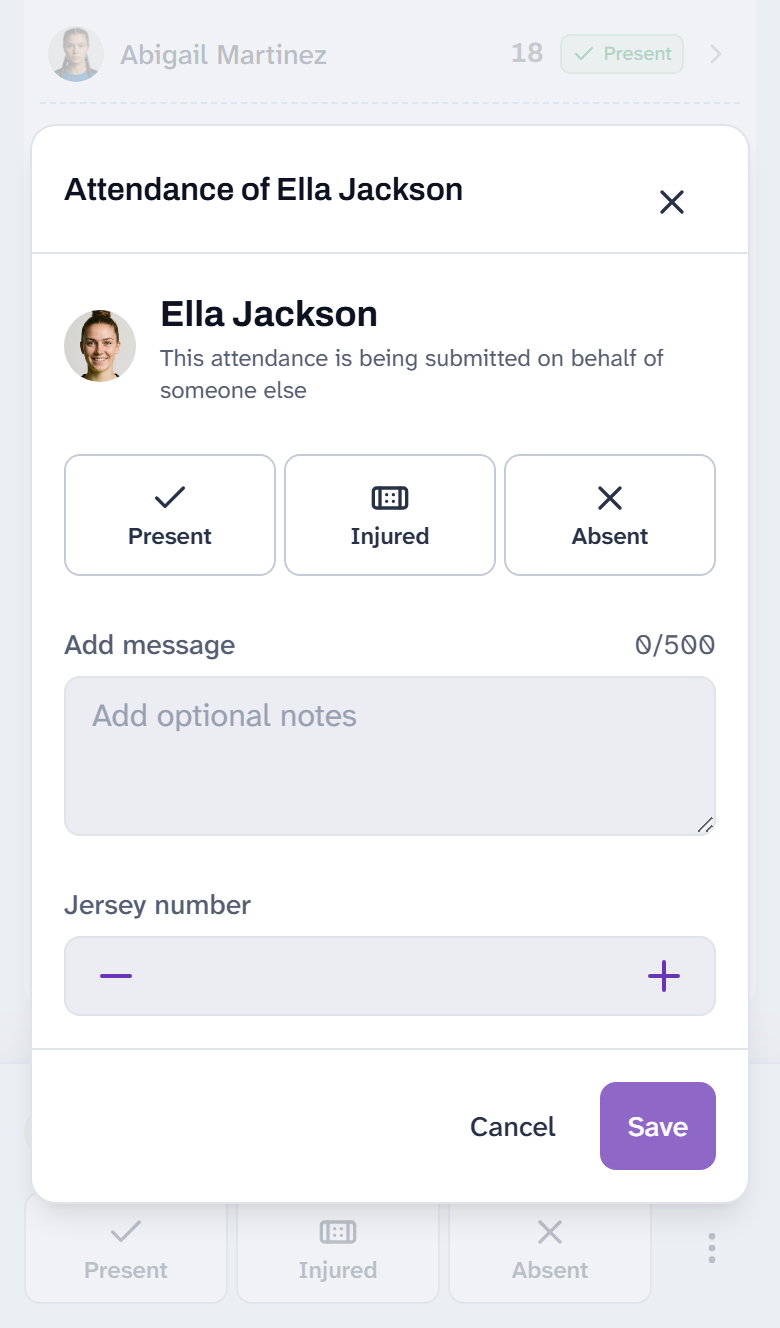
Tap a row in the squad to answer for that player. That is how a parent answers for a child without a phone, or a captain fills in what a teammate told them. The page says the answer is given on somebody else's behalf, and the device still remembers who is holding it.
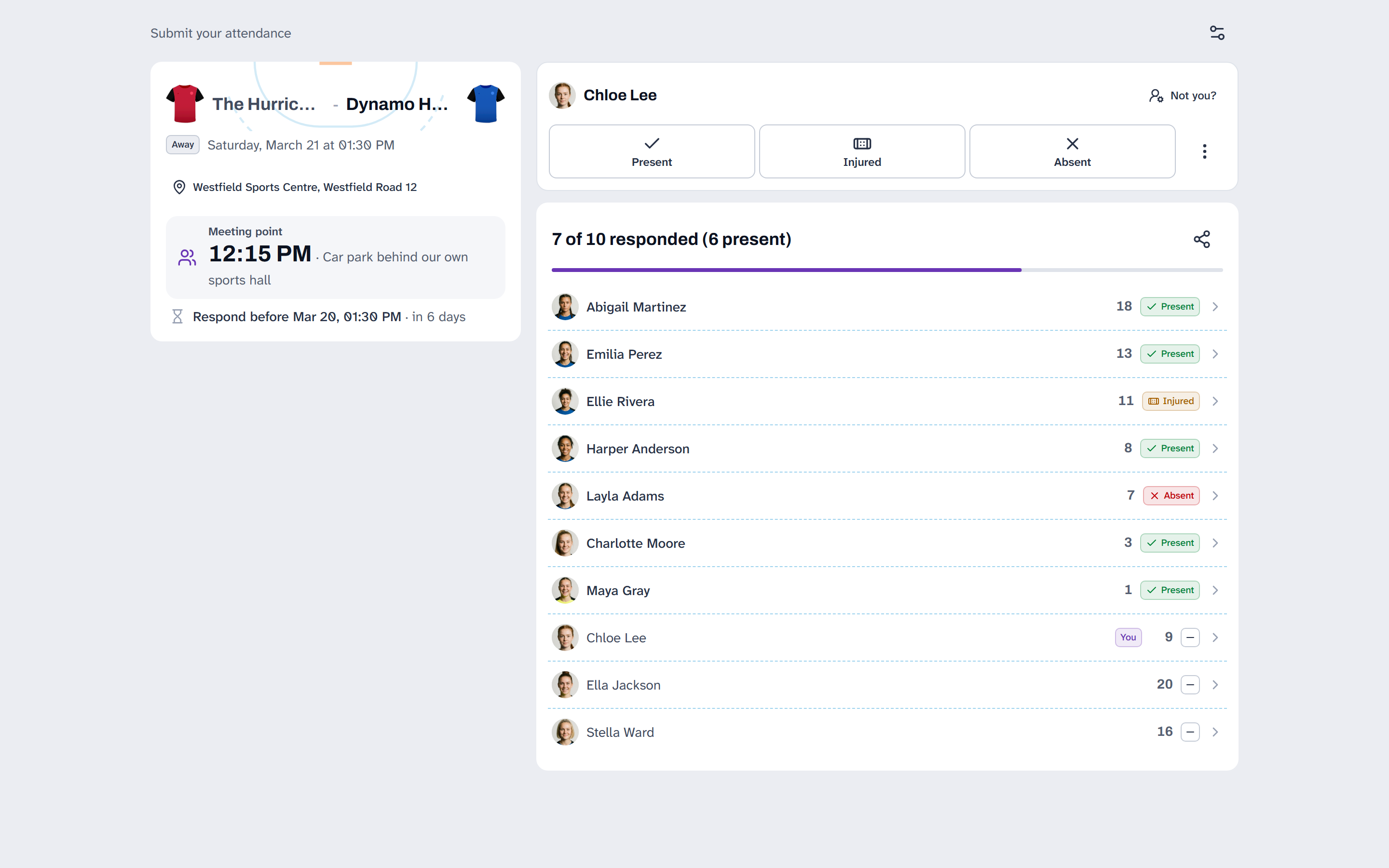
On a wider screen the match sits beside the answer and the squad. With the settings button at the top right, each visitor chooses the language, light or dark and the colors of the page, for themselves only.
The page closes by itself when the match starts or the request expires. The answers given stay readable, but nobody can change them any more.
Following the answers
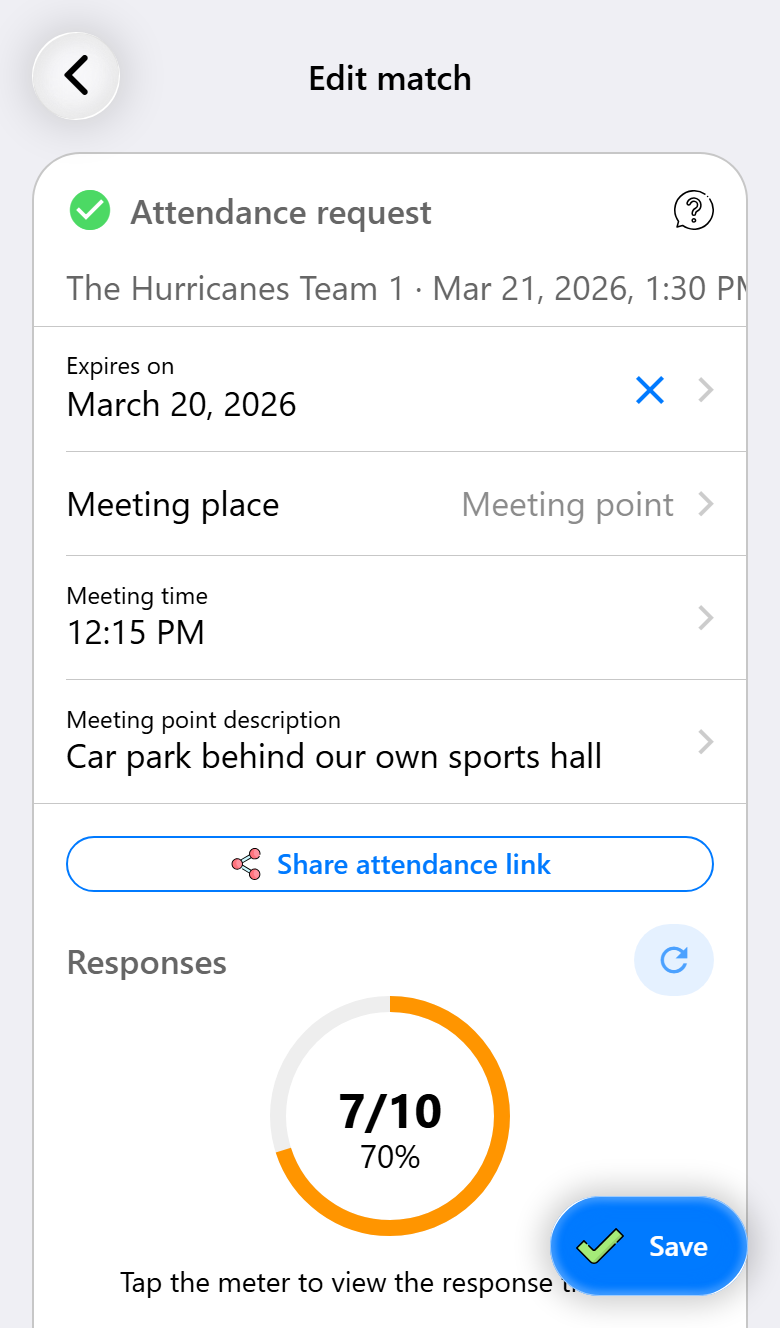
Open the match and tap Edit. The Attendance request section holds everything about it:
- Expires on: until when players can answer. The cross clears it, and then answering stays open until the match starts.
- Meeting place, Meeting time and the meeting point, which you can still change. Players see the change the next time they open the link.
- Share attendance link, to send the link again, for example as a reminder.

Under Responses the meter shows how many players have answered. The refresh button next to it fetches the latest answers. Messages lists what players wrote, with their answer.
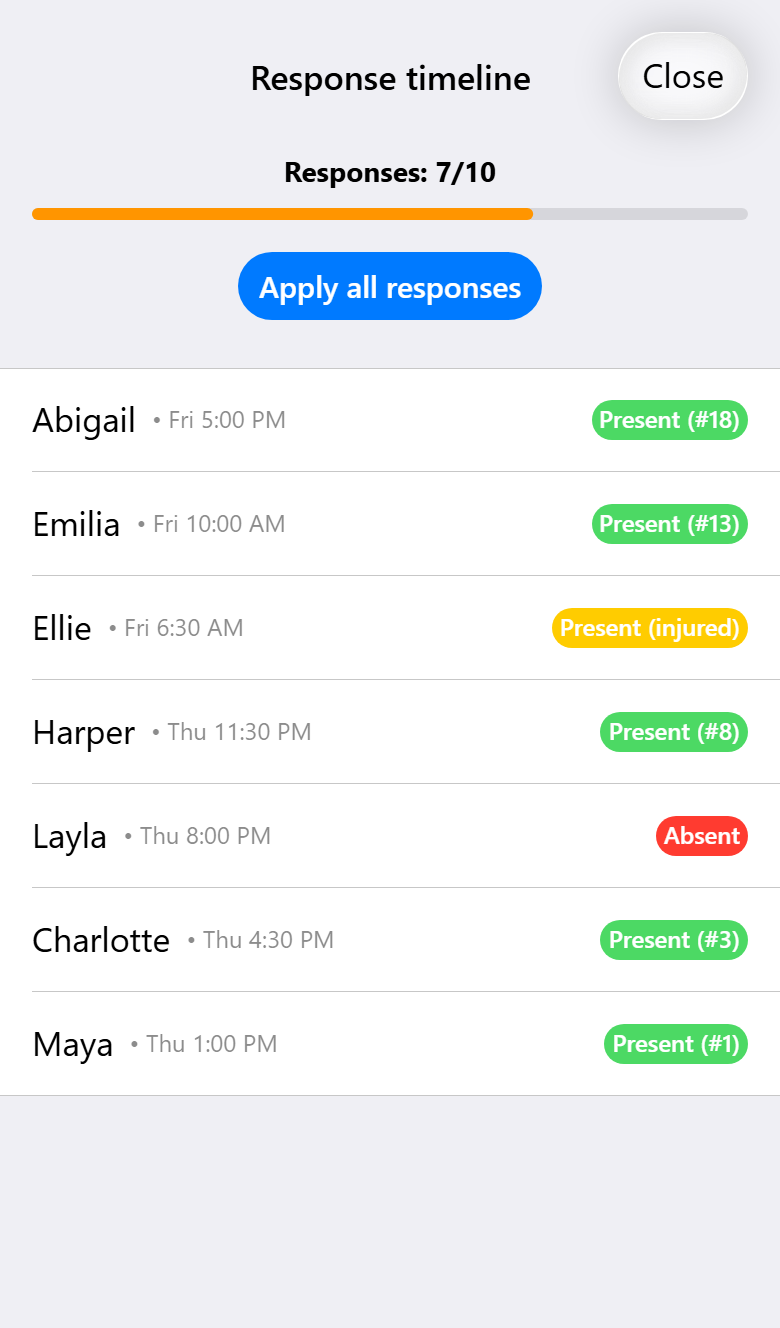
Tap the meter for the Response timeline: every answer in the order it came in, with the jersey number a player chose.
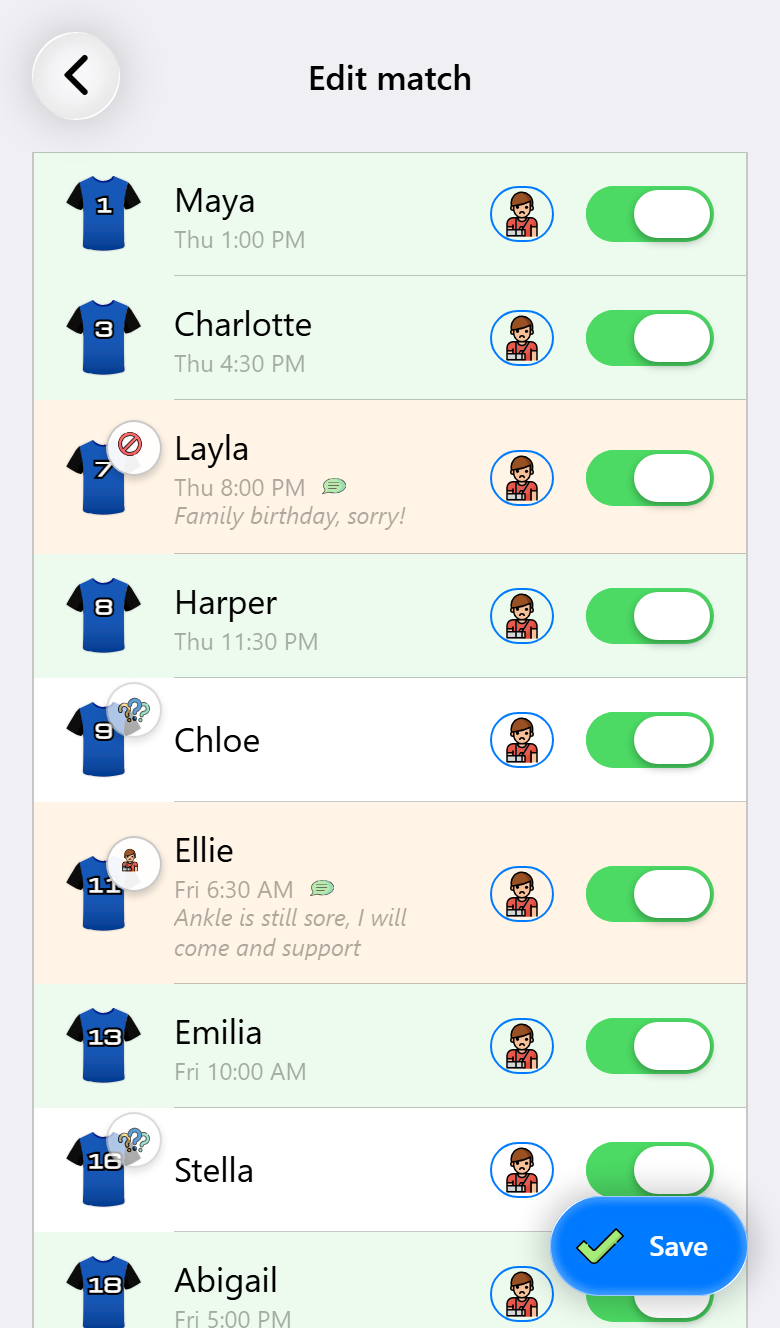
Further down, under Player registration, every player shows when they answered and their message. A question mark on the shirt means no answer yet. A green row agrees with the selection, an orange row does not yet, like the player who cannot come but is still selected.
Tap a player who answered to see when they did and every message they sent. Apply all responses puts every answer into the selection in one go: who is present, who is injured and which jersey numbers were chosen. The selection stays yours, so you can still change any player by hand afterwards.
Tap Deactivate request to close the link. Restarting a match keeps its request.
Settings for the whole team

In the team's settings, with Attendance request preference you decide what happens for every new match:
- Decide per match: the match assistant asks each time. This is the default.
- Always use: a request is created by itself as soon as the match has its details. You then only share the link.
- Never use: the match assistant does not ask.
With Default meeting times you set where and how long before the throw-off players gather, separately for home and away matches. For away matches the time can be fixed, or Home time + travel time, so you only have to set the travel time once. Every new request starts from these settings, and you can change them per match.
What you need for what
| Base | Pro | Max | |
|---|---|---|---|
| Attendance requests, with the page for players | ✓ | ✓ | |
| Messages and jersey numbers from players | ✓ | ✓ | |
| Applying the answers to the player selection | ✓ | ✓ | |
| Team defaults for meeting time and place | ✓ | ✓ |
An attendance request needs an account, and is not available on a demo team.