
Administration
Multiple teams and periods
Available onProMax
Once the first matches are in, the app becomes something to keep in order: a second team, a season split into parts, an assistant who records as well, and a bag of shirts that has to match the numbers on the sheet. This page is about all four.
Most of it needs Pro. The table at the end shows what needs which.
More than one team
There is no limit on the number of teams, on any tier. The subscription belongs to the team, not to you, so a first team can be on Max while the youth side you help out with stays on Base. Base lets you record five matches, for one team; the matches of teams on Pro or Max do not count towards that.
The Teams tab, the people icon in the bar at the bottom of the home screen, lists them. Tap a team to make it the active one; everything else follows it: the matches, the statistics, the cards and the periods. Tap the active team again to edit it, or press and hold a team to edit or delete it.
Copying a team. When you add a team, the wizard offers your existing teams as a starting point. The copy gets the squad, the match settings, the away shirt and your own events. The players are copies too, so their statistics in the new team start from nothing. If a player should count for both teams, add them to the second team instead, as described in Setting up your team.
A new team for a new season. Many coaches start a new team every season. Tick Next season of this team when you copy last season's team, or choose Previous season in the settings of a team you made from scratch. The new team then carries on the opponents you kept track of, with the matches you played against them. See Knowing your opponent.
Deleting a team deletes its matches as well, and every player who is not in another team. It cannot be undone, so export the team first if there is any chance you want it back.
Periods
A period is a group of matches that belong together: a season, the indoor half of one, a tournament. It is what the statistics are read over, so it is worth setting up before the season starts.
The period selector sits at the top of the home screen. What you pick there is the active period: the statistics follow it, and a new match goes into it unless you choose another one in the first step of the match assistant. All matches shows everything the team has played, and Without period the matches that belong to none.
Several periods at once. Switch on Multi select at the top of the selector, tick the periods you want, the indoor and the outdoor half of a season for example, and tap Apply. The statistics then cover all of them together. Match statistics combines periods too: in its own period selector, the button with three lines next to Select period lets you tick more than one.
Moving matches into a period. To move a match later, use Add to period in its menu in the match list, or select several matches and move them in one go. See Recording your first match.
A period belongs to one team. When two of your teams play the same tournament, each gets a period of its own.
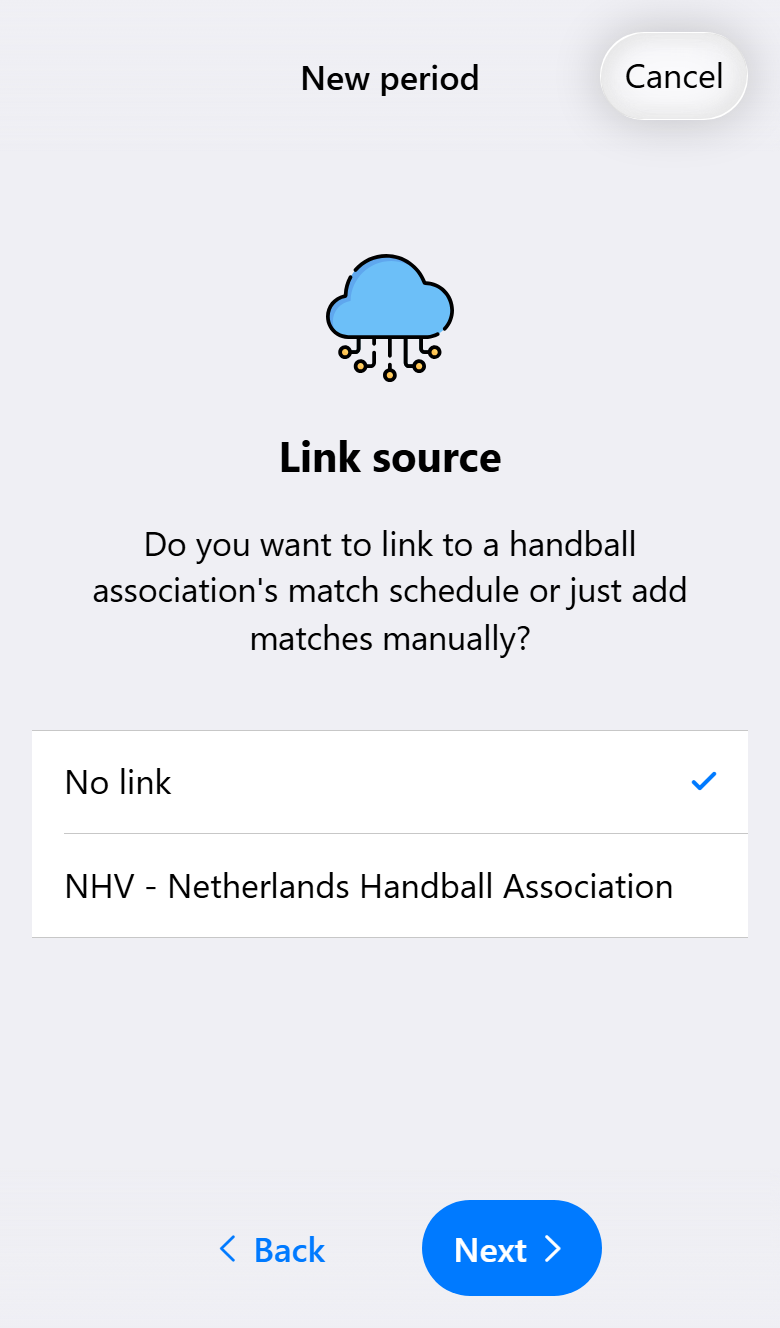
Adding a period (Pro) is a short wizard: whether to link a calendar, and a name.
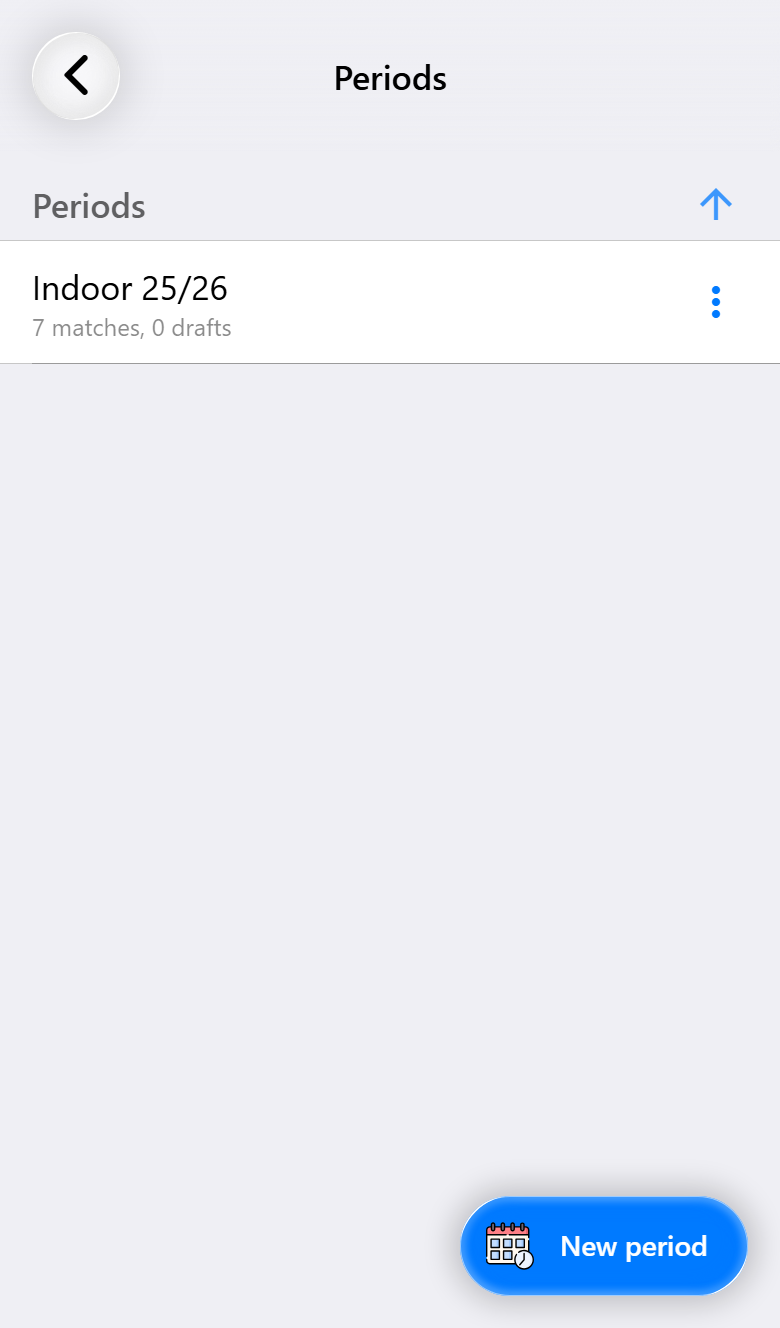
Manage periods, in the same selector, lists them with how many matches and drafts each holds. Use the menu behind a period to edit or delete it. Deleting a period keeps its matches: they move to Without period.
Periods that already exist keep working on every tier. A team that drops back to Base can still choose, edit and delete them; it can only not add new ones.
Linking the NHV calendar
With Pro, a period can be linked to your team's match schedule in Sportlink, so you never type in a match again.
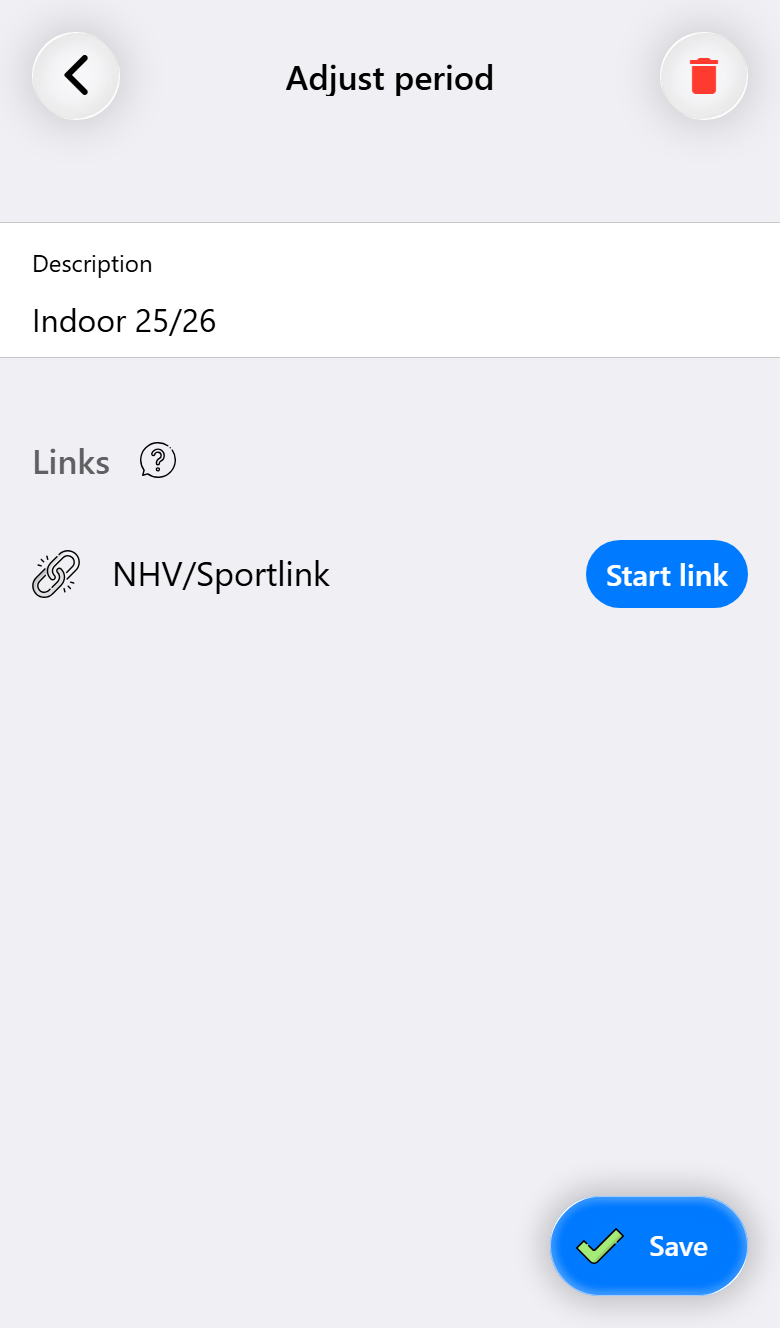
- In the HandbalNL app, open your team and tap the calendar icon. It explains how to get the calendar link. A link you received by email works too.
- In Handballmaestro, choose NHV in the period wizard, or open an existing period and tap Start link.
- Paste the link. Only a Sportlink calendar link is accepted.
The matches in the schedule arrive as drafts in that period, ready to be turned into a match on the day. The app checks the calendar again by itself, at most once a day, so a changed start time comes through. To fetch it straight away, open the period and tap the refresh button.
The app warns you when the same link is already in use by another period, because the matches would otherwise arrive twice. On a shared team only the account that owns the team imports the calendar, for the same reason.
Unlinking a period keeps the matches that were played, and removes the drafts the calendar put there.
Sharing a team
A team can be shared with other accounts (Pro), so a coach and an assistant manage the same team and both can register its matches. Both of you need an account. Sharing is in the settings panel, under Manage shared teams, once you are signed in.
- Tap Share team and choose the team. Only teams you own can be shared, and a demo team cannot be.
- Choose what the other person may do:
- Read only. Creating matches and registering them, but not changing the team settings or the players.
- Full access. Changing the team settings and the players as well, and the periods.
- Add a description if you like, so you can tell your shares apart later.
- Show the QR code, or send the link. The other person opens the app, taps the QR icon at the top right of the home screen and scans it.
Until it is accepted, a share is listed as Still pending. Swipe a share to remove it. The other person sees the team under Shared with me, and can remove it from their side the same way.
The tier belongs to the team, so everyone you share a Pro or Max team with has Pro or Max for that team too, without paying for it.
To register one match together without sharing the whole team, see Recording together.
The team bag
Most clubs hand out a bag of numbered shirts, and the numbers on the match sheet have to match what is in it. The team bag (Pro) keeps track of which shirts there are and in what size.
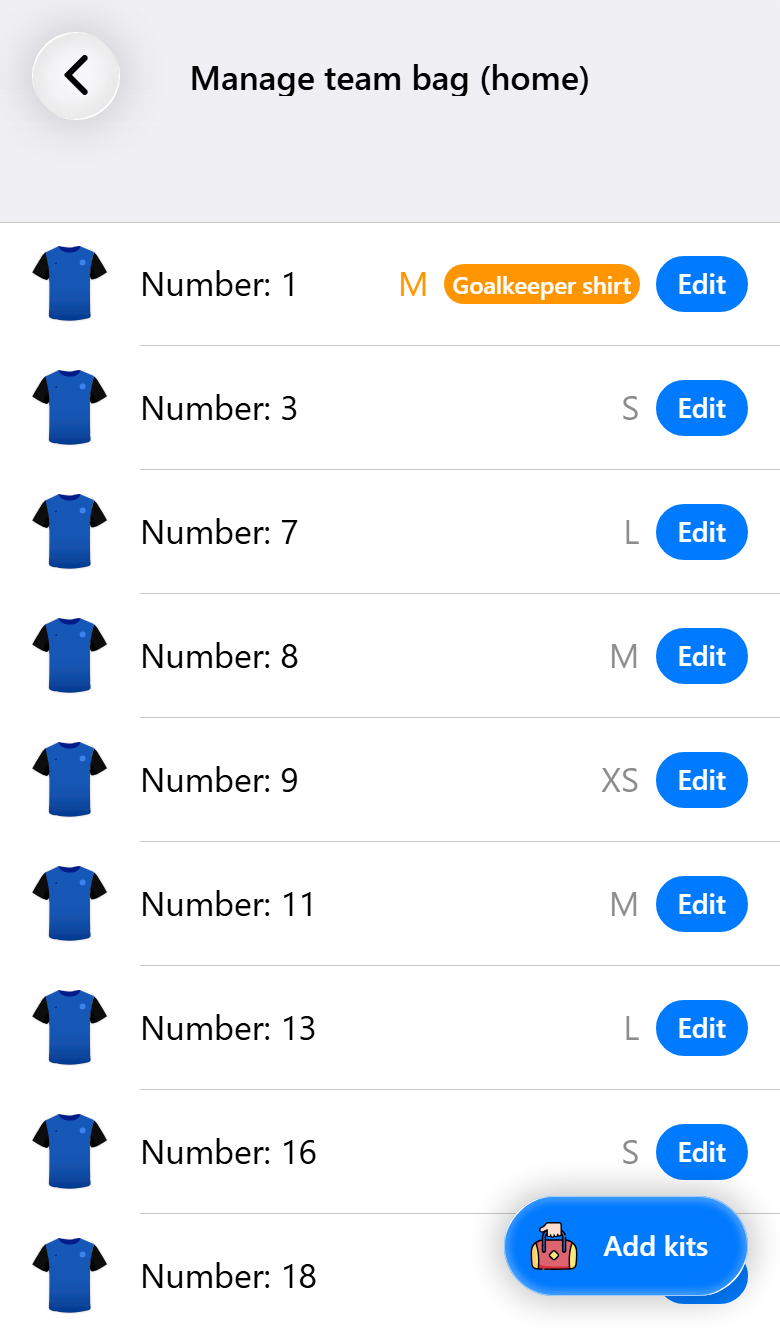
Switch on Team bag in the team settings. A team has a home bag and an away bag, each with its own list.
Add kits is a two-step wizard: first the jersey numbers, then a size for each shirt. Children's sizes come in the European, US, UK and Australian standard, next to adult sizes XS to XXXL. Mark a goalkeeper shirt as one, and it shows in orange.
The bag pays off when you choose a jersey number, for a player or for a match. The picker then shows only the numbers that are in the bag, each with its size, so you hand out a shirt that exists and fits. Show all shirts lifts the limit for a one-off, with one row per set of ten numbers. In an away match, the numbers come from the away bag.
What you need for what
| Base | Pro | Max | |
|---|---|---|---|
| More than one team, switching and copying | ✓ | ✓ | ✓ |
| A subscription per team | ✓ | ✓ | ✓ |
| Choosing and editing existing periods | ✓ | ✓ | ✓ |
| Adding periods | ✓ | ✓ | |
| Linking the NHV calendar, and refreshing it | ✓ | ✓ | |
| Sharing a team, with permissions | ✓ | ✓ | |
| Opponents carried on to the next season | ✓ | ✓ | |
| Team bag with sizes | ✓ | ✓ |