
Getting started
Up and running in ten minutes
Available on every plan
From a freshly installed app to a match you can record takes about ten minutes, and nothing on this page needs a subscription. This is the quick version. Every step links to the page that covers it properly, for when you have more time.
What you need: the app on your phone or tablet, the names of your players, and the jersey numbers they usually wear.
1. The first start
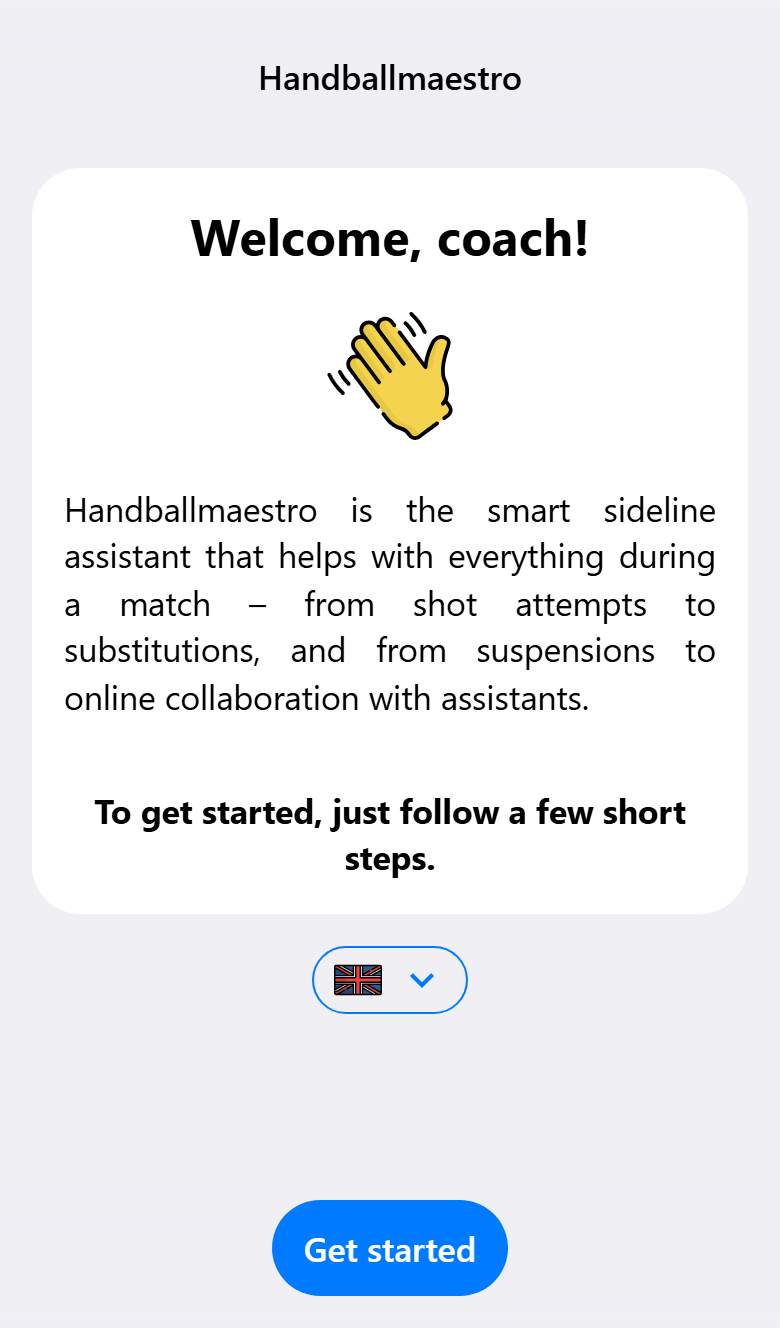
The app opens with a welcome and a few short steps. Check the language first: the flag under the welcome opens the list. Then tap Get started.
The app checks for an update, which usually takes only a moment, and then asks for a style: light or dark, and a color. Your club colors work well. Both can be changed later in the settings.
Account or not
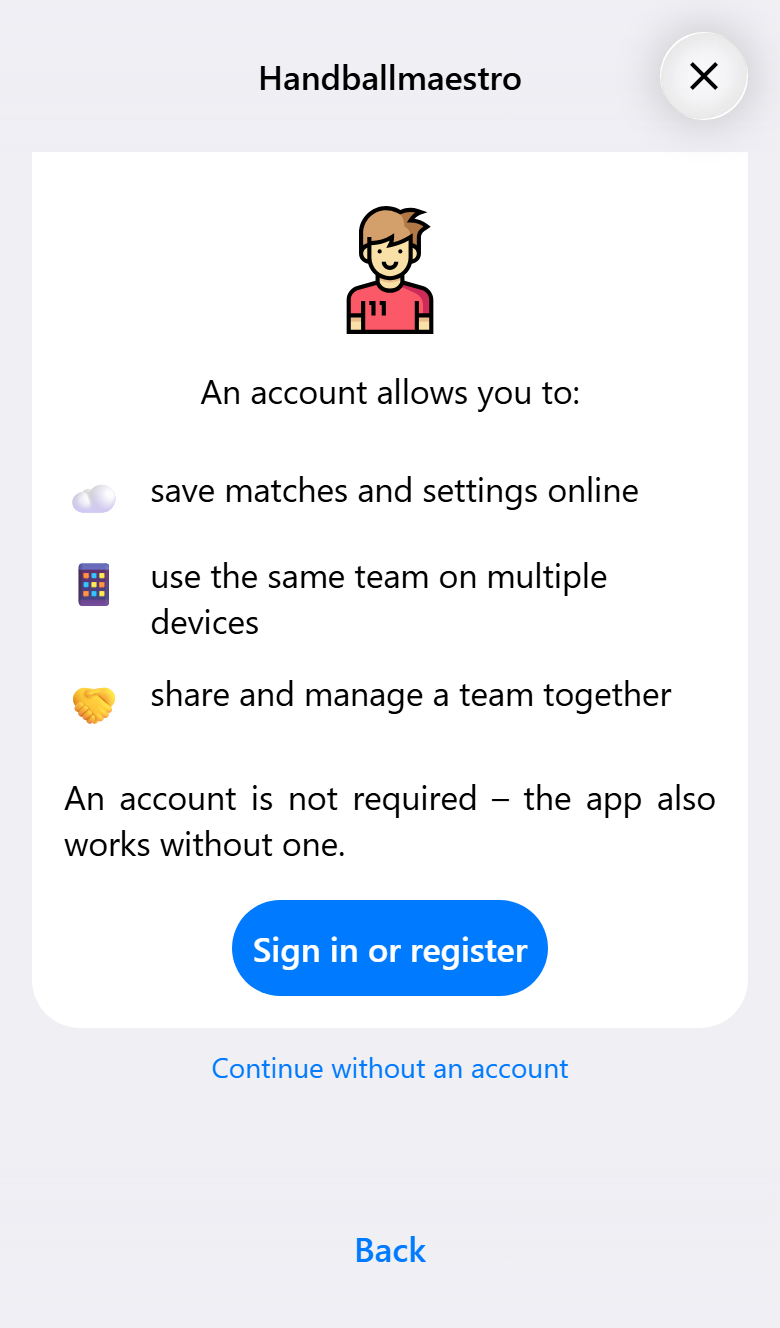
The app works without an account. Everything is then kept on this device only. That is fine for trying it out, but it is lost when you delete the app or switch phones.
An account adds three things: your teams and matches are kept online, the same team is on every device you sign in on, and a team can be managed together with someone else. You can sign in with an email address, or with Apple, Google or Microsoft.
Not sure yet? Tap Continue without an account. You can sign in later from the round picture at the top right of the home screen, and whatever you made in the meantime is linked to your account when you do.
The last step offers this guide. Tap Get started to go to the home screen.
2. A team
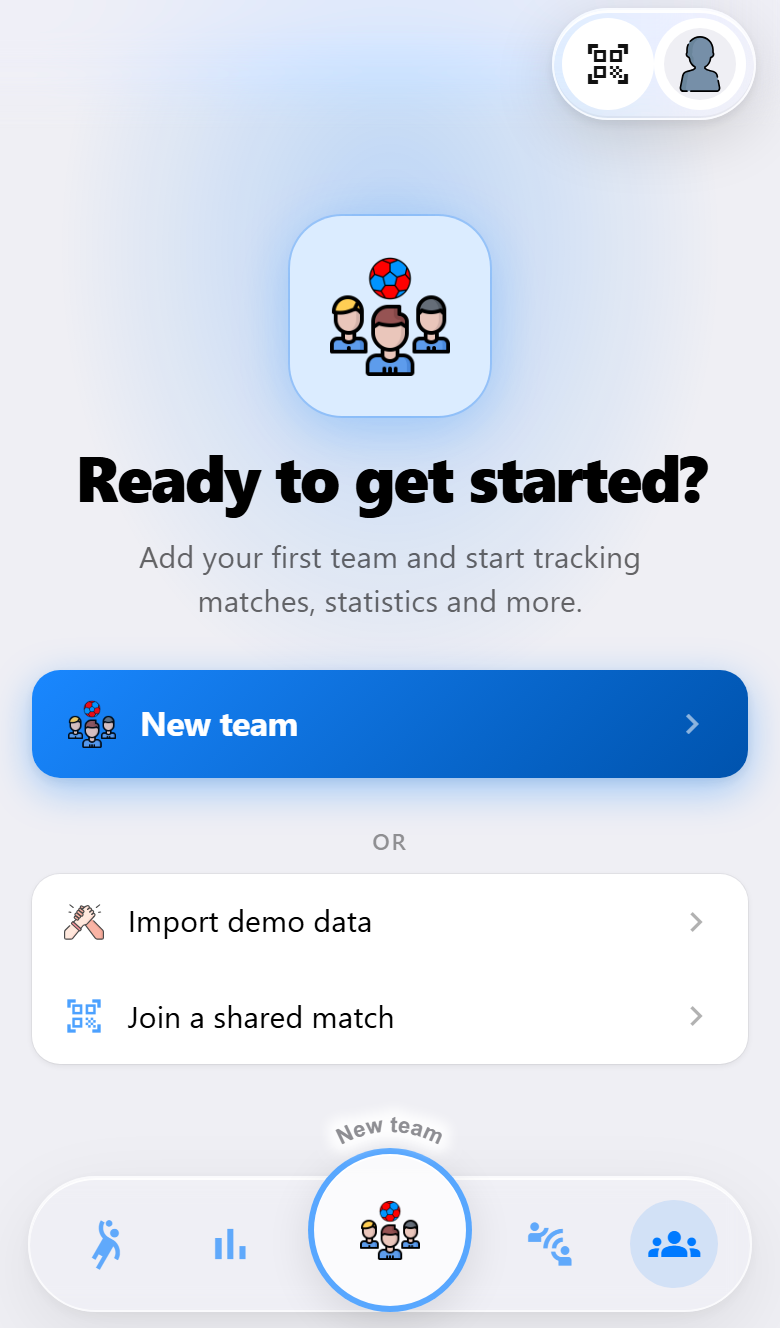
The home screen stays empty until there is a team. Tap New team, or the round button in the middle of the bar at the bottom, which does the same.
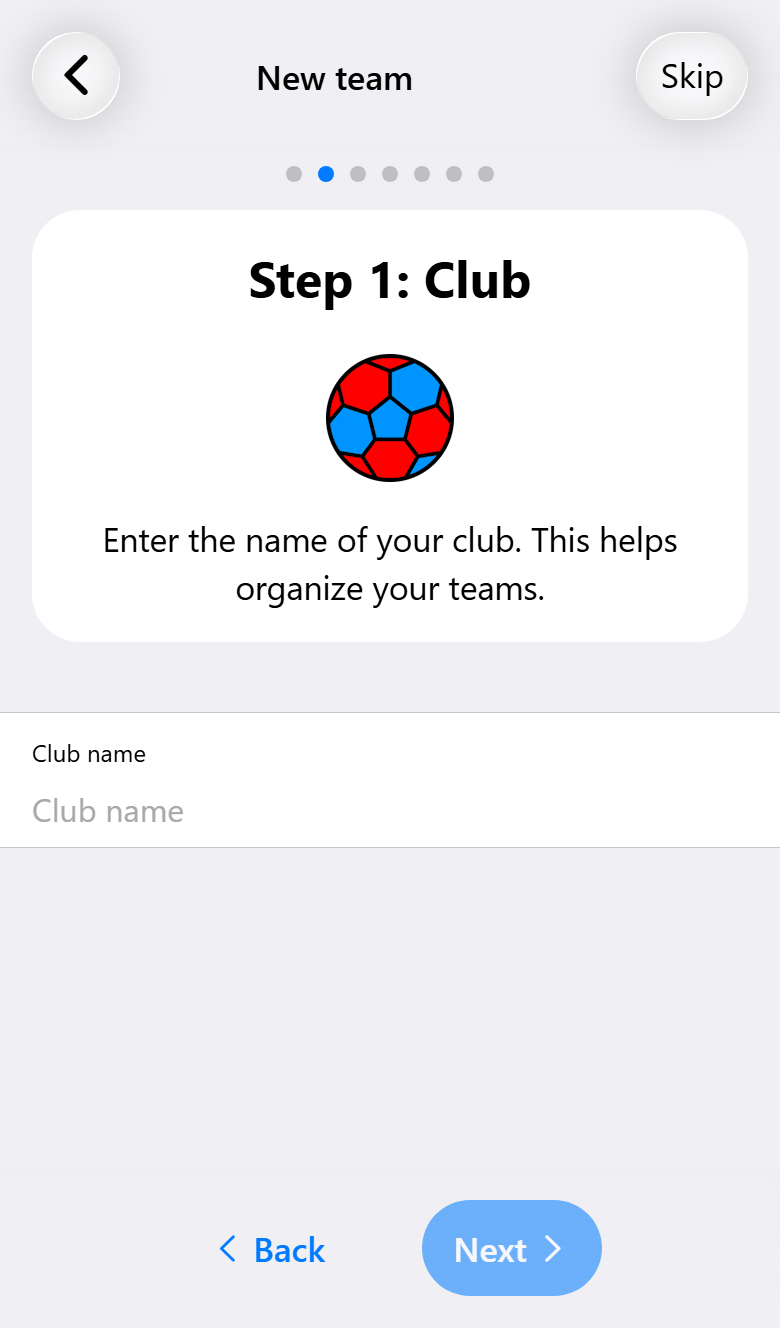
The assistant asks for the club name, the team name, how long a half usually lasts, and your shirt. Then the players: add each one by name, and fill in the jersey number they usually wear while you are at it. Every new match suggests that number, so you only type it once.
The assistant calls the players step optional, and for the team it is. For a match it is not: you need at least as many players as are on court at once, so seven in a normal match, each with a jersey number.
When the assistant finishes, the team is saved and its page opens. That page holds everything else, such as an away shirt, photos and the settings every match starts from. None of it is needed today. See Setting up your team when you get to it.
3. A match
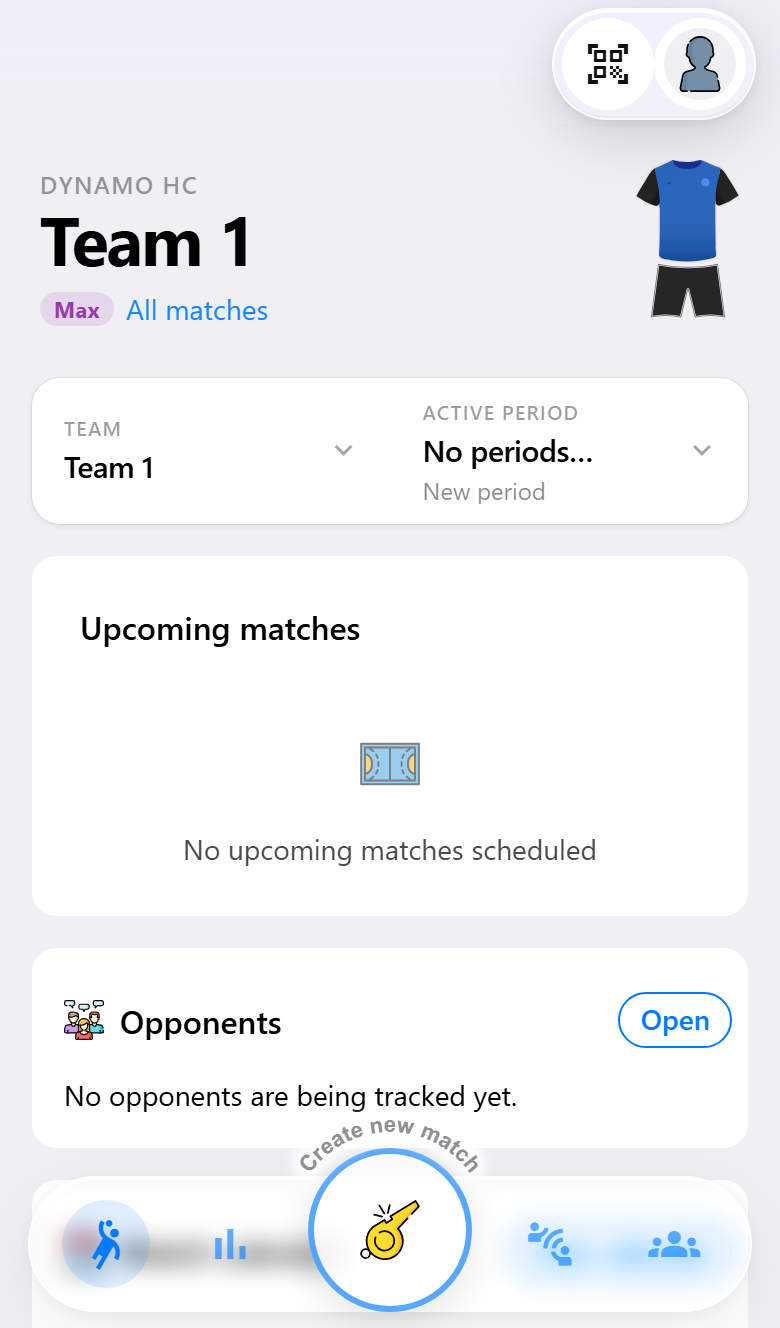
Back on the home screen your team is at the top with its shirt, and the round button at the bottom now reads Create new match.
The match assistant goes through the opponent, their shirt, the date, the location, the settings, who is there and the starting line-up. For a first match only three of those need any thought:
- The opponent. Their name, and whether you play at home or away. You can't continue without it.
- Who is there. Switch off anyone who is not coming, and check the jersey numbers.
- The line-up. Drag your goalkeeper and starting players onto the court. The assistant says what is still missing.
Everything else can be left as it is. You can skip the location, and on the settings step you can simply tap Next: the defaults are fine for a first match. Recording your first match goes through every step.
4. The whistle
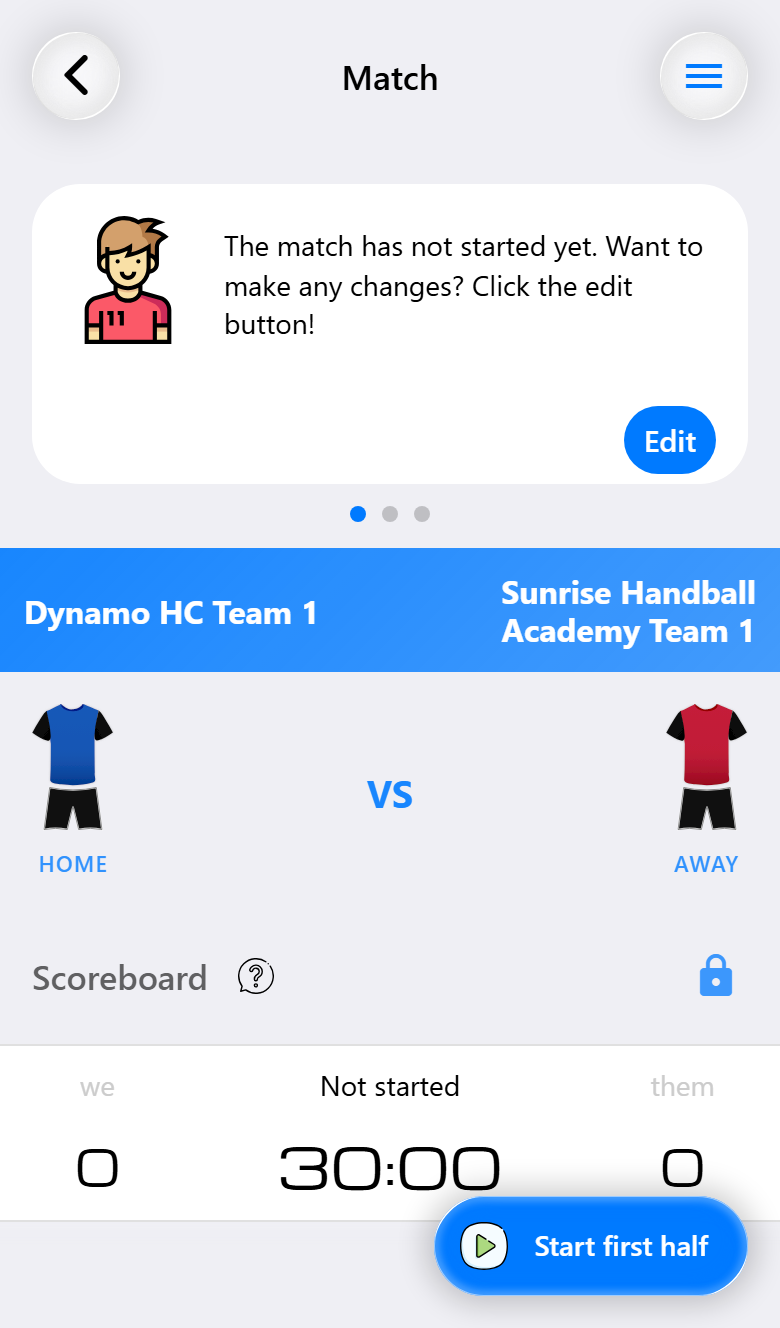
The match opens on the screen you use while it is played. When the referee blows the whistle, tap Start first half, the round button at the bottom right. Once the clock runs, that button is gone and a whistle appears at the top right instead. Tap the whistle and confirm to end the half. During the break the round button comes back as Start second half, and at the end of the second half the whistle ends the match.
In between, tap a player to register a goal, a save, a two-minute suspension or a substitution, and tap the opponent's score when they score. Tapped the wrong thing? Press and hold the clock to undo it.
That is enough for a whole match. Everything you tap is saved as you go, even offline, and the moment the match ends a View report button takes you to the result. See The match screen for the rest of the screen and Reports and export for what you can do with the report.
Want to look around first?
The empty home screen also offers Import demo data: a team with a squad, upcoming matches and matches already played, on Max so every feature is switched on. It is a safe place to press every button once, including the ones this page skipped, and to switch between Base, Pro and Max to see what each adds. See Trying everything on a demo team.
Join a shared match on the same screen is for when someone else is recording a match and you want to help. See Recording together.
Where to go next
Once the first match is behind you, these are the pages that save the most time:
| If you want to | Read |
|---|---|
| Stop filling in the same settings for every match | Setting up your team |
| Swap players and keep playing time fair | Substitutions |
| Record more than goals and saves | Everything you can record |
| Let parents follow the match from home | Live scoreboard |
| Record with an assistant on a second phone | Recording together |
| See what Pro and Max add before paying | Trying everything on a demo team |